Filtering incoming emails
See also:
Combining multiple filters to build complex filter rules
Using regular expressions for email filtering (advanced)
Using scripts to filter emails (advanced)
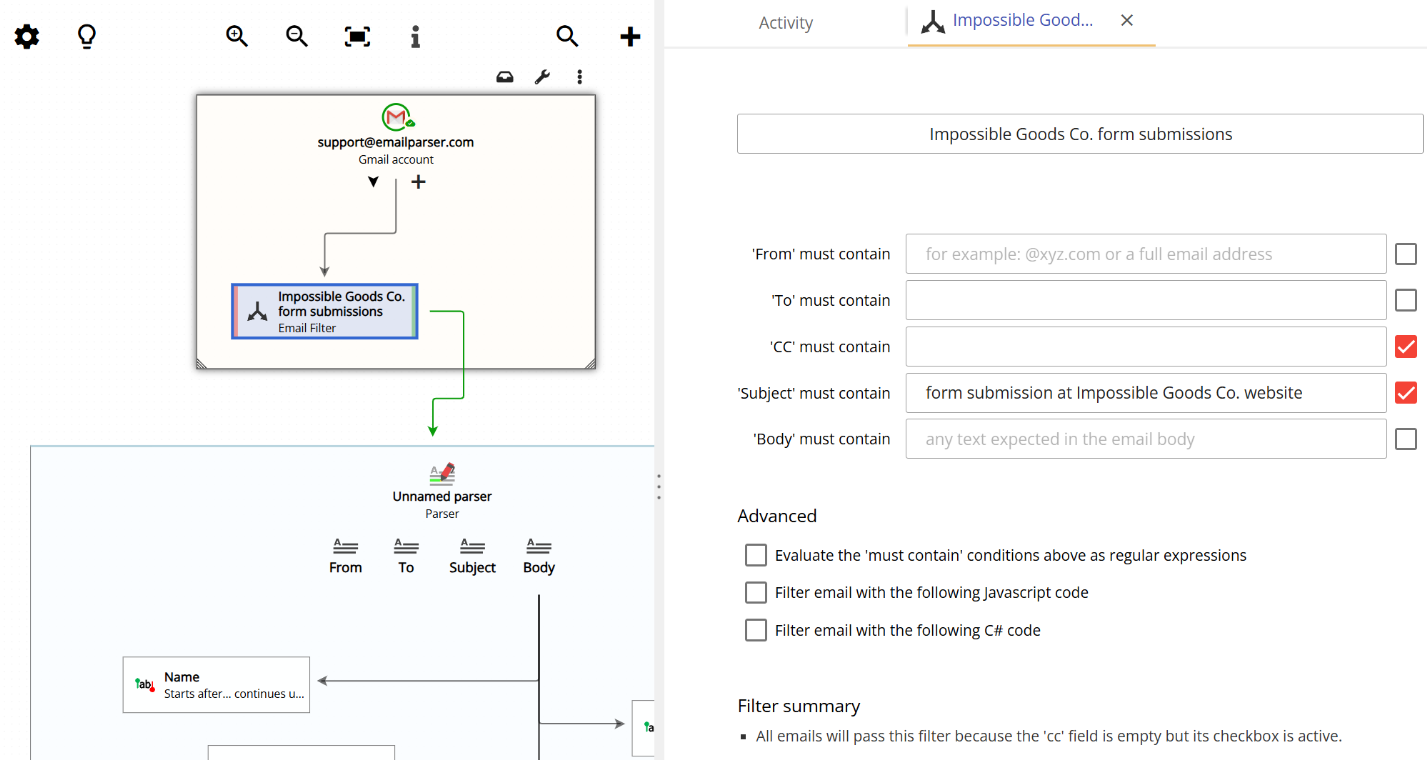
An email filter tells Email Parser which emails should be processed and which should be discarded. For example, if you want to capture data from bank transaction notifications, you need a way to distinguish those emails from everything else arriving in your inbox. An email filter does exactly that: when an unrelated email arrives (such as a newsletter or a promotional message), Email Parser checks the filter conditions and quickly determines that the email should not be processed.
Setting up a simple filter
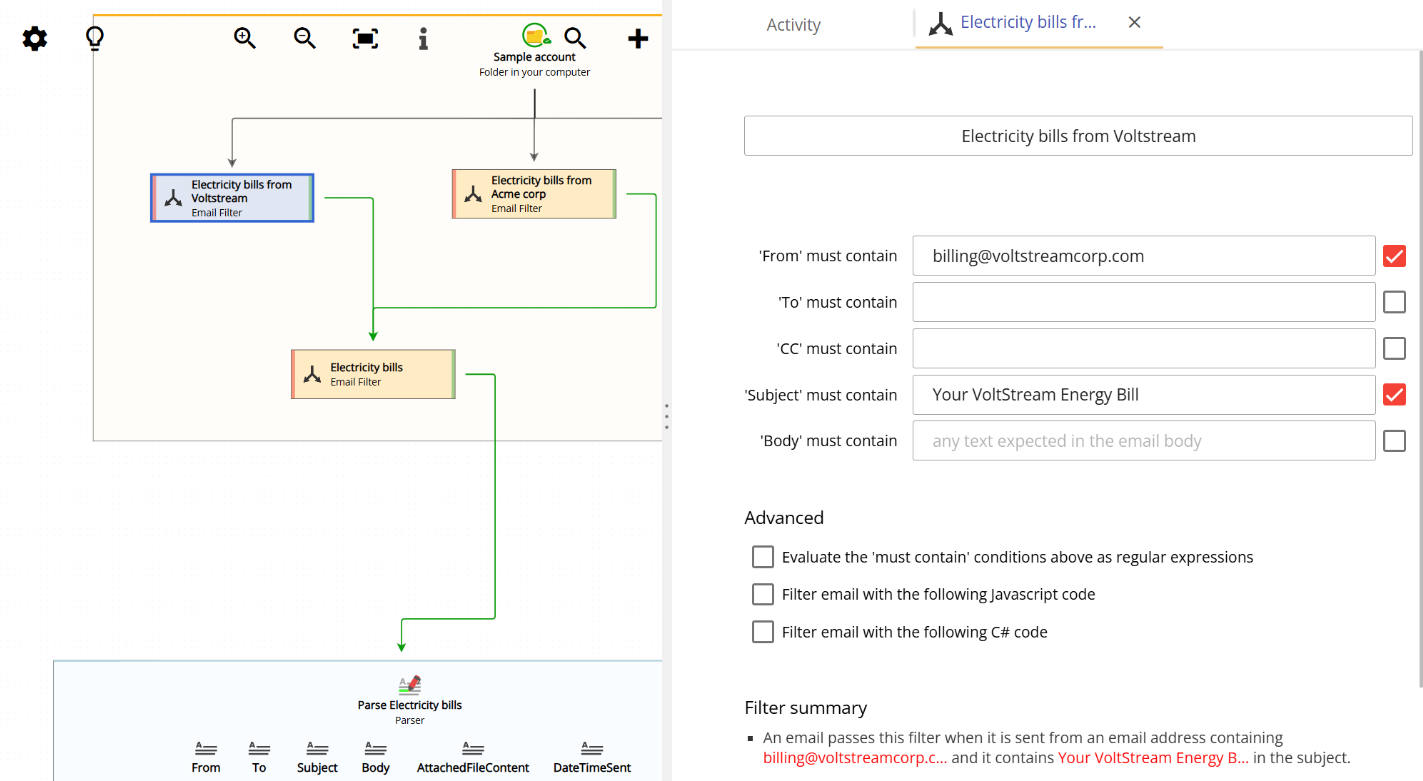
For most use cases, setting up an email filter is straightforward. You create one filter item and fill in the conditions that identify the emails you want. The most commonly used conditions are “subject must contain” and “from must contain”. A single filter item with these two fields is usually all you need.
Using multiple filters for more complex logic

Sometimes a single filter is not enough. For example, you may need to distinguish between different types of emails from the same sender and execute a different part of your workflow for each type. In this situation, you can create multiple filters, each with its own conditions and its own branch in the workflow diagram.
The animation below shows a real-world example of this: a setup with four filters that can tell apart electricity bills from two different providers and a gas bill. Depending on which type of bill arrives, Email Parser follows a different branch and processes it accordingly.
Filtering with scripts (advanced)
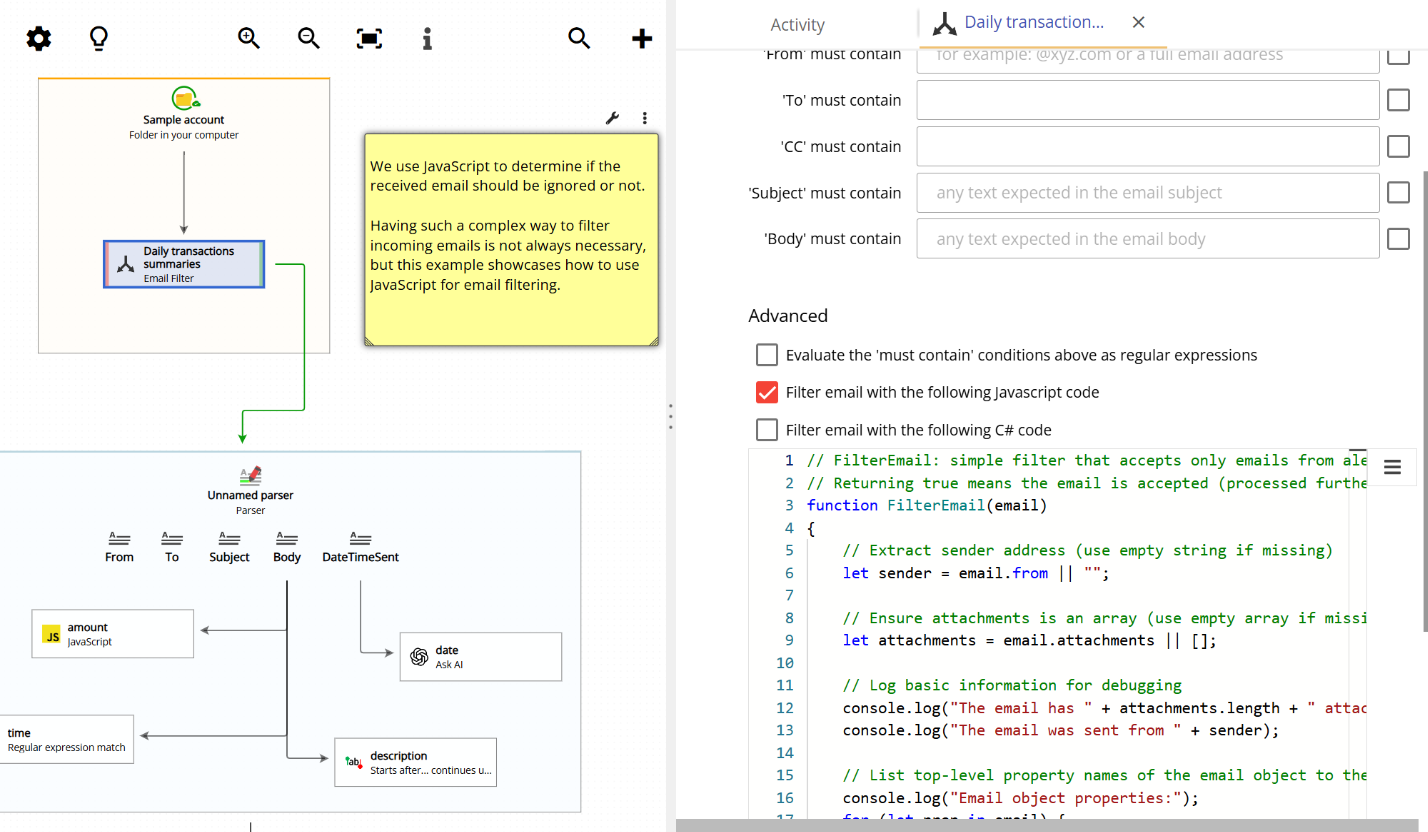
For advanced scenarios, email filters also support scripting. This is covered in detail on the Using scripts to filter emails page. In short, you can write a small script that inspects the email and returns whether it should be accepted or discarded. The following scripting languages are supported:
- JavaScript: available in both the desktop application and the web version.
- C#: available only in the Windows desktop application.
The image below shows an example of a JavaScript script used inside an email filter:
Filtering with regular expressions (advanced)
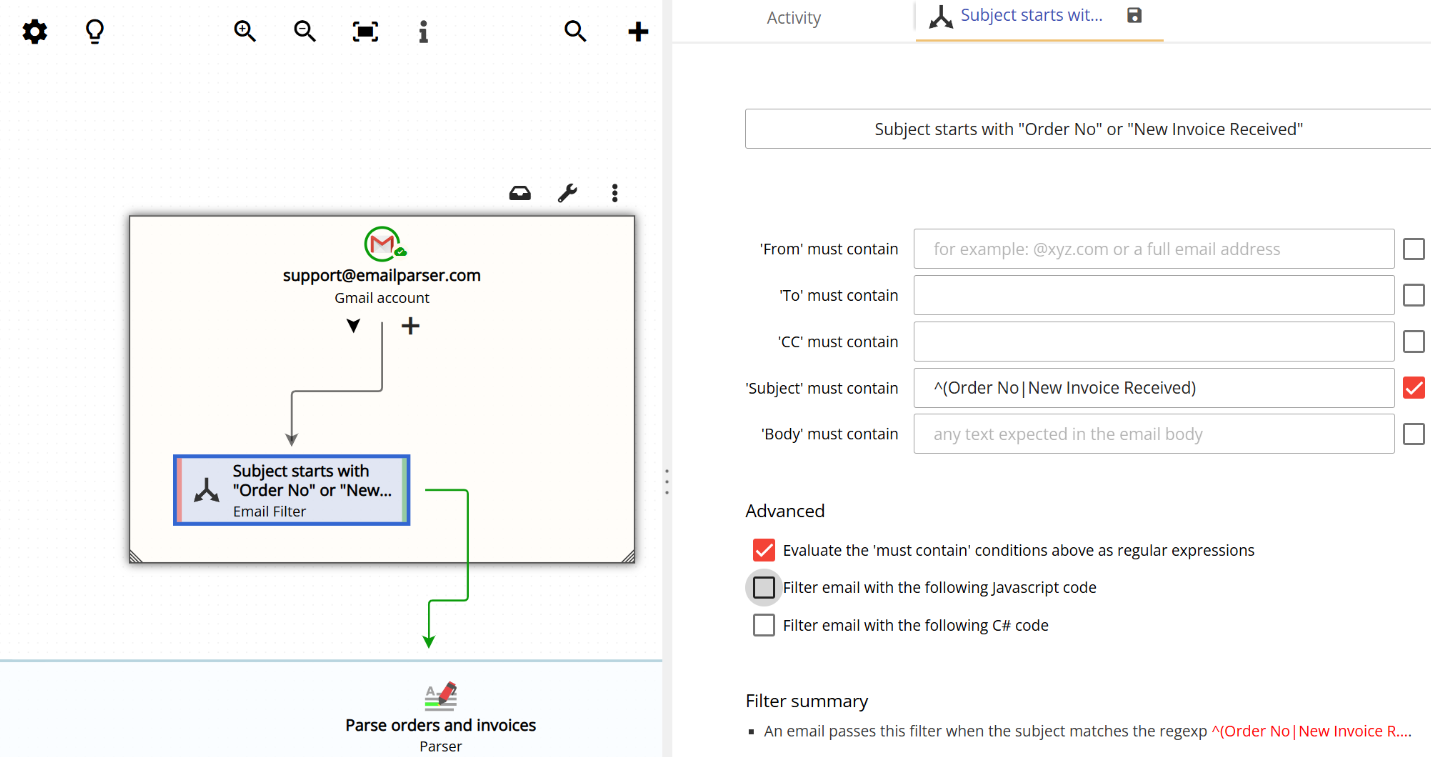
Email filters also support regular expressions. This is covered in detail on the Using regular expressions for email filtering page. In short, you enable this option by checking a checkbox in the filter settings, and then enter the regular expression pattern you want to match. Email Parser will run the expression against the incoming email and, if there is a match, the filter condition is considered met.