Capturing text with JavaScript
See also:
Overview of scripting in Email Parser

Email Parser offers several ways to extract text from your emails. One of those options is using a JavaScript code snippet. This method is primarily aimed at users who are already familiar with JavaScript, but if you are not, an AI assistant like ChatGPT or Claude can write the script for you.
Script Requirements
To run correctly inside Email Parser, your JavaScript code must follow a few important rules:
- EcmaScript 2023 compatibility: The script must be written in standard JavaScript that is compliant with the EcmaScript 2023 specification. This is a well-established standard that most modern JavaScript code already follows.
- No Node.js features: Node.js-specific modules and APIs are not available. You cannot use
require(),module.exports, or any built-in Node.js modules. - No browser-specific objects: Browser APIs such as
XmlHttpRequest,window,document, orfetchare not available. The script runs in a sandboxed environment without access to any browser or network functionality. - The
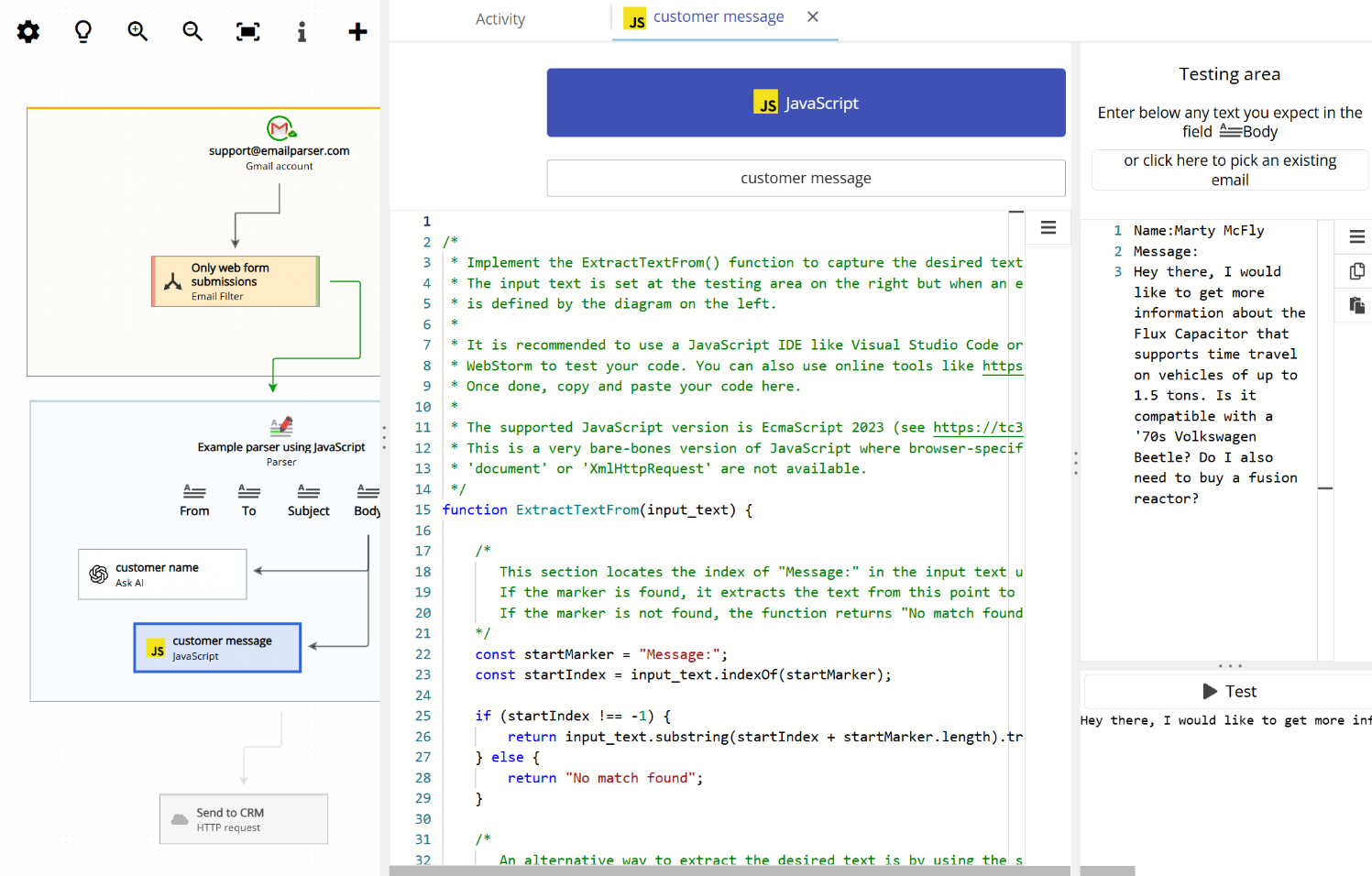
ExtractTextFrom()function is required: Your script must define a function namedExtractTextFrom(). This function takes a single string parameter (the email text or field content) as input and must return either a single string or an array of strings as its result.
The input_text parameter receives the content of whichever field you have selected in the “Capture text from” dropdown in the workflow diagram (displayed on the left side of the application).
Don’t Know How to Code? Let an AI Write it For You
JavaScript parsing is intended for advanced users, but that does not mean you need to be a developer to use it. If you are not familiar with JavaScript, you can use an AI assistant such as ChatGPT, Gemini, or Claude to write the code for you. Here is how to do it effectively:
- Tell the AI that you need a JavaScript function called
ExtractTextFrom()that takes a single string parameter namedinput_text. - Describe in plain language what text you want to extract. For example: “I need to extract the value after the word ‘Message:’ from an email notification.”
- Tell the AI that the script must be compatible with EcmaScript 2023, without any browser-specific objects like
window,document, orXmlHttpRequest, and without any Node.js modules. - You can paste the sample script shown below as a starting point, to give the AI a better idea of what is expected.
The AI will generate a working script that you can copy and paste directly into Email Parser.
JavaScript Fields, Filters, and Actions: What is the Difference?
Email Parser lets you use JavaScript in several different places, each serving a distinct purpose. This page focuses specifically on using JavaScript inside a parser to produce individual field values. However, it is worth knowing about the other two places where JavaScript can be used, so you can choose the right tool for your needs.
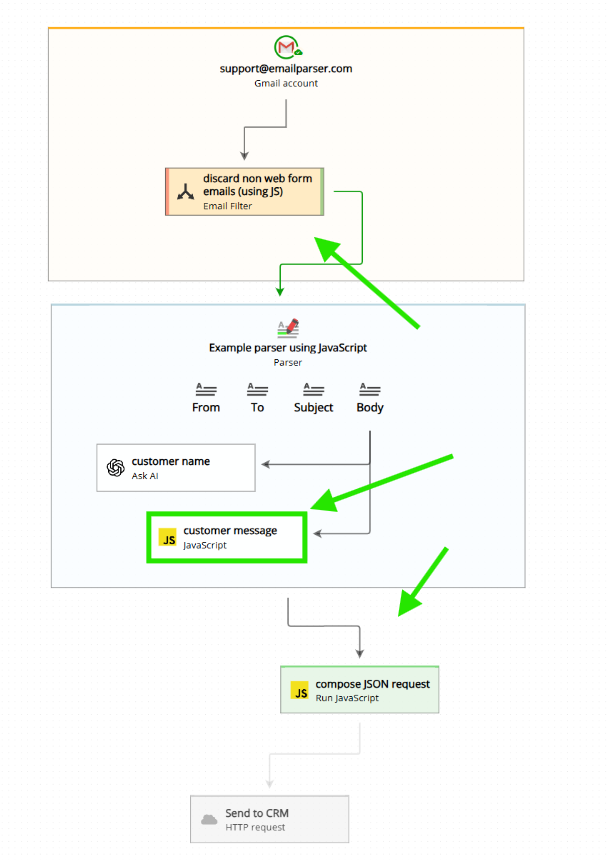
Here is a summary of the three ways JavaScript can be used in Email Parser:
- JavaScript Field (this page): Used inside a parser to extract and produce a single field value from a piece of text. The
ExtractTextFrom()function receives a string and returns a string or an array of strings. This is what this page is about. - JavaScript Filter: Receives the full email and returns either
trueorfalse. If the function returnsfalse, the email is discarded and no further processing takes place. This is useful for filtering out emails you are not interested in. Learn more about JavaScript filters. - JavaScript Action: Runs as part of the workflow after parsing is complete. It receives all the fields available at that point in the workflow (including standard email fields like From, Subject, and Body), and can produce or modify multiple fields at once. JavaScript actions are the most capable of the three, but also the most complex to write. Learn more about JavaScript actions.
Sample Script
Here is a sample JavaScript snippet that captures the message body from a web form notification email. This is a great starting point for your own scripts:
/*
 * Implement the ExtractTextFrom() function to capture the desired text from the input text.
 * The input text is set at the testing area on the right but when an email is parsed the input text
 * is defined by the diagram on the left.
 *
 * It is recommended to use a JavaScript IDE like Visual Studio Code or
 * WebStorm to test your code. You can also use online tools like https://jsfiddle.net/.
 * Once done, copy and paste your code here.
 *
 * The supported JavaScript version is EcmaScript 2023 (see https://tc39.es/ecma262/2023/).
 * This is a very bare-bones version of JavaScript where browser-specific objects like 'window',
 * 'document' or 'XmlHttpRequest' are not available.
 */
function ExtractTextFrom(input_text) {

    /*
       This section locates the index of "Message:" in the input text using the indexOf method.
       If the marker is found, it extracts the text from this point to the end of the string using substring and trims any leading whitespace.
       If the marker is not found, the function returns "No match found".
    */
    const startMarker = "Message:";
    const startIndex = input_text.indexOf(startMarker);

    if (startIndex !== -1) {
        return input_text.substring(startIndex + startMarker.length).trim();
    } else {
        return "No match found";
    }

    /*
       An alternative way to extract the desired text is by using the split method.
       This method divides a string into an array of substrings based on a specified separator.
    */
    const parts = input_text.split("\n");
    const messageIndex = parts.findIndex(part => part.startsWith("Message:"));

    if (messageIndex !== -1) {
        return parts.slice(messageIndex + 1).join("\n").trim();
    } else {
        return "No match found";
    }
}
Testing Your Script Online

Before adding your script to Email Parser, it is a good idea to test it using an online JavaScript editor. Tools like JsFiddle or CodePen let you run JavaScript directly in your browser, so you can quickly verify that your ExtractTextFrom() function returns the expected result.
Simply paste your function into the editor, provide a sample input string that mimics your email content, call the function, and check the output. This saves time and helps you catch any mistakes before deploying the script.
Seeing it All in Action
The following animation shows the full workflow: an existing email from the Gmail account is selected, the “Process email” button is clicked and the JavaScript snippet runs. This demonstrates how the JavaScript parsing method fits into the bigger picture of email automation.