Manually setting field values
See also:
What is a field?
How Email Parser works
Running an action multiple times
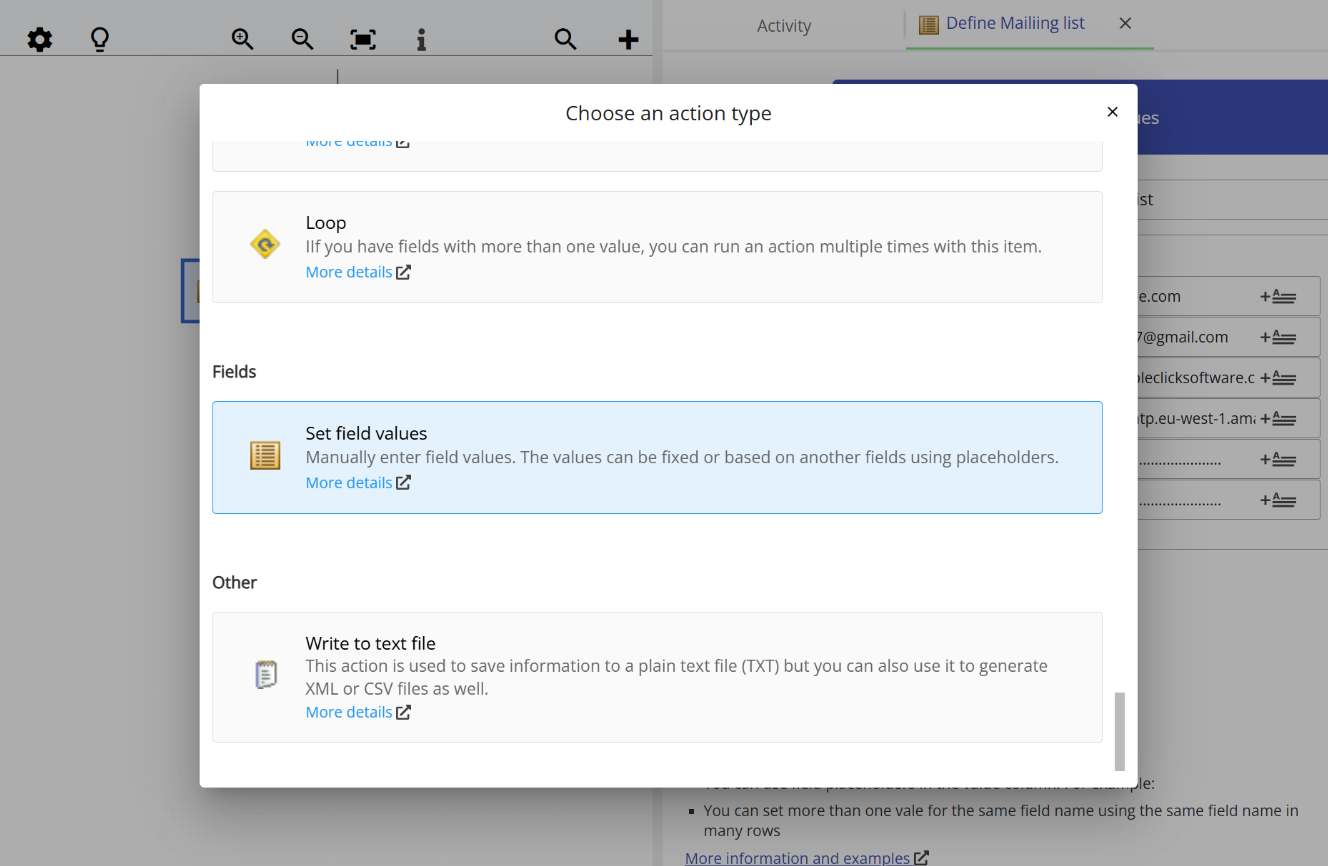
The Set Field Values action allows you to define field values directly in your workflow, without extracting them from an email. This is useful when you need to provide fixed information that other actions will use later, such as a database server address, a list of email recipients, or any other constant data that does not change from email to email.
For example, you might use this action to store the address of your database server in a field called db_server, and then reference that field across all your database actions. This way, if you ever need to change the server, you only need to update it in one place rather than editing every action individually.
Entering field values
When you configure this action, you enter field names and their values in a table. Each row in the table defines one value for a field. If you want a field to hold multiple values, you simply repeat the field name in multiple rows, each with a different value. This is especially useful when you want a later action to run multiple times, once for each value in the field.
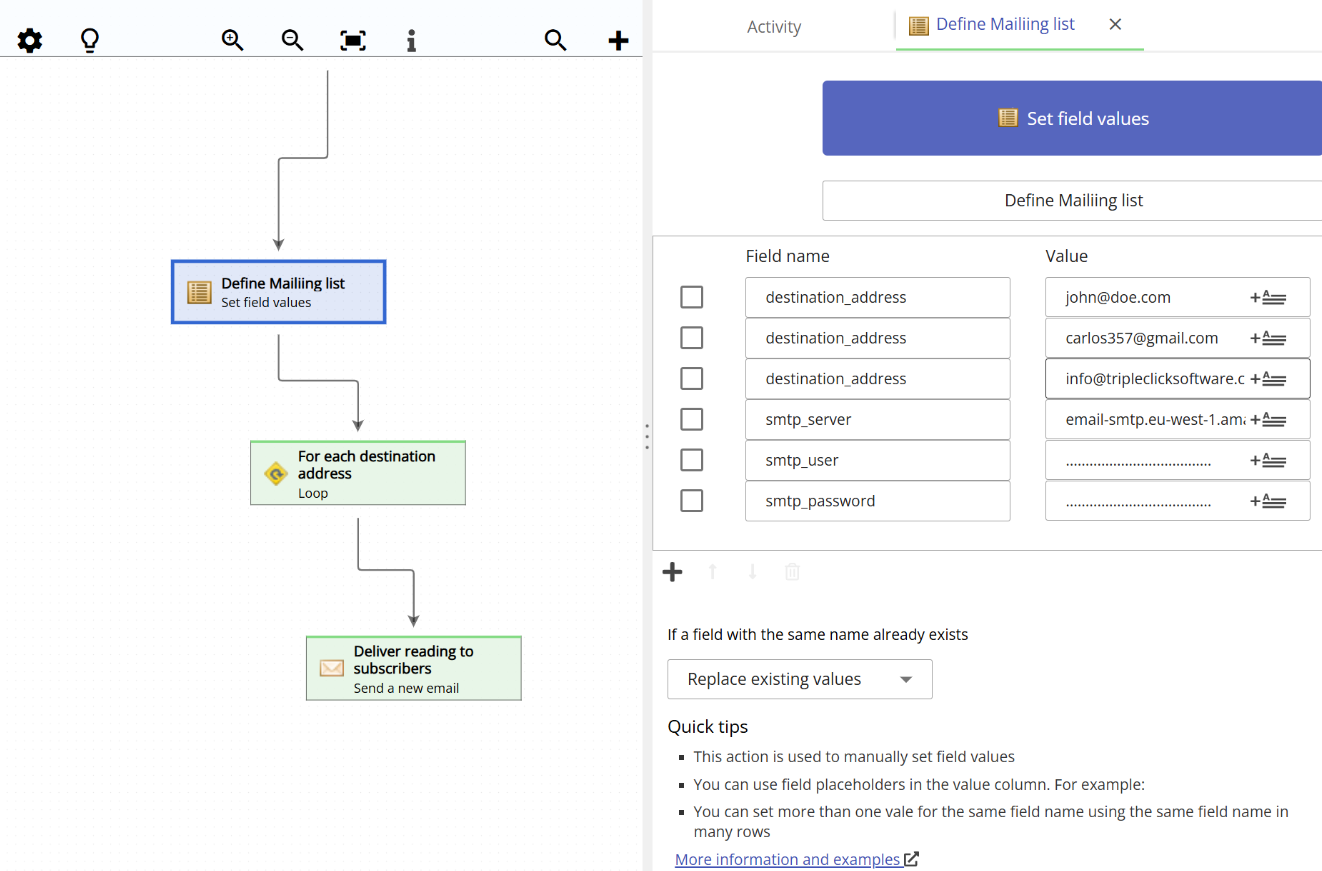
Example: defining field values to use in later actions
The animation below shows a practical example of this action. A Set Field Values action is used to define a field named destination_address with three different email addresses. It also sets additional field values that will be used to configure a Send Email action later in the workflow.
The Send Email action is placed below a Loop action. Because destination_address contains three values, the Loop action runs the Send Email action three times, once for each address. This is a powerful pattern for sending the same email to a list of recipients defined statically in your workflow, without needing to extract them from the email content.