Capturing text with “Filtering and Replacing”
See also:
Capturing text with Regular expressions
What is an email parser?
Example – Basic regular expression use
“Filtering and replacing” allows you to transform a given text into another by removing or replacing parts of the original text. It is one of the text capture methods available in Email Parser and it is typically used as a helper step inside a parser, in combination with other capture methods as seen in the image below:
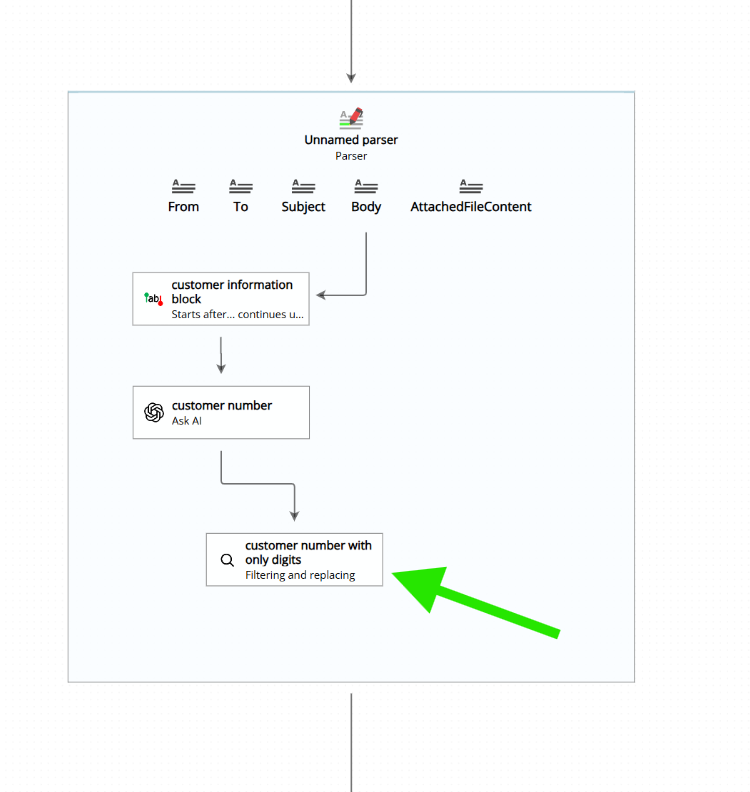
For example, imagine you have a phone number like 123-456-789 and you want to clean it up by removing the dashes. With “Filtering and replacing” you can transform it into 123456789. Or, if you have an address like 12 Oak St. and you want to expand the abbreviation, you can replace St. with Street to get 12 Oak Street.
Choosing “Filtering and Replacing” as a capture method
“Filtering and replacing” is not strictly a text capture method in the traditional sense. It does not extract text from a specific location in the email. Instead, it takes an existing text value and transforms it. However, it is shown as part of the available capture methods when you configure a field inside a parser:
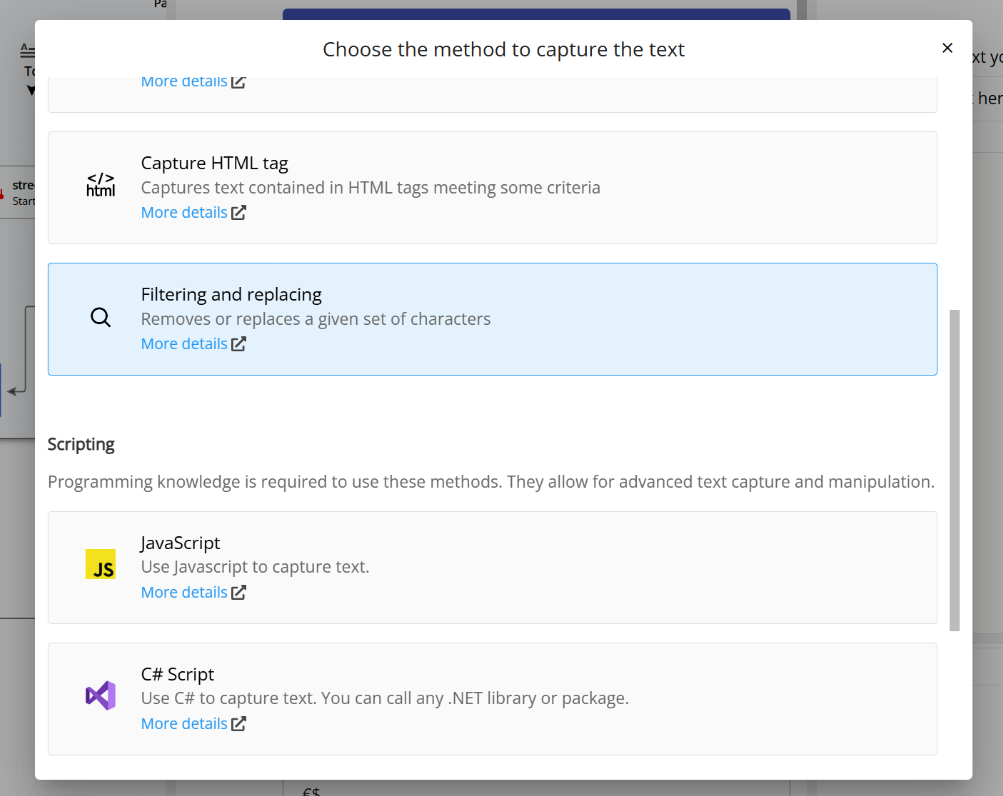
Because of this, it is usually placed inside a parser together with other capture methods that do the actual text extraction. The “Filtering and replacing” field then takes the output of a previous field and cleans it up or transforms it as needed.
Removing text with a regular expression
One of the most powerful ways to use “Filtering and replacing” is by providing a regular expression pattern. Any text that matches the pattern will be removed (or replaced, if you specify a replacement value).
For example, in the screenshot below, we have a workflow where an AI agent determines a total amount from an email. Sometimes the AI agent returns the result with a currency symbol attached (like $100 or EUR 50). We do not want the currency symbol, so we add a new field called “total amount no currency”, set its capture method to “Filtering and replacing”, and configure the following regular expression:
(USD|\$|EUR|€)
Anything that matches this pattern in the “total amount” text returned by the AI agent will be removed:
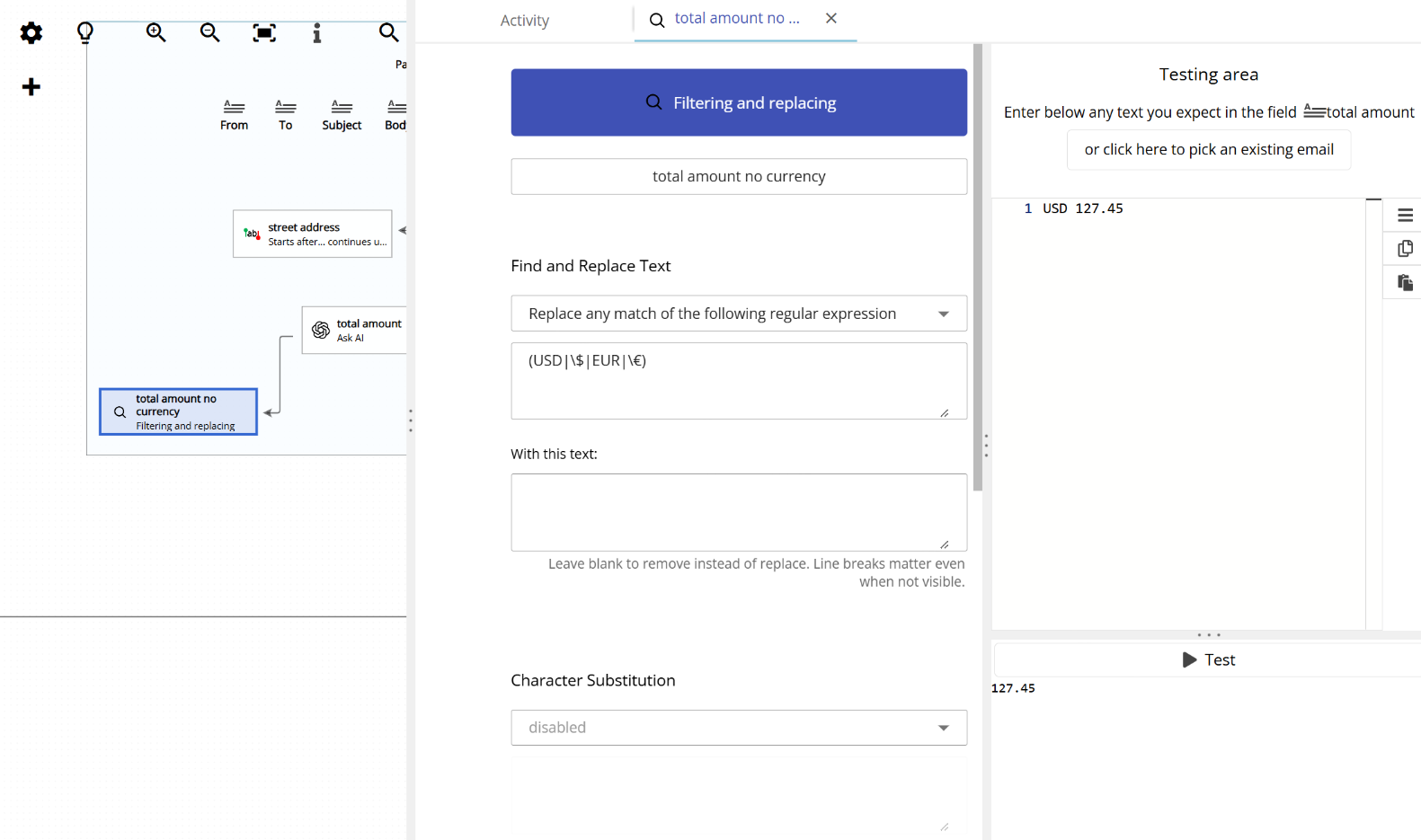
Notice how, in the workflow diagram on the left side of the application, the “total amount no currency” field sits right after the AI agent field. This is a typical pattern: one field captures or generates the text, and the next field cleans it up.
Removing text with a plain text match
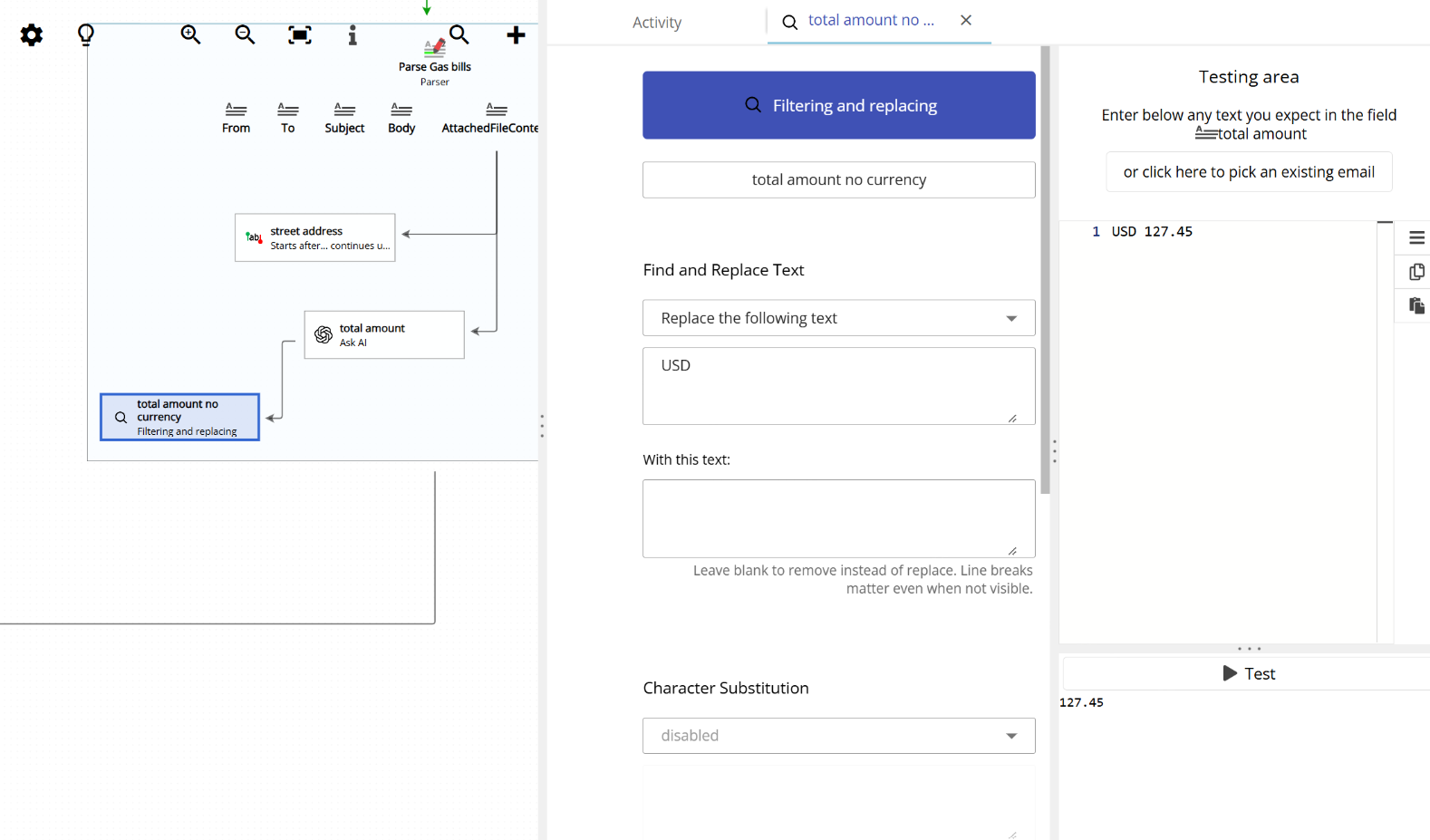
If you are not comfortable with regular expressions, you can also remove or replace plain text strings. This is simpler and works well when you know exactly what text you want to remove. Just type the text you want to match and it will be removed (or replaced) from the input:
Removing individual characters
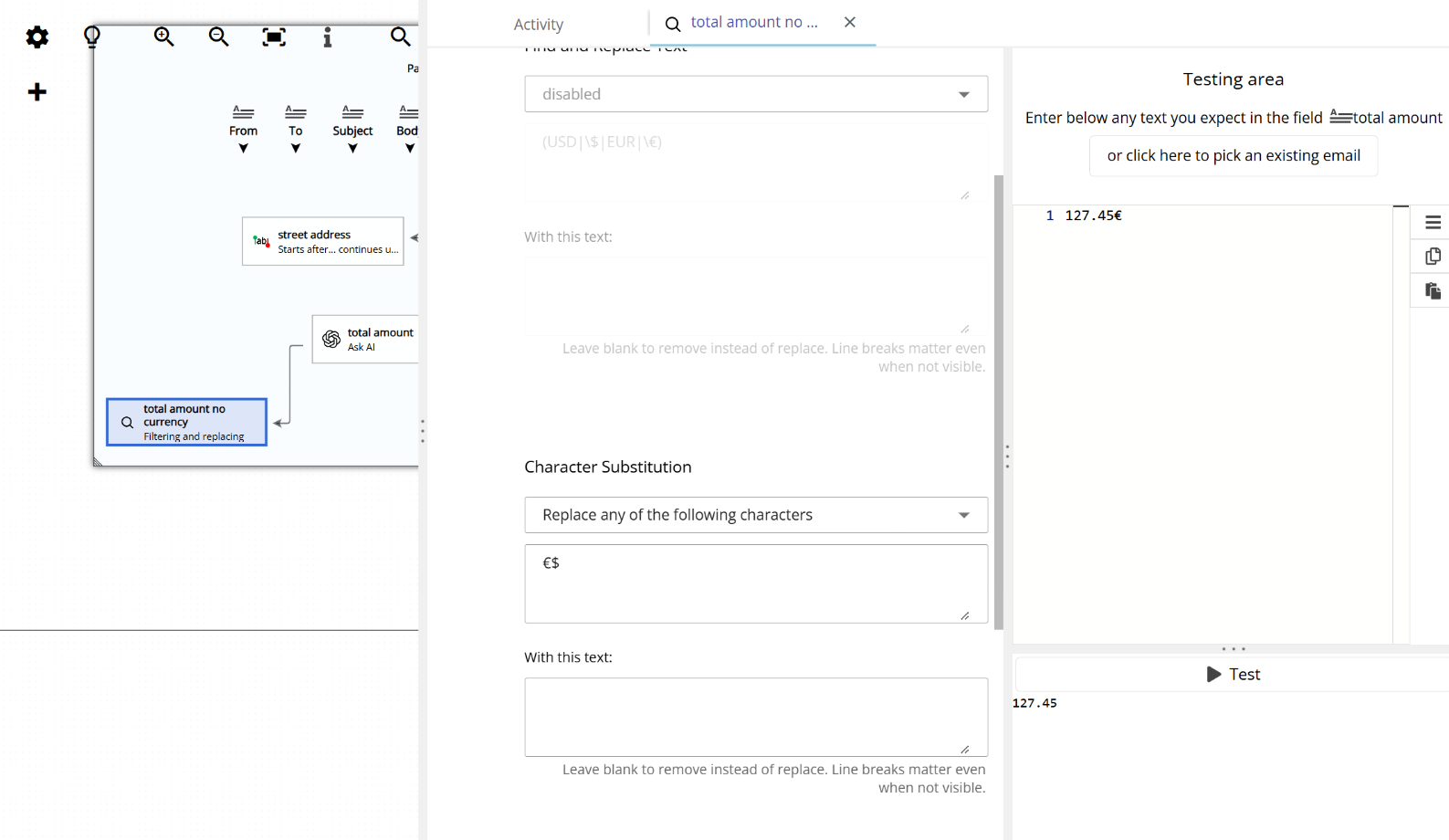
Another option available in “Filtering and replacing” is character substitution. This allows you to specify a list of individual characters that should be removed from the input text. It is useful when you want to strip out specific symbols or unwanted characters without needing a regular expression or a plain text match:
Summary
As you can see, “Filtering and replacing” is a text capture method that is usually placed inside a parser in combination with other capture methods. It serves as a helper step to transform a given text, whether that means removing unwanted characters, stripping out specific words or symbols, or replacing parts of the text with something else. It is a simple but very useful tool for cleaning up parsed data before it is sent to an action.
