Using AI email parser to extract data from emails
One of the easiest and most flexible ways to extract text from an email is by asking an AI. Email Parser works as an AI email parser that integrates with OpenAI and its GPT language models, so you can describe what you want to capture in plain language and let the AI figure it out (no regular expressions or coding required).
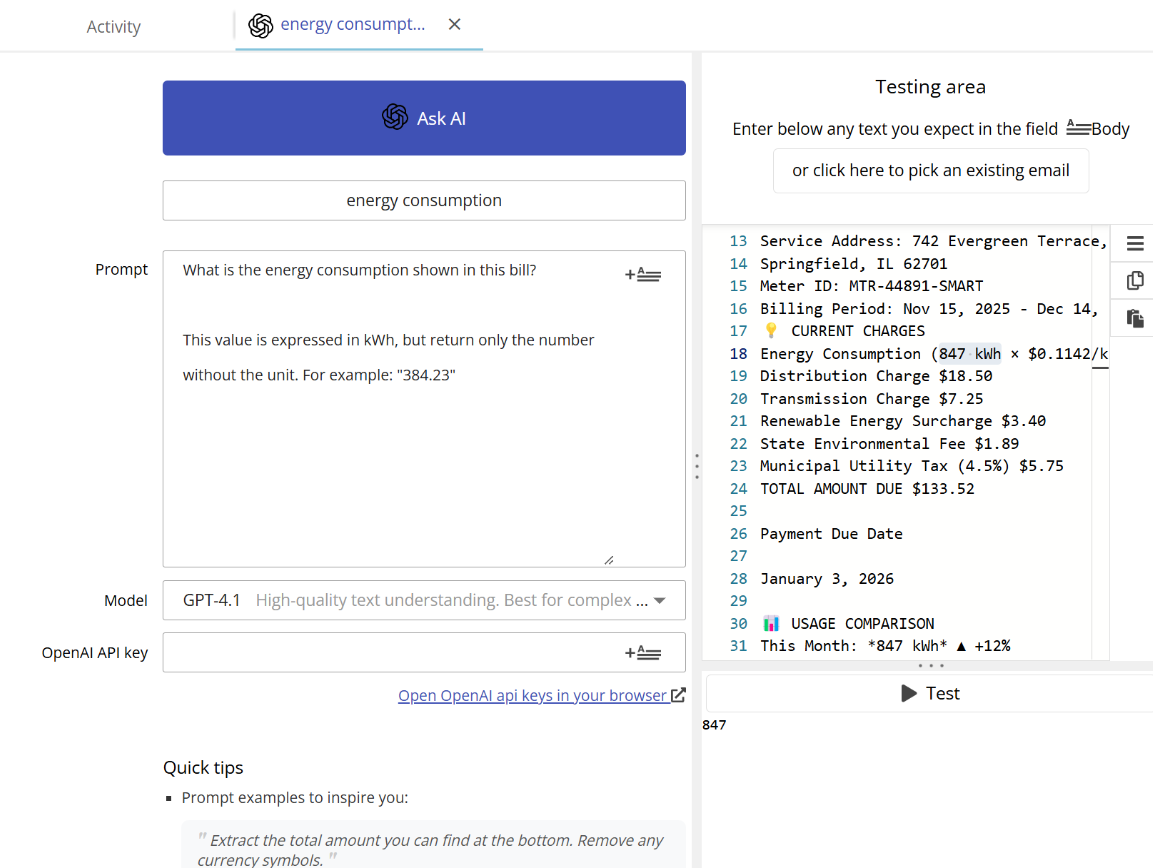
How to write a good prompt
When you configure an AI field, you write a prompt (a question or instruction that tells the AI what piece of text you want to extract). The simpler the question, the better, but you can always add more detail if the AI is not giving you the exact result you need.
Here are some example prompts that work well:
- “What is the address shown at the bottom?”
- “What is the product description of the order?”
- “What is the total amount due?”
You can also give the AI an example of the expected output to help it understand exactly what you are looking for. For instance:
- “The license plate number starts with four digits followed by three letters, for example: 1234ABC”
- “Give me the order date starting with the year, then the month, and then the day, separated by a dash. For example: 2025-03-15”
The more specific your prompt, the more predictable and accurate the AI response will be. If the first prompt does not give the result you expect, try refining it by adding more detail about the format or by providing a concrete example.

Testing different prompts until you get the right result
The AI only sees what you connect to it
An important detail to understand is that the AI does not read the entire email. It only receives as input the part of the workflow diagram that is connected to it. For example, you can connect an AI field to the email subject, to the email body, or even to another field that already contains a subset of the email content.
This is very useful for two reasons:
- Better accuracy: The more focused the input, the less room there is for the AI to get confused or return unexpected results.
- Fewer tokens used: Sending a smaller piece of text to the AI consumes fewer tokens (and therefore fewer credits). If you are parsing a specific value from a long email body, consider first extracting the relevant section with another field and then feeding only that section to the AI.
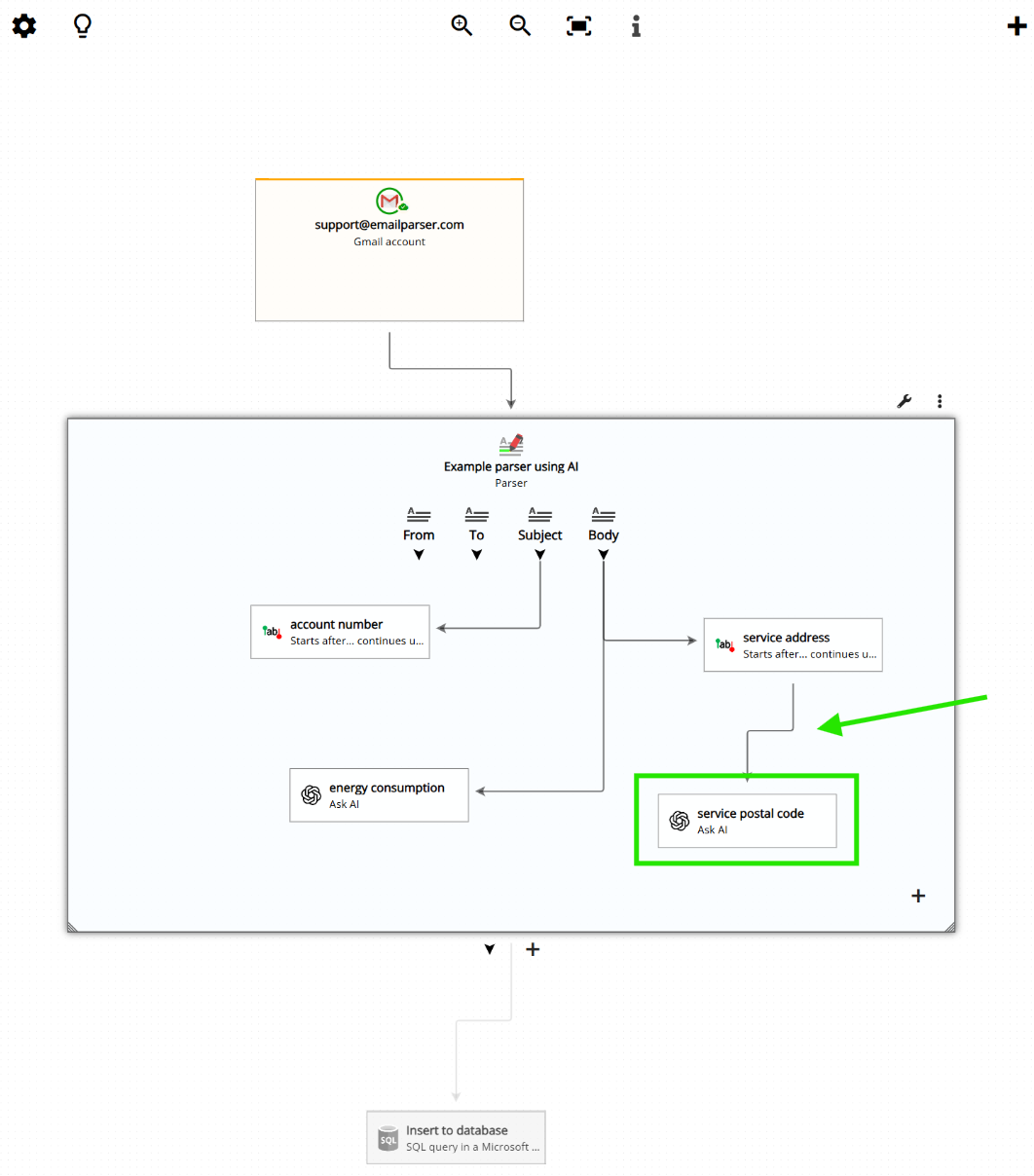
Connecting the AI field to a specific piece of text (the full address) instead of the entire email body, to extract just the postal code
Seeing it in action

The following video shows the AI email parser in action: processing an email and viewing the final parsed results once everything is configured.
AI credits and API keys
The Email Parser web application includes 500 AI credits per month at no extra cost. In most cases, one credit is consumed each time the AI captures a value from an email. You can check your remaining credits at any time from within the application.
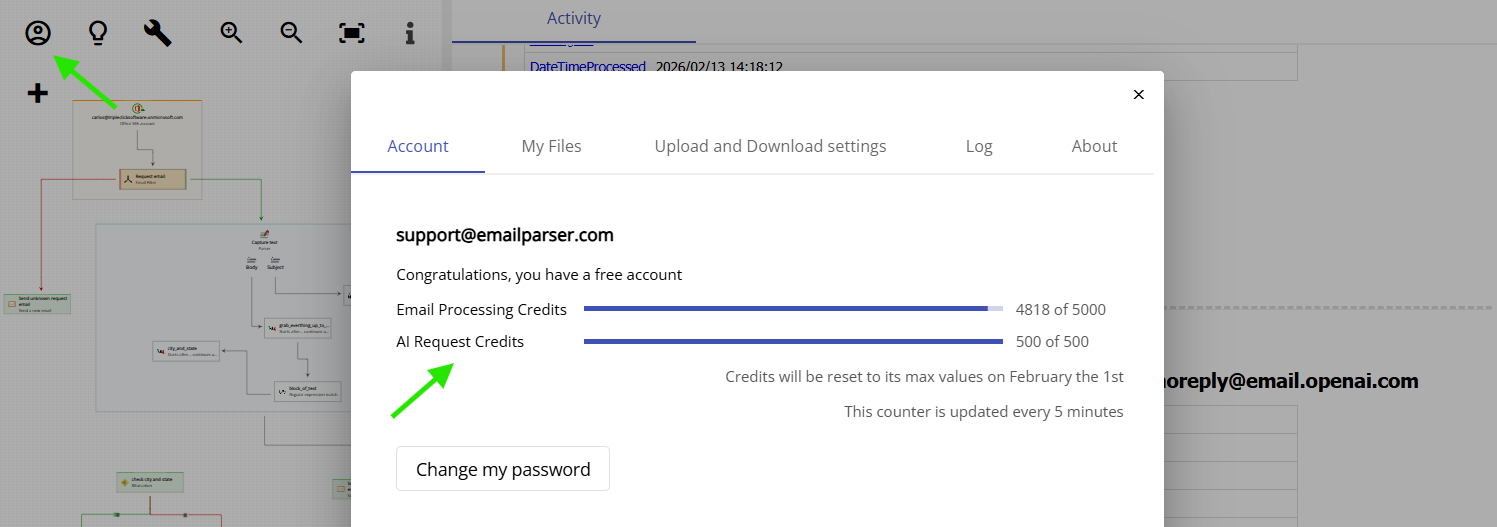
Checking your remaining AI credits in the web application
If you need more than 500 credits per month, you can connect your own OpenAI API key. With your own key, you pay OpenAI directly and there is no limit imposed by Email Parser. You can get an API key at https://platform.openai.com/api-keys.
Note for Windows app users: The Windows version of Email Parser requires you to provide your own OpenAI API key to use AI parsing. If no API key is configured, an error will be shown when the AI field is processed.
Choosing a language model
As an email automation tool, Email Parser offers several OpenAI language models to choose from. Some models are faster and consume fewer tokens (which means fewer credits are used per email), while others are more capable and better suited for complex or ambiguous prompts.
The best approach is to start with a simpler and more economical model and only switch to a more powerful one if the results are not satisfactory. At the same time, consider narrowing down the text you provide to the AI (for example, a specific part of the email body rather than the full body), and this alone often improves accuracy while also reducing token usage.
