Capturing text with “Starts after… continues until…”
See also:
What is an email parser?
Capturing text with “Filtering and Replacing”
Capturing text with Regular Expressions
Capturing text with a Script
Example – Filter incoming emails, parse data and write to Excel file
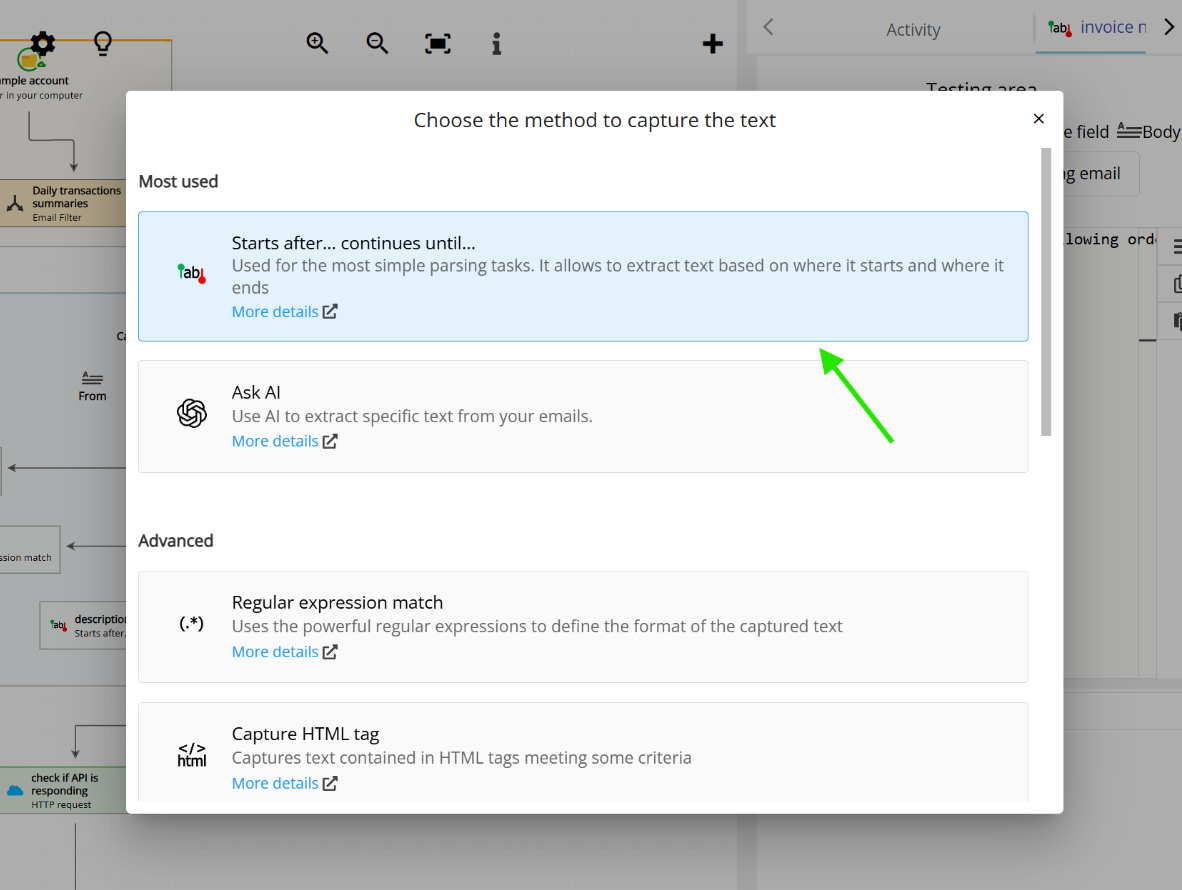
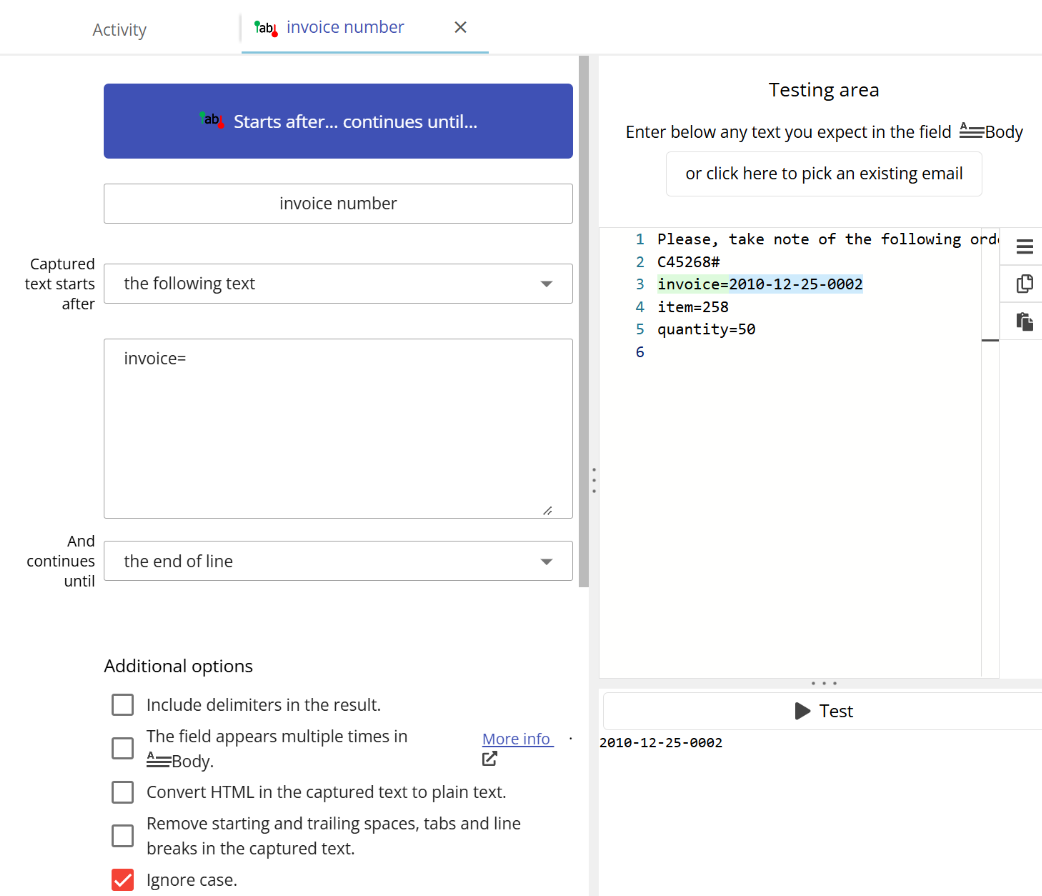
The text capture method “Starts after… continues until…” is the easiest way to extract a piece of text from an incoming email. To set it up, you just have to define two parameters: where the text starts and where it ends. For example:
When the email is processed, Email Parser will look for these boundaries and determine the text to capture:
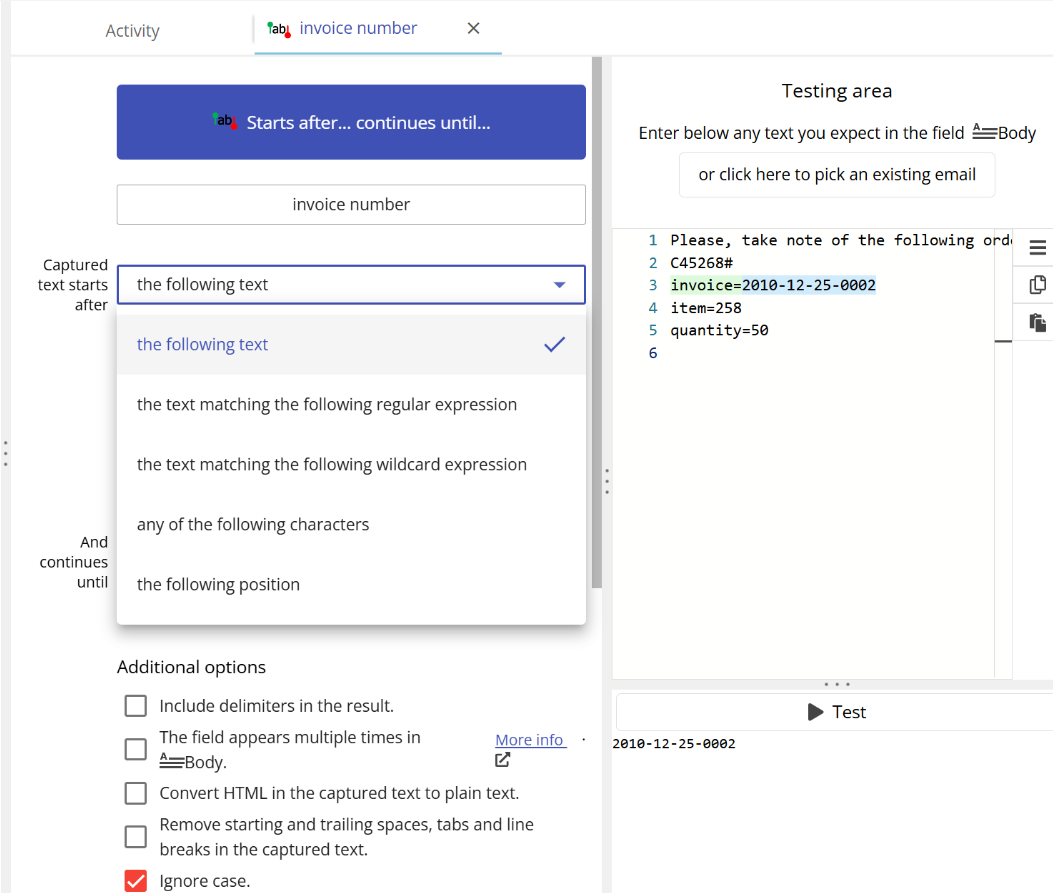
There are different ways to identify the boundaries of the text:
If the boundaries of the text are not always exactly the same, you may find it useful to use regular expressions. They are useful if, for example, there is an indeterminate amount of spaces between characters:
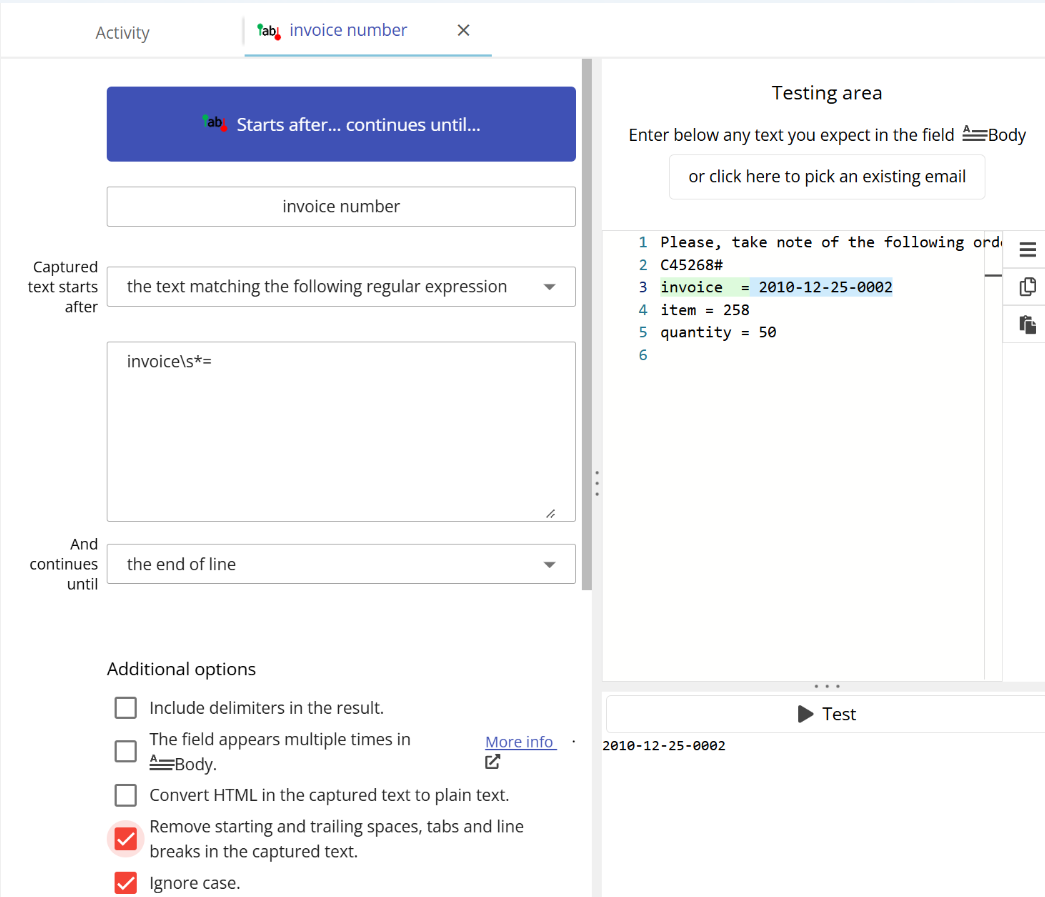
The regular expression invoice\s*= will match any text that has zero, one or more spaces between invoice and the = symbol. You can find more information regarding regular expressions here.
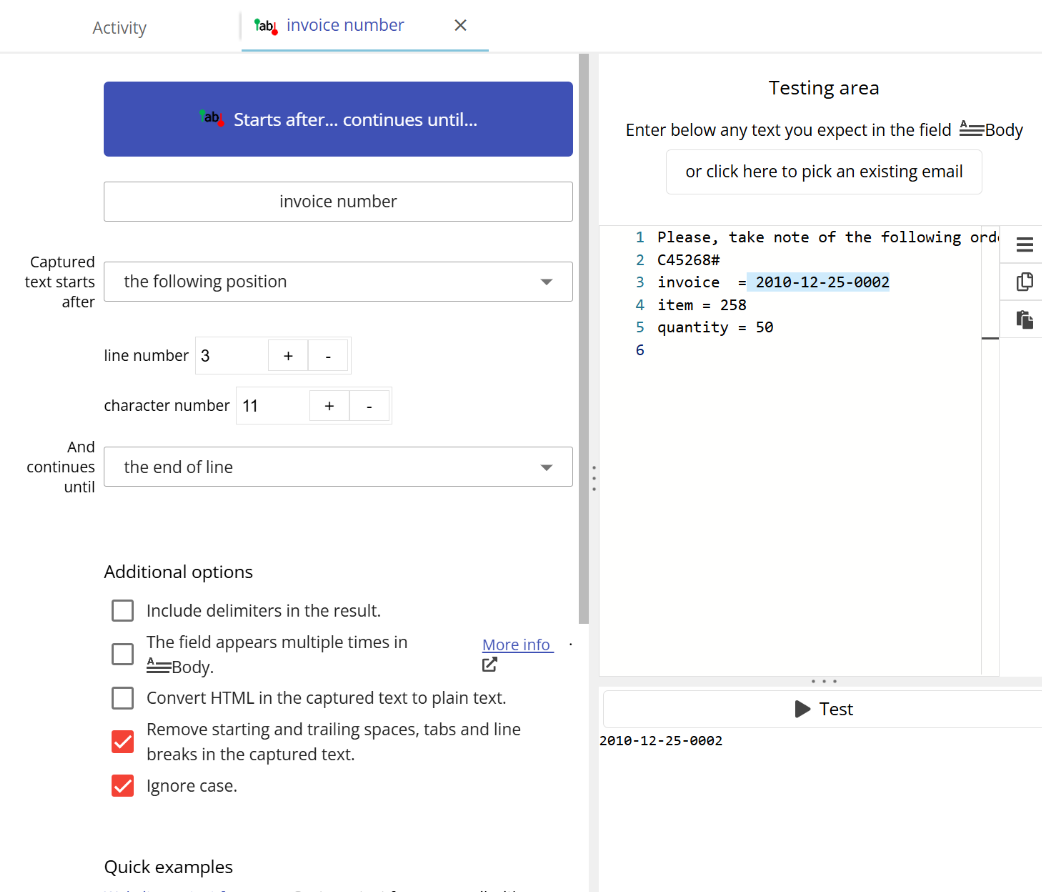
Another very common method of capturing text is by its line-column position. This is useful when the text is always in the same position: