How to run actions when a condition is met
See also:
Handling and notifying errors

In Email Parser, the workflow diagram on the left side of the application does not always follow a single, linear path. Sometimes you need the workflow to make a decision: follow one branch when a certain condition is true, and a different branch when it is not. This is how you can have Email Parser behave differently depending on the content of each email it processes.
To achieve this, Email Parser provides a special action type called Bifurcation. A Bifurcation action evaluates a condition and, depending on whether that condition is met or not, directs the workflow along one of two possible paths.
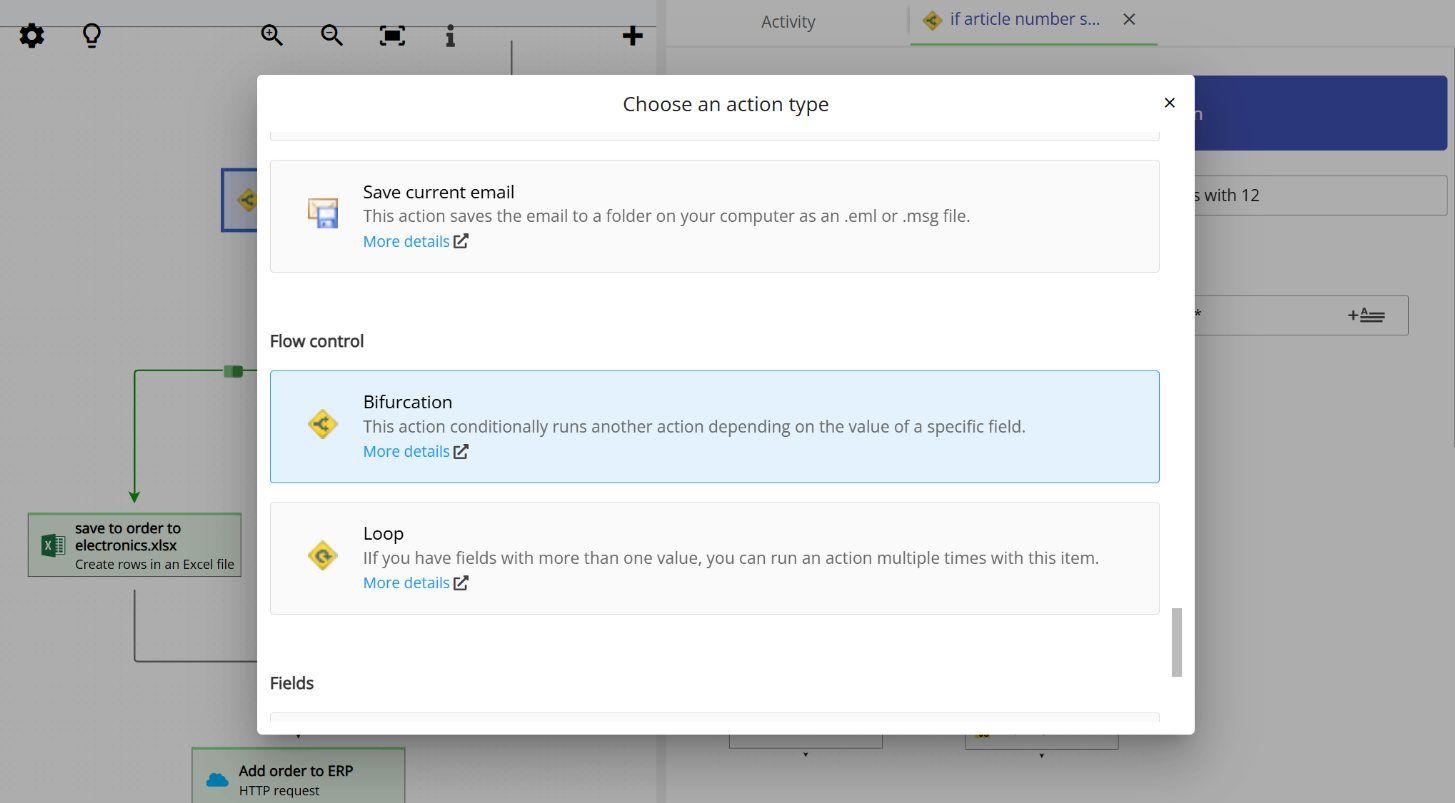
Setting up the condition
When you add a Bifurcation action, you configure the condition that will be evaluated each time an email is processed. You can base the condition on any email field (such as the subject, sender, or body) or on any field extracted by your parsers. The condition compares the selected field value against a fixed value you specify, using operators such as “equals”, “contains”, “starts with”, and others.
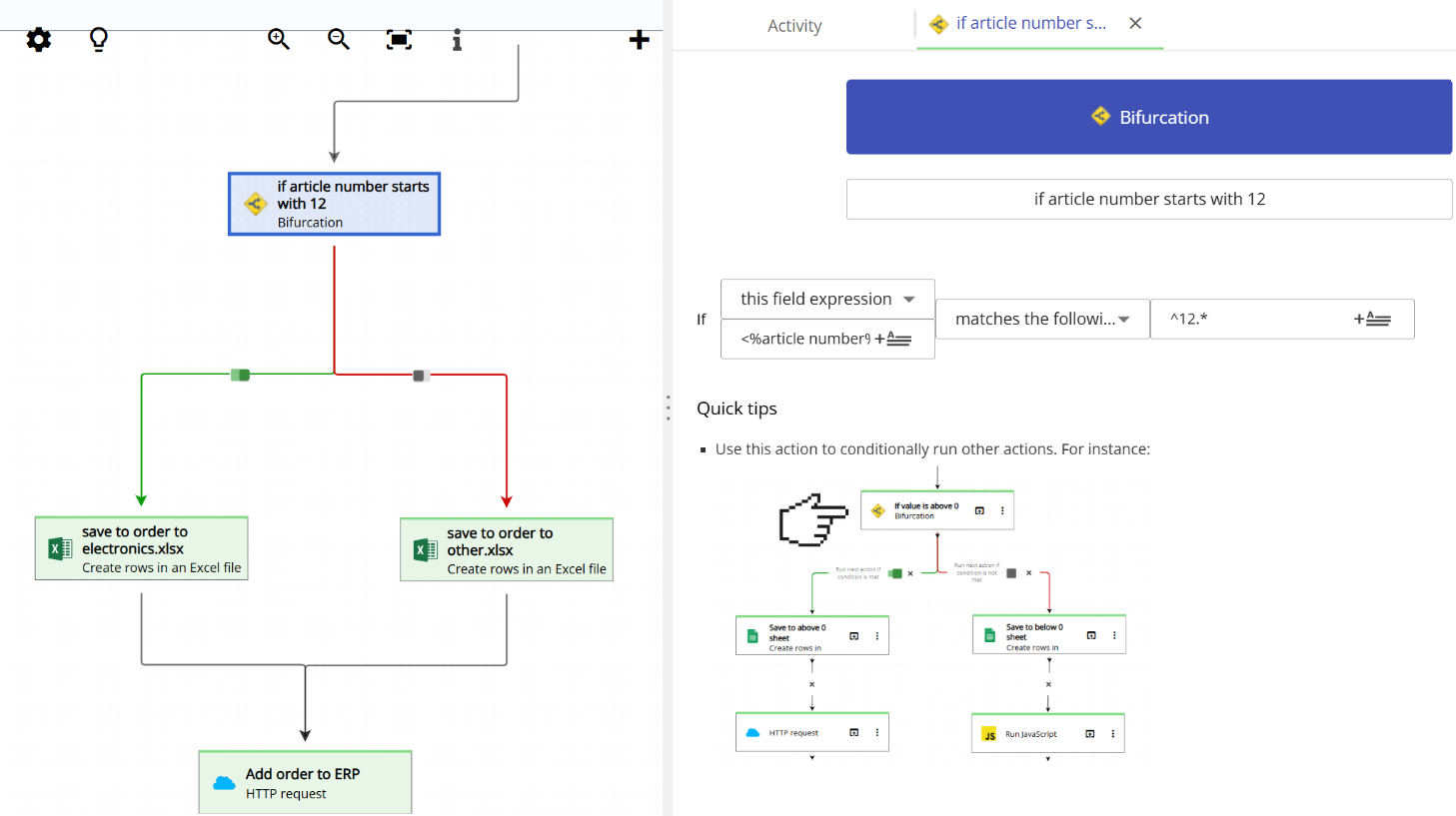
Green and red arrows
Once you connect other actions to a Bifurcation action in the workflow diagram, the connecting arrows change appearance. Instead of the usual black arrow, you will see either a green arrow or a red arrow:
- A green arrow means that the connected action will run when the condition is met.
- A red arrow means that the connected action will run when the condition is not met.
You can switch an arrow between green and red at any time by clicking the small switch button that appears in the middle of the arrow in the workflow diagram. This makes it easy to reassign which branch follows which outcome without having to reconnect the actions.
Complex workflows with multiple bifurcations
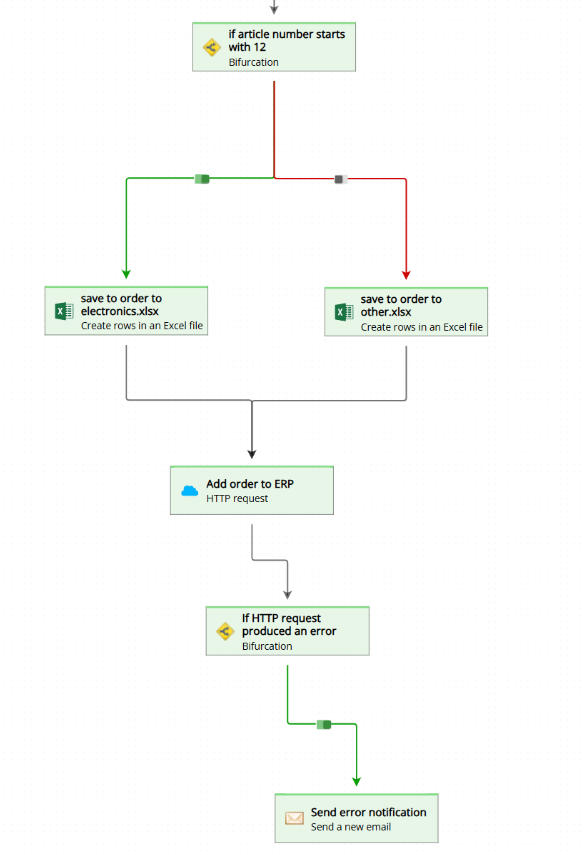
You can include more than one Bifurcation action in a workflow, and each one will independently evaluate its own condition. This allows you to build sophisticated workflows that handle a variety of cases. The image below shows an example workflow that contains two Bifurcation actions, creating multiple branches depending on the email content:
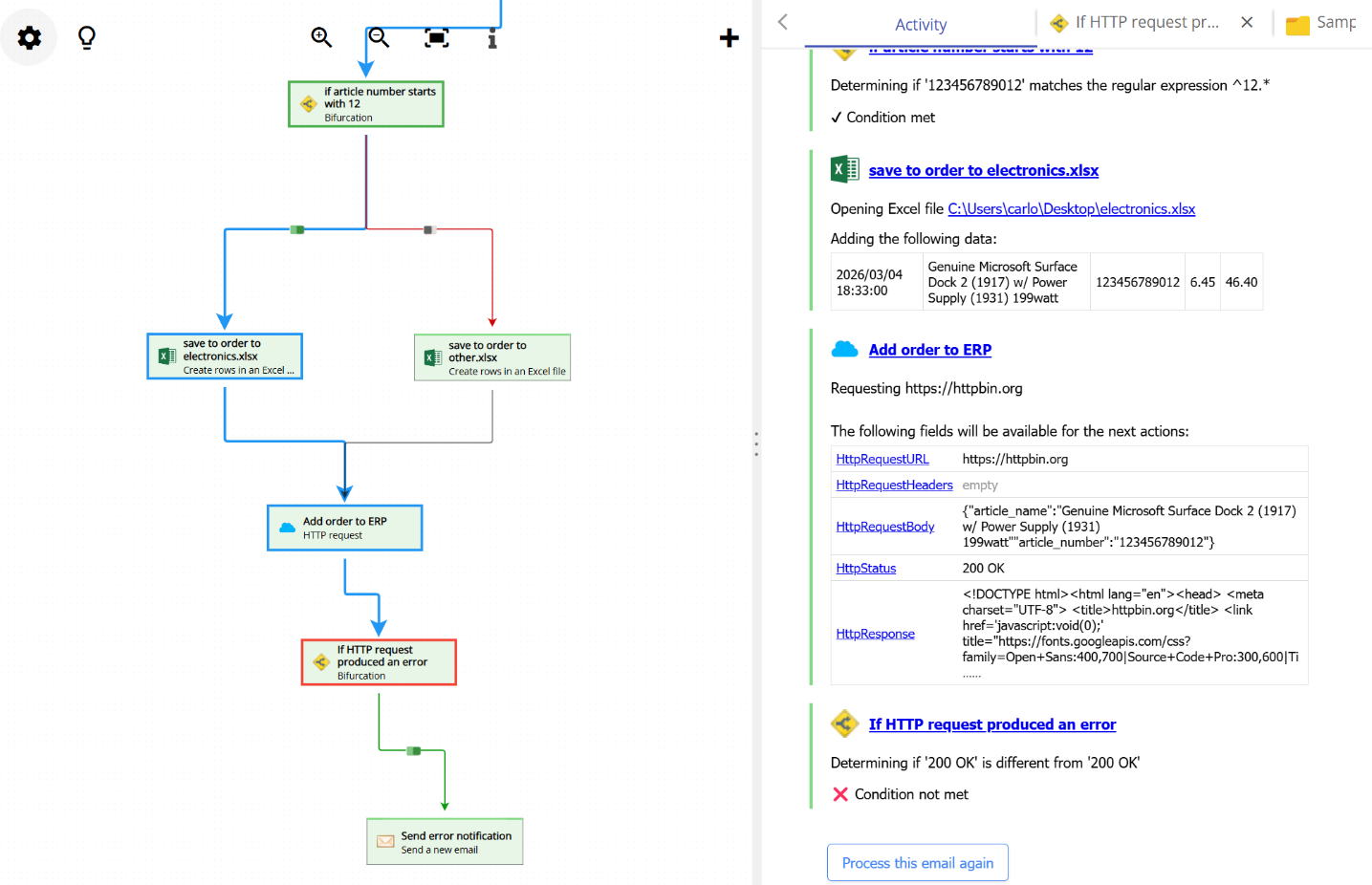
When an email is processed, Email Parser highlights the path that was actually taken through the workflow. This makes it straightforward to understand which branches were followed and why. The image below shows the same workflow after an email has been processed. You can see the highlighted path and, on the right side, the processing log that records what happened at each step:
Full example: routing eBay orders by product type
The following example illustrates how Bifurcation actions can be used in a real-world scenario. The workflow processes eBay order notification emails and performs different actions depending on the type of product sold.
Here is what the workflow does, step by step:
- A parser action extracts the relevant order fields from the email body, including the product ID.
- A Bifurcation action checks whether the product ID corresponds to an electronic item. If the condition is met (green arrow), the order is written to the electronics Excel sheet. If the condition is not met (red arrow), the order is written to a different Excel sheet for other product categories.
- Regardless of the branch taken, the order is sent to the company’s ERP system via an HTTP request action.
- A second Bifurcation action checks whether the ERP request was successful. If it was not (red arrow), an email is automatically sent to the system administrator to notify them of the error.
The animation below shows this full workflow in action: