Write to text file
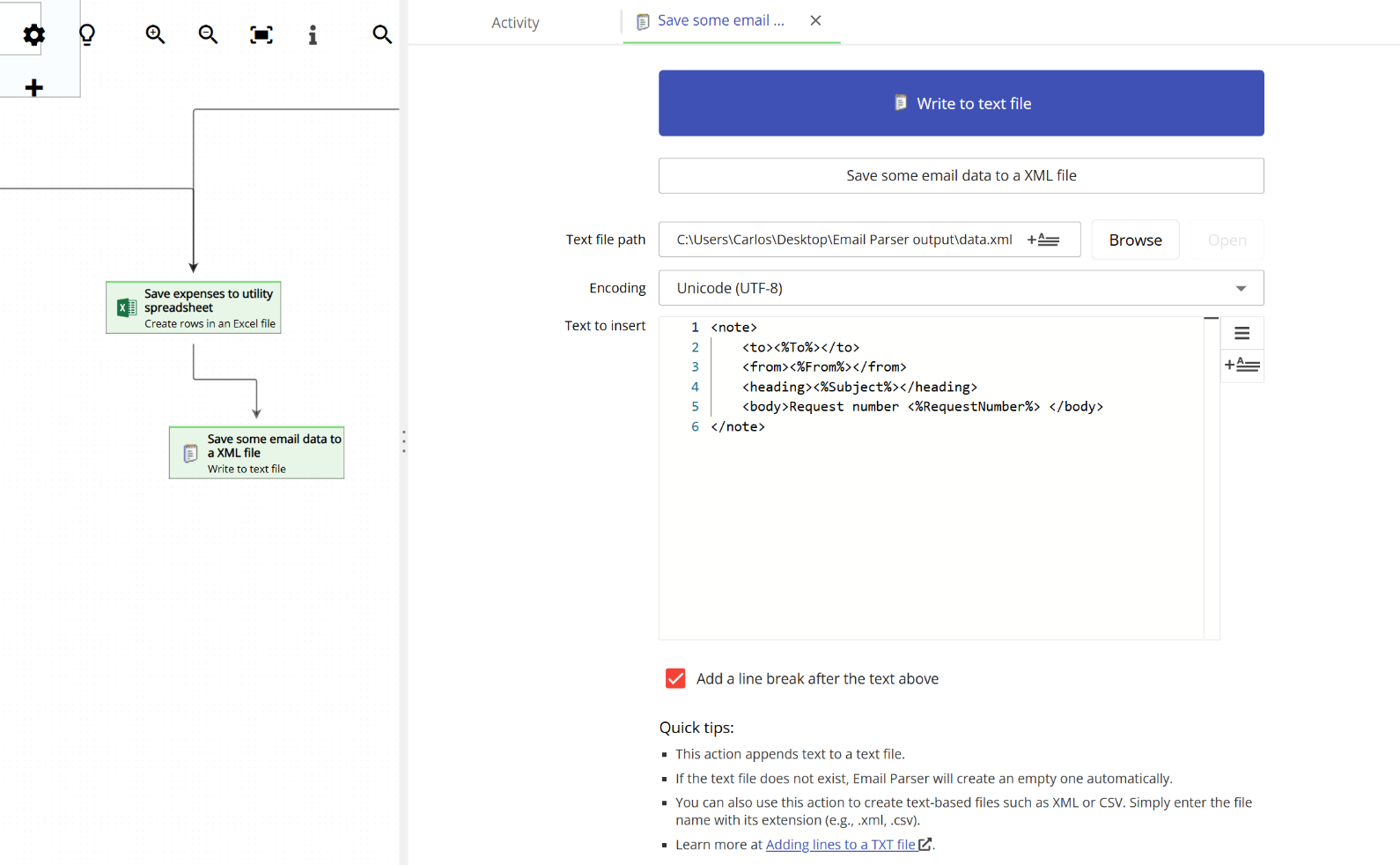
The Write to text file action in Email Parser allows you to save any captured data from an email, or any other field generated during the workflow, into a text file. Every time an email is processed, Email Parser takes the content you have defined and appends it as a new line (or multiple lines) to the specified file.
Not just TXT files
Although this action is called “Write to text file” and is most commonly used to write to .txt files, you are not limited to that format. You can set the file extension to anything you need in order to generate any text-based file. For example, you can create XML files (.xml), JSON files (.json), CSV files (.csv), HTML files (.html), YAML files (.yml), or log files (.log). As long as the file format is based on plain text, this action can generate it. Just make sure the content you enter in the text area follows the correct syntax for the format you are targeting.
Text encoding
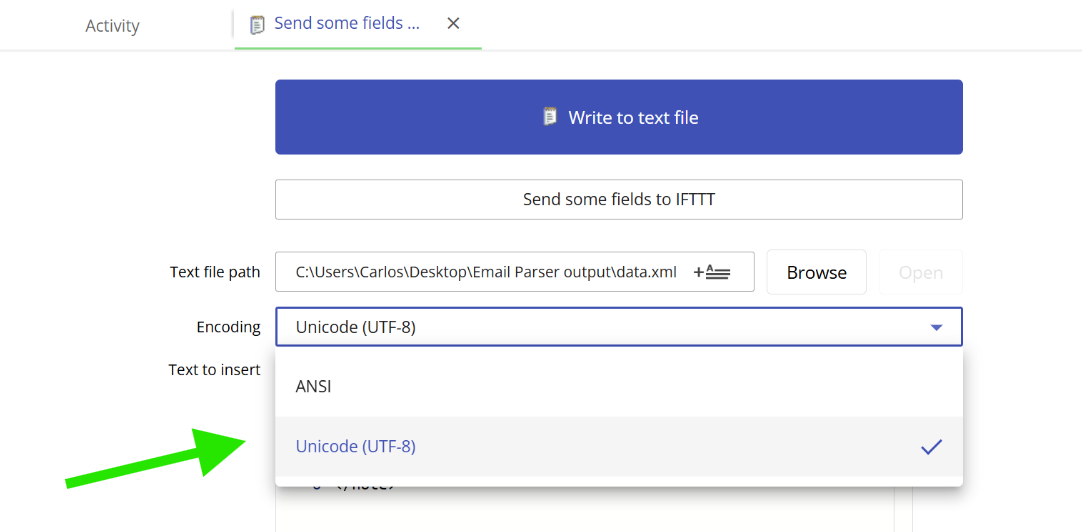
This action supports both the traditional ANSI text encoding and UTF encoding. In most cases, UTF is the encoding you will need, especially if your emails contain characters outside the basic ASCII range (such as accented letters, special symbols, or text in non-Latin scripts). If you are unsure which encoding to choose, we recommend using UTF.
Using field placeholders in the text area
In the large text area shown in the screenshot above, you can enter any text you want. More importantly, you can include field placeholders to insert dynamic values from the processed email. Field placeholders are field names enclosed by <% and %>. When an email is processed, these placeholders are automatically replaced with the actual field values.
For example, if you have a field called OrderNumber captured by a parser, you can write:
<%OrderNumber%>
and it will be replaced with the actual order number extracted from the email. You can combine plain text and as many field placeholders as you need in the text area. This is what allows you to build structured output in any format, whether it is a simple comma-separated line, an XML node, a JSON object, or any other text-based structure.
To learn more about fields and how they work across the workflow, see What is a field?
