How to update Email Parser
See also:
Purchasing and licensing FAQ
Download an older version
Updating Email Parser for Windows is simple. Just download the setup file and run the installer.
The installer handles everything automatically. There is no need to uninstall the previous version first, and there is no need to back up your settings beforehand. Just run the installer and the new version will be ready to use with all your existing settings intact.
Optional: backing up your settings before updating
If you want to be extra careful and keep a backup of your current settings before updating, you can follow these steps:
- Open Email Parser and save your existing settings under Settings > Load and Save Workflow.
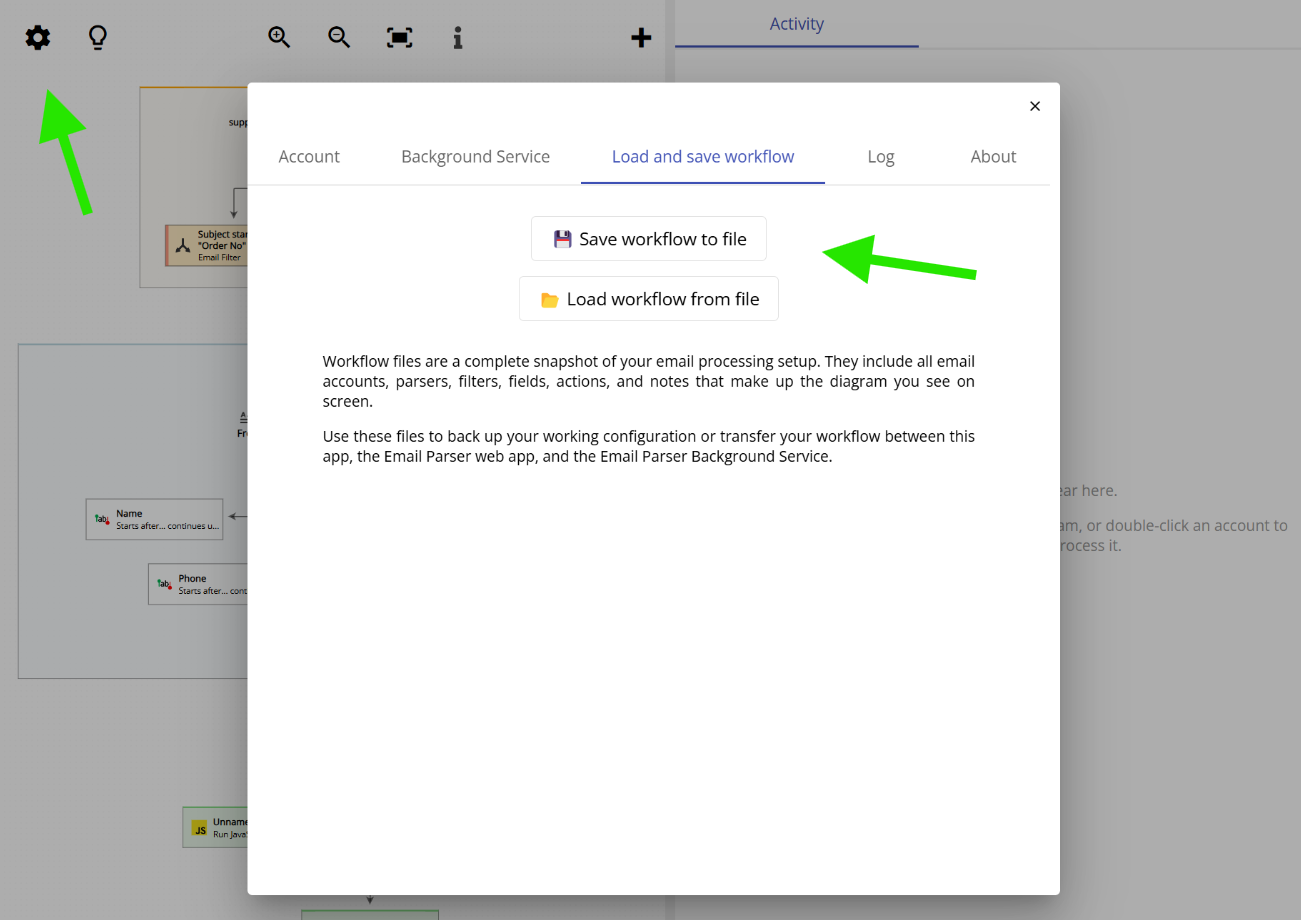
- Save your current settings to a file in a location you can find easily later.
- Download the latest setup file from the link above and run the installer.
- When the new version of Email Parser opens for the first time, it will automatically import your settings from the previous version. If it fails and shows you an example configuration instead, go to Settings > Load and Save Settings and load the backup file you saved in step 1.
What if I want to go back to an older version?
If you update to a new version and decide you would like to go back to a previous version of Email Parser, you can download older versions from this page:
https://www.emailparser.com/d/news-updates/old-versions-download
Common issues and questions
Do I need to buy again to update? My license key does not work with the new version.
There is no need to pay anything extra. As long as you have an active subscription, you can use any version of Email Parser you want. Version 7 and newer (released in January 2026) do not require a license key at all. For older versions, a license key is required. Check your email for the last license key you received from support@emailparser.com and use that one.
I installed the new version of Email Parser but my settings disappeared.
This can sometimes happen when Email Parser was running as a Windows Service and the installer could not access the service configuration. Please restore your settings backup as described above. If you do not have a backup file, copy the directories below to another location on your computer (to prevent any further changes) and contact us:
C:\Users\YourUserNameHere\AppData\Roaming\EmailParser
C:\Windows\system32\config\systemprofile\AppData\Roaming\EmailParser
