Running Email Parser for Windows on a Virtual Private Server
Email Parser for Windows can also be run in the cloud by installing the application in a virtual private server. This guide gives you some insights on why this could be a good choice for your case and gives you step-by-step instructions on how to migrate your existing settings to a virtual private server.
Why is it better than running Email Parser in my own computer?
- Always on. Your computer does not need to be running to process your incoming emails. Virtual private servers are always on.
- Access from anywhere. Access Email Parser remotely, using a web browser or a remote desktop app from any computer.
- 24/7 email processing. Emails are processed 24 hours per day, 365 days a year. Just like any other internet service.
Why is it better than using a web-based email parsing solution?
- Unlimited emails and actions. You can process an unlimited number of emails and have an unlimited number of actions per email. There are no additional charges if you process a large amount of emails.
- Run any code, script, or program. You can run any code, script or program automatically when an email is received. Avoid the limitations of sharing the server with other customers as it typically happens with web-based applications. For a detailed list of the limitations of the web app compared to the Windows app, see Differences between the web and Windows apps.
- Scale up on demand. Faster email processing. If you need your emails to be processed more quickly, just upgrade your server to have more RAM or a faster CPU. Most virtual private server providers allow you to easily allocate more hardware resources to an existing server.
- Full control over your data. Comply with the most strict data-privacy regulations. As the server is not shared and you have complete control of your environment, you can meet the most demanding privacy regulations.
Drawbacks of running Email Parser in a VPS
Running the Windows app on a virtual private server is not always the right fit. In some situations, the Email Parser web app is simpler and more cost-effective:
- Infrastructure management. A virtual private server is a full Windows computer in the cloud. That means you are responsible for keeping Windows up to date, applying security patches, and updating Email Parser itself whenever a new version is released. With the web app, all of that is handled for you automatically.
- Higher total cost. The monthly or yearly fee of a virtual private server, combined with the cost of a Windows app license, can easily exceed the subscription price of the Email Parser web app. When you also factor in the time spent on maintenance and updates, the web app frequently turns out to be the more economical option.
What are the minimum specs needed to run Email Parser?
Any computer running a recent version of Windows will work fine. Even with 2GB of RAM and only one CPU core. See the Email Parser system requirements for more details.
Step-by-Step
The following steps are for creating a virtual private server in the Microsoft cloud, but you can use any other virtual private server provider, such as Amazon Web Services, Hetzner or OVH.
-
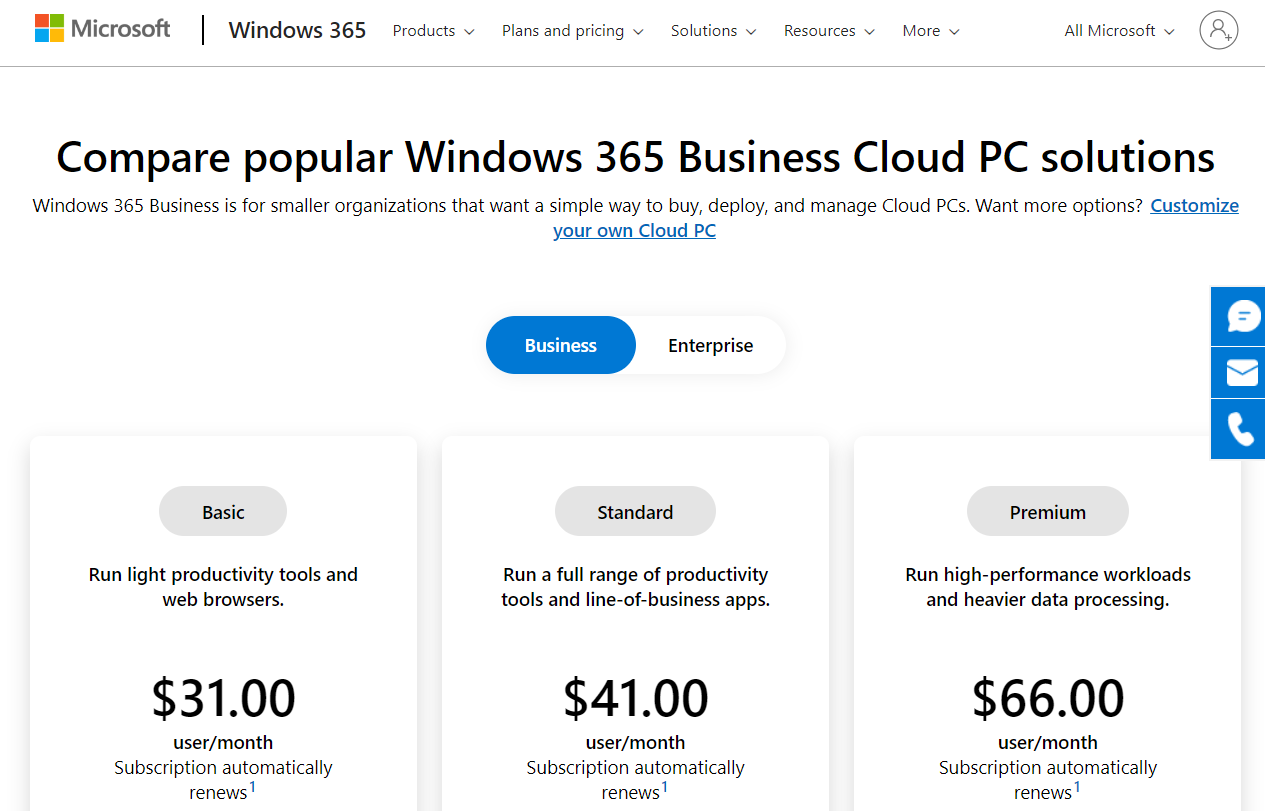
Go to the Windows 365 page and purchase any Cloud PC. The most basic choice will work fine.
-
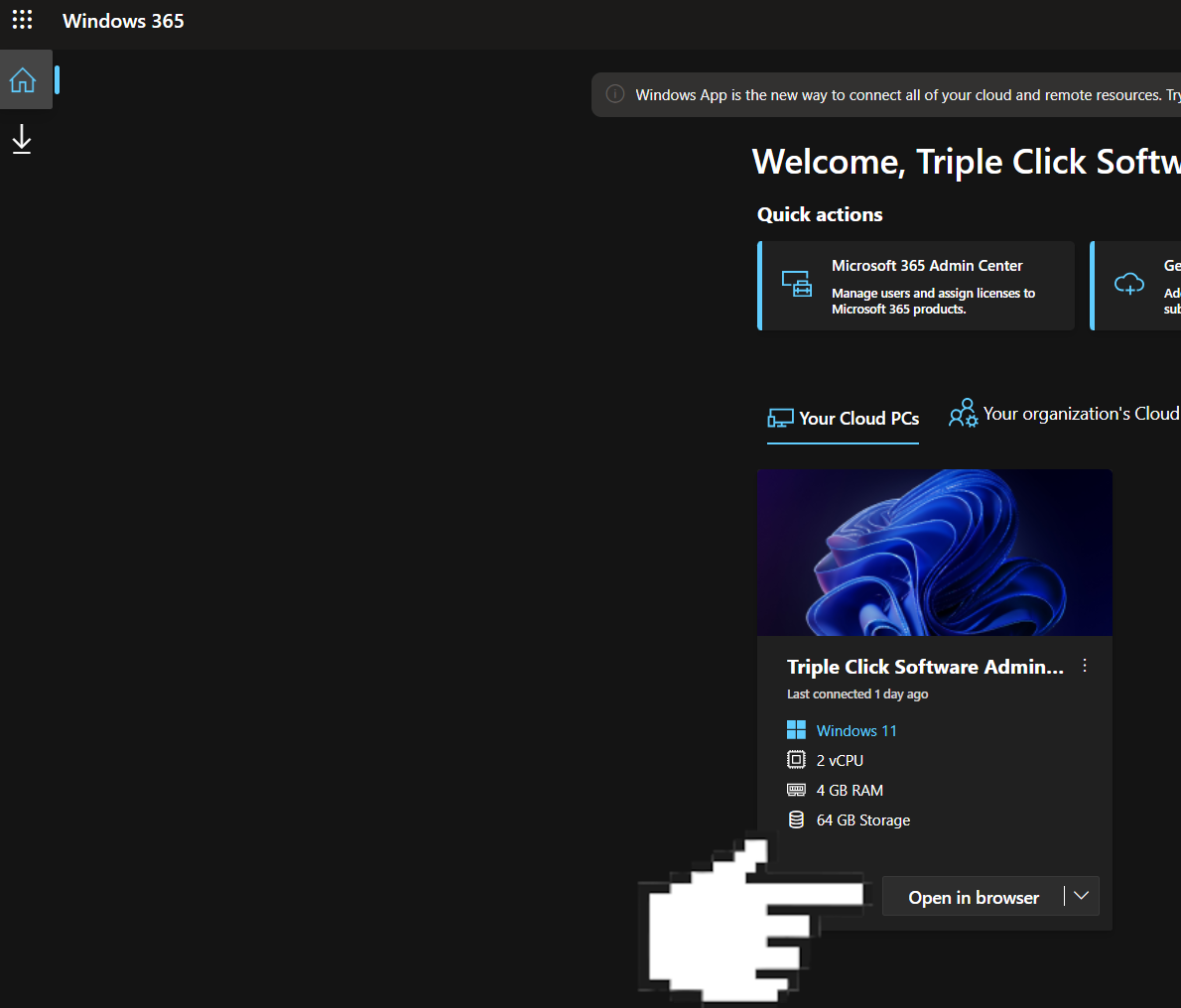
Once you have completed the purchase process, go to windows365.microsoft.com and connect to your Cloud PC.
-
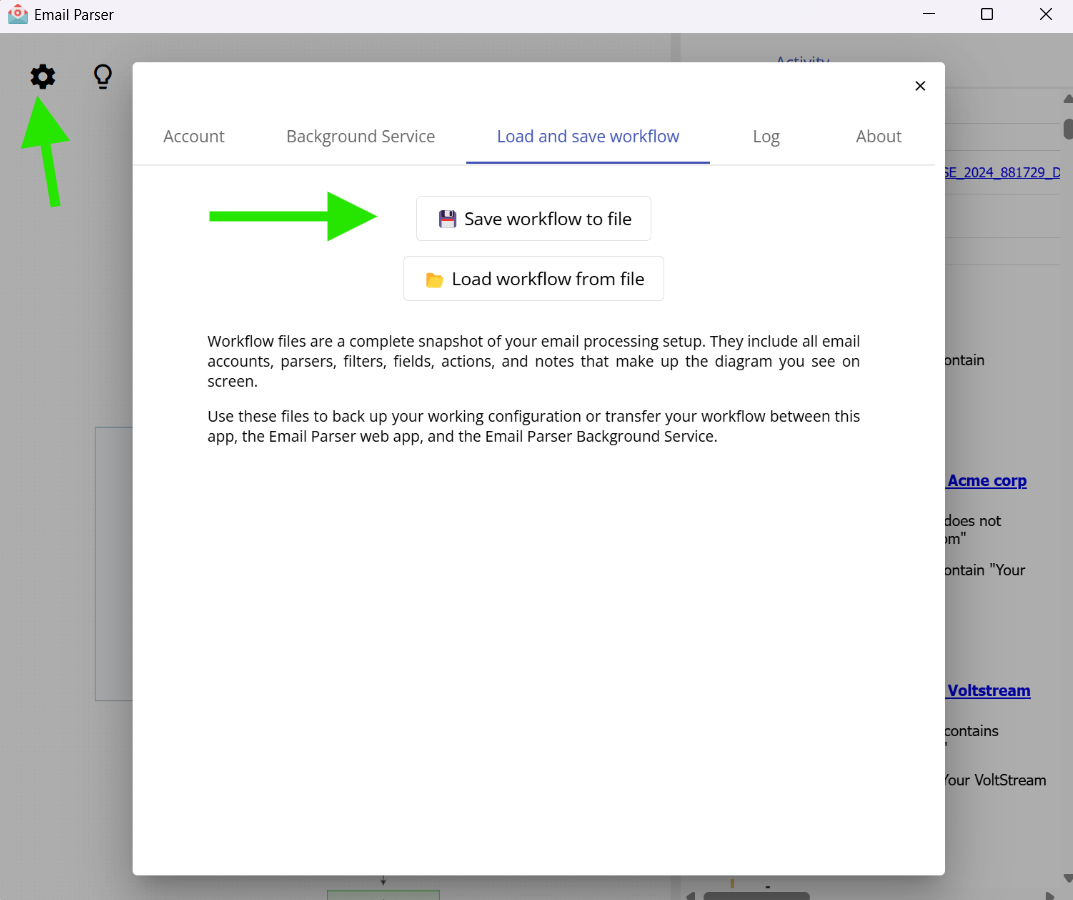
If you are already using Email Parser, export your existing Email Parser settings to a file.
-
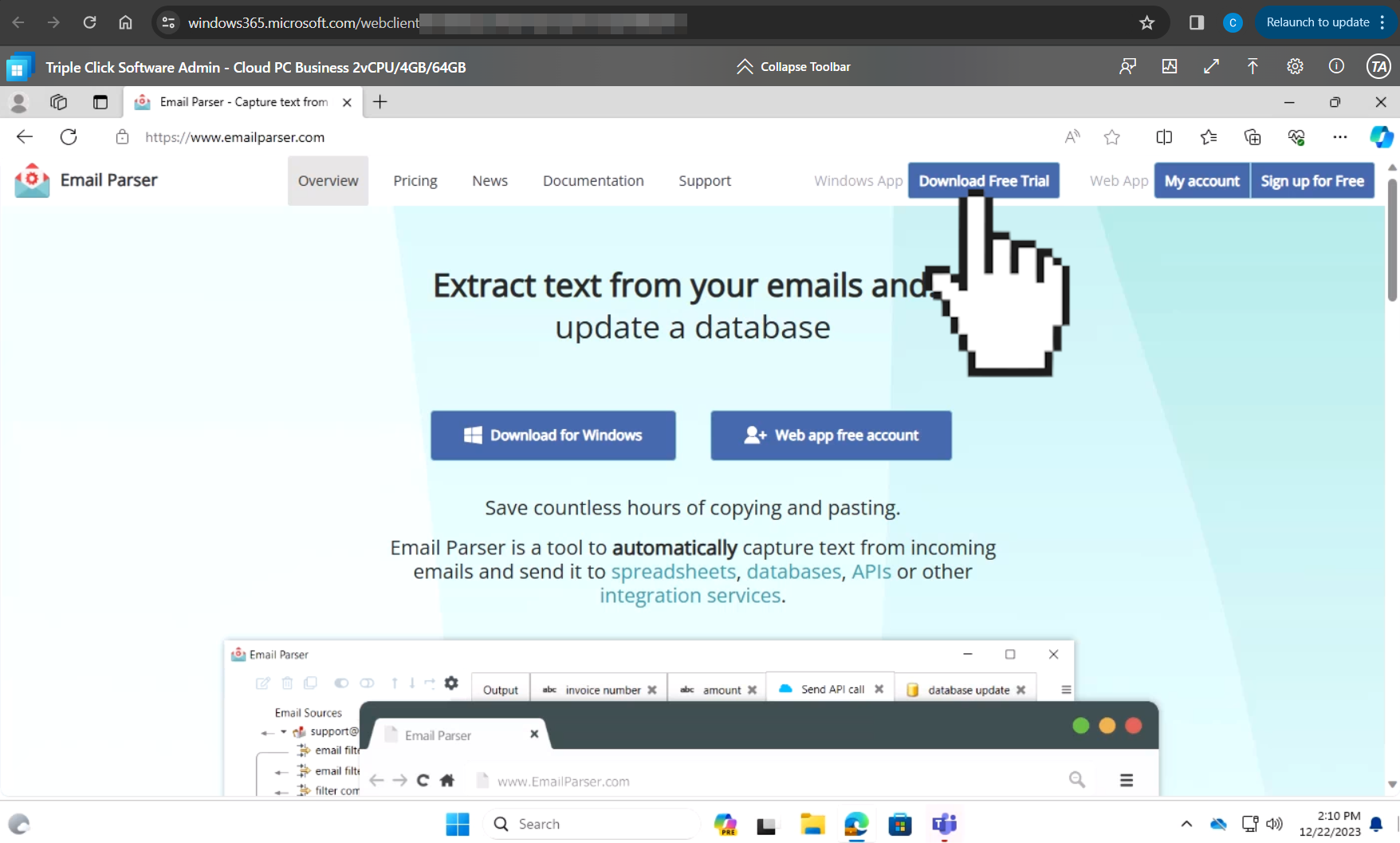
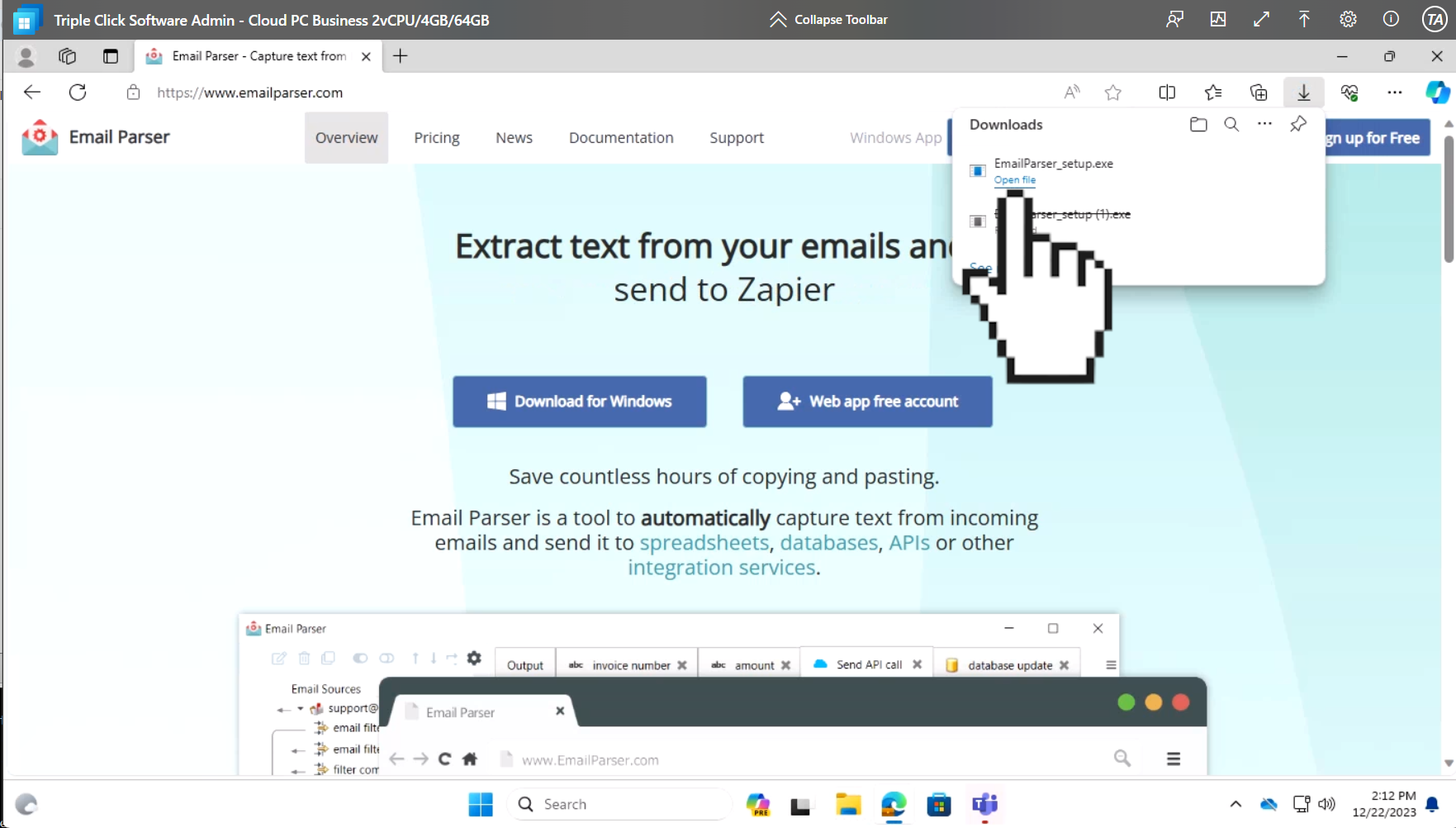
Download and install Email Parser in your Cloud PC. Open a web browser in the cloud computer and go to emailparser.com. Then click the “Download free trial” button at the top right corner of this website.
-
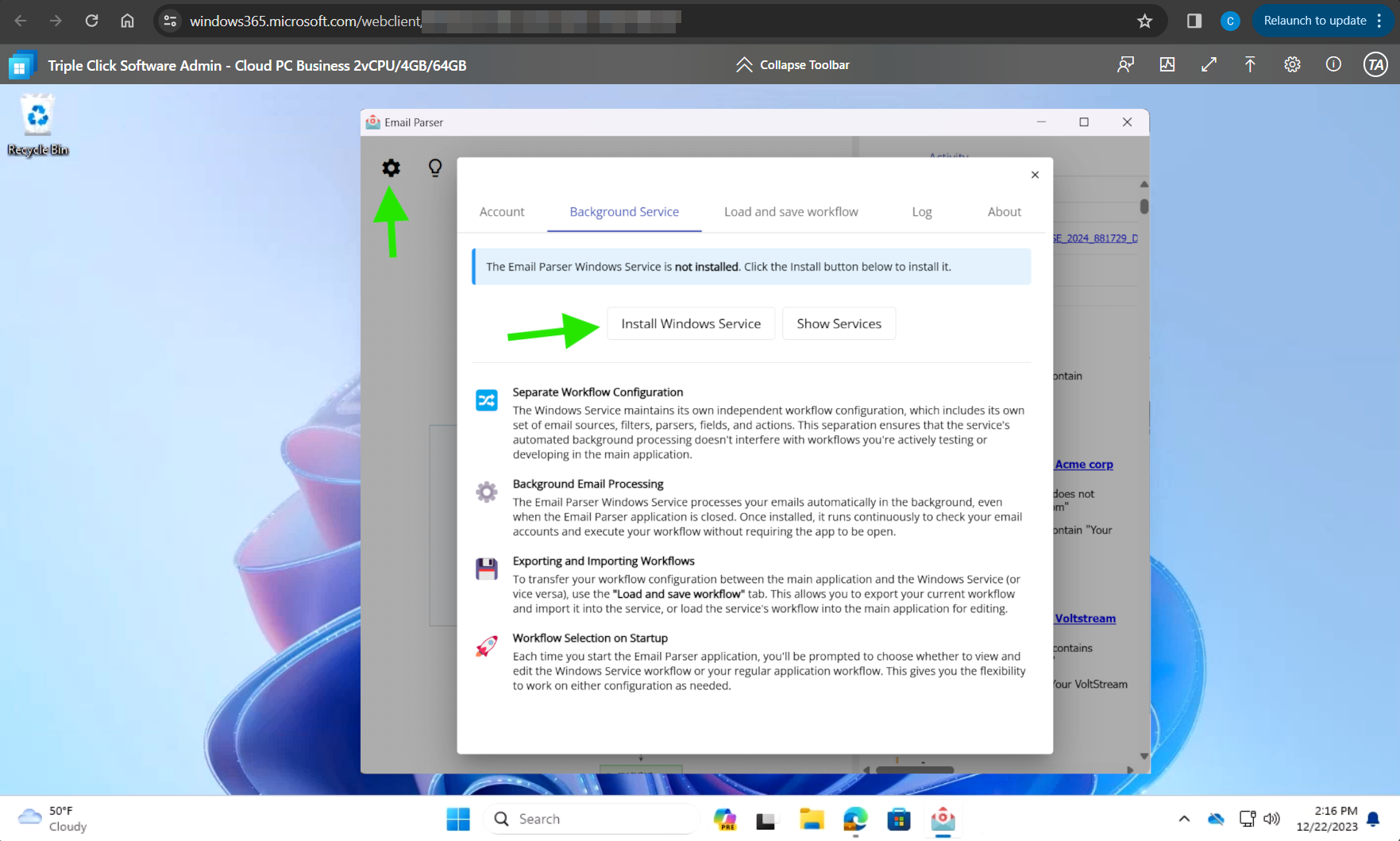
Change the Email Parser running mode to “Windows Service”. This ensures that, even if no user is logged in, email processing will continue.
-
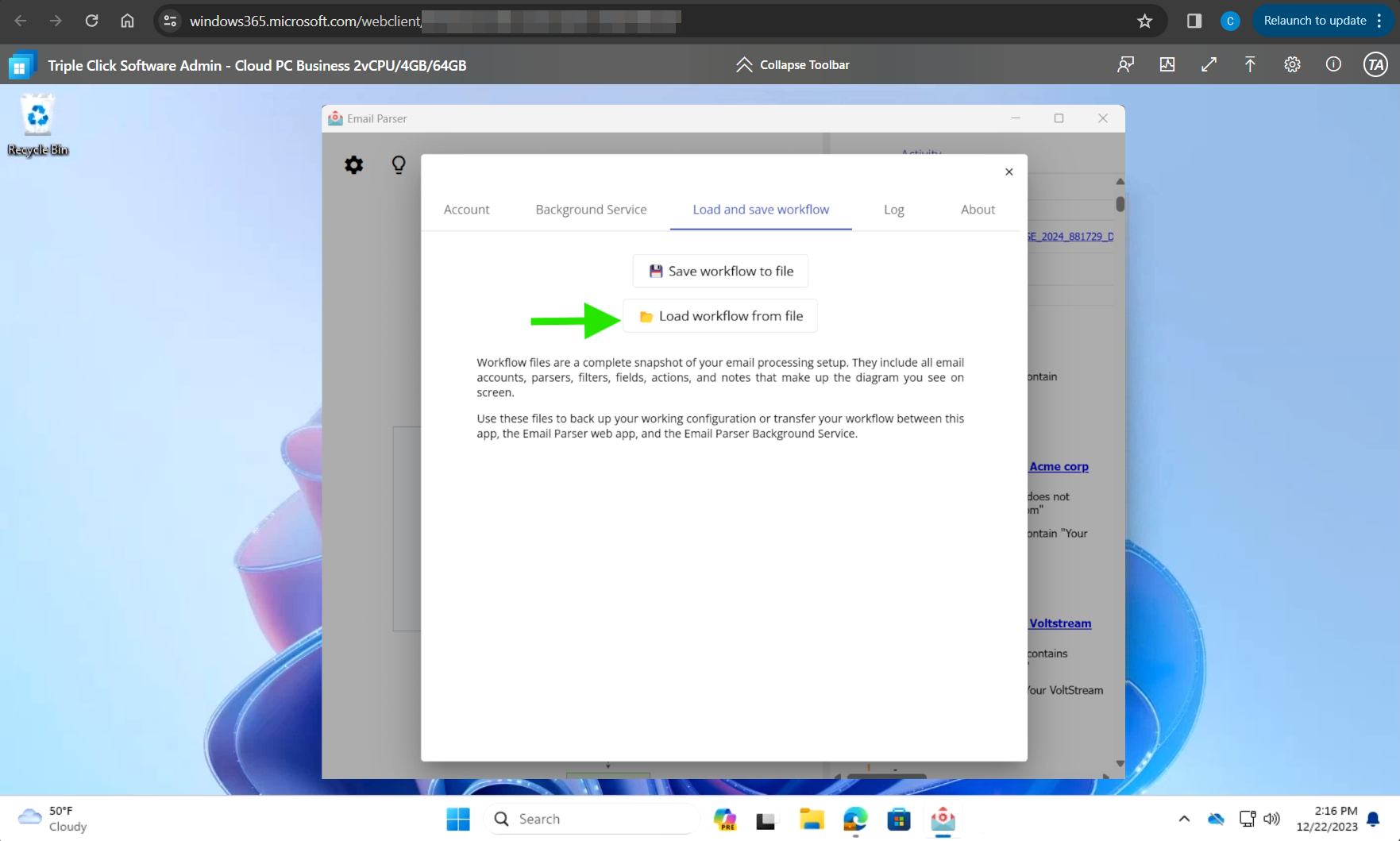
And finally, import your settings: