Running JavaScript
See also:
Overview of scripting in Email Parser
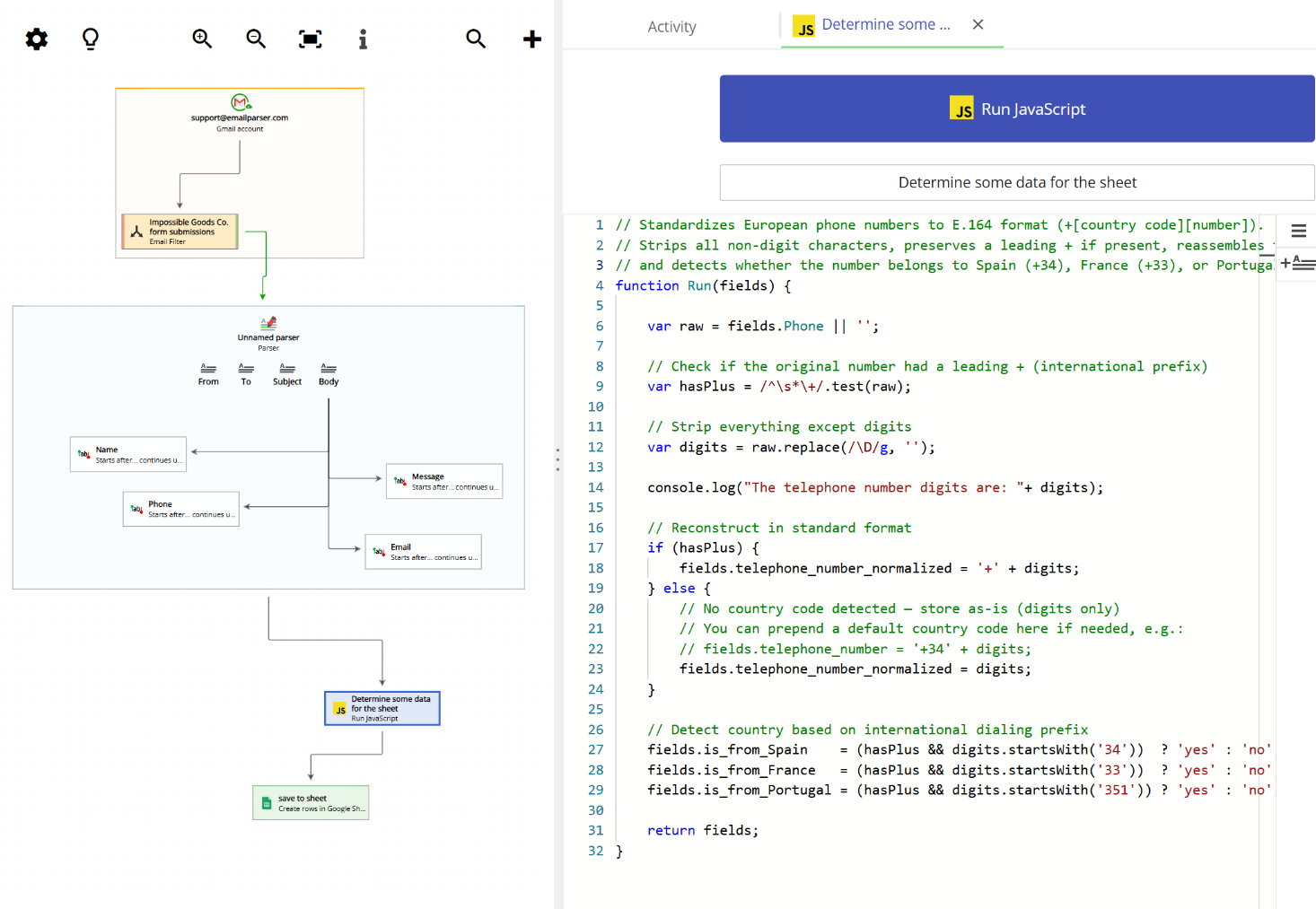
Email Parser can run JavaScript code as an action within your workflow. This means you can apply custom logic to transform, filter, or enrich your parsed fields using the full power of a scripting language. Whether you need to reformat a phone number, parse a JSON API response, classify a customer by country, or derive new values from existing fields, a JavaScript action gives you the flexibility to do it right inside Email Parser, with no external tools required.
The three places where you can run JavaScript in Email Parser
Email Parser lets you use JavaScript in three different places, each serving a distinct purpose:
- As a filter: a JavaScript filter runs once per incoming email and decides whether the email should be processed at all. The function returns
trueto allow the email through, orfalseto discard it. Learn more about JavaScript filters. - Inside a parser: a JavaScript parser extracts a specific field value from the email text. The function receives a string and returns the extracted value. Learn more about JavaScript parsers.
- As an action (this page): a JavaScript action runs as a step in your workflow, after the email has been parsed. It receives all the fields available at that point and can create or modify multiple fields at once. This is the most powerful of the three options, and it is what this page covers.
How it works
Your script must define a function called Run() that receives a single argument: an object called fields. This object contains all the fields available at that point in the workflow, including:
- Email fields, such as
fields.Subject,fields.Body,fields.From,fields.To, and more. - Fields captured by parsers: anything your parsers have extracted from the email body, such as names, addresses, phone numbers, or any other text blocks. For example, if you have a parser that captures a field named
customer_address, it will be accessible asfields.customer_address. - Fields generated by previous actions: for example, if a previous HTTP Request action placed a response into a field called
HttpResponse, your script can access it viafields.HttpResponse.
The function must return the fields object. Before returning it, you can add as many new properties as you need. Each new property you add will be available as a field to the next actions in the workflow.
For example, the following minimal script adds a new field called postal_code to the workflow:
function Run(fields) {
    fields.postal_code = "1234";
    return fields;
}
After this action runs, the value "1234" will be available in any subsequent action that uses the field postal_code.
JavaScript version and limitations
Email Parser executes scripts using ECMAScript 2023 (the full specification is available at https://tc39.es/ecma262/2023/). This means you can use modern JavaScript features such as arrow functions, destructuring, async/await, optional chaining, and more. However, there are some important limitations to be aware of:
- No browser APIs: objects like
window,document, orXmlHttpRequestare not available, since Email Parser does not run code inside a browser. - No Node.js modules: this is not a Node.js environment, so built-in modules like
fs,http,path, orrequire()are not available.
If your use case requires capabilities beyond what is available in this environment (for example, making HTTP requests from within the script, accessing the local file system, or using third-party libraries), you have two alternatives:
- The C# action, which provides a fully-featured scripting environment with access to the entire .NET ecosystem, including HTTP clients, file I/O, and NuGet packages.
- The Run a command under the Windows command prompt action, which lets you invoke a Node.js script (or any other executable) from the command line, giving you access to the full Node.js module ecosystem.
Sample script
The following annotated script demonstrates several common patterns you will encounter when writing JavaScript actions. It shows how to read fields from the fields object, write new fields back, log messages for debugging, and parse a JSON response produced by a previous HTTP Request action:
/*
 * Email Parser calls the Run() function, passing in the 'fields' object. This object
 * includes all the fields from the email, as well as any fields generated by previous
 * actions or parsers.
 *
 * To debug and test your code, consider using a JavaScript IDE like Visual Studio Code or
 * WebStorm. Alternatively, online tools like JSFiddle or codepen.io can be handy. Once you've
 * finished testing, simply copy your code and paste it here.
 *
 * Please note that the JavaScript version supported here is EcmaScript 2023
 * (refer to https://tc39.es/ecma262/2023/ for more details). This version of JavaScript
 * doesn't support browser-specific objects like 'window', 'document', or 'XmlHttpRequest'.
 */

function Run(fields)
{
    // Show all property names of the 'fields' object
    console.log("We have the following fields: " + Object.keys(fields));

    // Show the subject of the email
    console.log("Subject: " + fields.Subject);

    // If the sender contains john@business.com, create a new field called 'is_john'
    // and set it to "yes" or "no"
    if(fields.From.includes("john@business.com"))
        fields.is_john = "yes";
    else
        fields.is_john = "no";

    // JavaScript is very useful for parsing JSON responses from APIs. The EmailParser
    // action Http Request generates a field called HttpResponse that contains the JSON
    // response from the API.

    // Just in case HttpResponse is not defined:
    if(!fields.HttpResponse)
    {
        console.log("No JSON response found in the field HttpResponse");
        return;
    }

    // Find the property "amount" in the JSON response contained in the field
    // fields.HttpResponse and set it to the field "amount"
    var response = JSON.parse(fields.HttpResponse);
    fields.amount = response.amount;

    // Find the property "currency" in the JSON response contained in the field
    // fields.HttpResponse and set it to the field "currency"
    fields.currency = response.currency;

    // Any property added or modified in the 'fields' object will be available
    // to the next actions in the workflow.
}
This sample illustrates a few key ideas:
- You can use
console.log()to write debug messages, which will appear in Email Parser’s action log and help you troubleshoot your script. - You can inspect any field on the
fieldsobject using standard JavaScript property access (dot notation or bracket notation). - You can create new fields simply by assigning a value to a new property on
fields, such asfields.is_john = "yes". - If a previous action in the workflow made an HTTP request and stored the response in a field, you can parse it using
JSON.parse()and extract the values you need.
Limitations of the built-in script editor
The script editor built into Email Parser is intentionally minimal. It is good enough for pasting and making small edits, but it is not designed for writing or debugging scripts from scratch. It has no syntax highlighting, no auto-complete, and no way to run or test the code directly.
For writing and testing your scripts, we recommend using a proper development environment instead:
- Visual Studio Code is a free, widely-used code editor with excellent JavaScript support, including syntax highlighting, auto-complete, and an integrated debugger.
- WebStorm is a professional JavaScript IDE with advanced refactoring and debugging tools.
- JsFiddle and CodePen are free online tools where you can run JavaScript directly in your browser without installing anything. They are a great option for quickly testing a short script before pasting it into Email Parser.
The recommended workflow is to write and test your script in one of these tools first, and then copy and paste the finished code into Email Parser’s script editor. This saves time and makes it much easier to catch mistakes before they affect your live workflows.
Don’t Know How to Code? Let an AI Write it For You
JavaScript actions are intended for users who need custom logic, but that does not mean you need to be a developer to use them. If you are not familiar with JavaScript, an AI assistant such as ChatGPT, Gemini, or Claude can write the script for you. Here is how to do it effectively:
- Tell the AI that you need a JavaScript function called
Run()that takes a single object parameter namedfields, and that it must return the samefieldsobject. - Describe in plain language what you want the script to do. For example: “I need to check whether the phone number in
fields.Phonestarts with +44, and if so, set a new fieldfields.is_from_ukto the valueyes.” - Tell the AI that the script must be compatible with ECMAScript 2023, without any browser-specific objects like
window,document, orXmlHttpRequest, and without any Node.js modules. - You can paste one of the sample scripts shown on this page as a starting point, to give the AI a better idea of what the code should look like.
The AI will generate a working script that you can copy and paste directly into Email Parser. You may want to test it in JsFiddle or VS Code first, as described in the previous section.
Real-world example: processing web form submissions
To see a JavaScript action in practice, let’s walk through a complete real-world scenario. Imagine you run an online shop called “Impossible Goods Co.” and your website sends you an email notification every time a customer fills out a contact form. The emails you receive look something like this:
Form Submission
Name: Margaret Holloway
Phone: +44 7700 900341
Email: m.holloway@gmail.com
Hi, I recently purchased the Flux Capacitor and I’m a little concerned, because the manual says it requires 1.21 gigawatts but my home outlet only goes up to 240V. Do you sell an adapter? Also, what is your return policy if I accidentally alter the timeline?
Form Submission
Name: Tomás Ferreira
Phone: +351 912 345 678
Email: tomas.ferreira@outlook.pt
Hello! I want to buy Conan’s sword as a gift for my brother’s birthday. Can you confirm whether it comes in a gift box? Also, does it actually work or is it just decorative? Asking for safety reasons.
Form Submission
Name: Priya Nair
Phone: +33 6 12 34 56 78
Email: priya.nair@yahoo.fr
Good morning. I ordered a Harry Potter wand three weeks ago and it still hasn’t arrived. The tracking number you sent doesn’t work. I’ve tried waving it anyway with no results, so I assume it hasn’t been enchanted yet. Please advise.
The goal is to automatically capture the customer’s information from each email, determine which country they are calling from based on their phone number, and add a new row to a Google Sheet, so your support team has a clean, organized list of inquiries to work from.
Here is how the workflow is set up in Email Parser:

The workflow consists of four steps:
- Filter by subject: a filter action checks that the email subject contains the text “form submission at Impossible Goods Co. website”. This ensures only the relevant form submission emails are processed, and any other emails received by that account are ignored.
- Parse the email body: a parser action extracts four fields from the email body:
Name,Phone,Message, andEmail. - Run the JavaScript action: a JavaScript action runs the script below, which takes the raw
Phonefield and produces a normalized phone number (in E.164 international format) along with three boolean flags that indicate whether the customer is calling from Spain, France, or Portugal. - Append to Google Sheets: a Google Sheets action appends a new row to a spreadsheet using the fields collected in the previous steps.
Here is the JavaScript action script used in step 3. It strips all non-digit characters from the phone number, reconstructs it in the standard +[country code][number] format, and then checks the international dialing prefix to set the three country flags:
// Standardizes European phone numbers to E.164 format (+[country code][number]).
// Strips all non-digit characters, preserves a leading + if present, reassembles the number,
// and detects whether the number belongs to Spain (+34), France (+33), or Portugal (+351).
function Run(fields) {

    var raw = fields.Phone || '';

    // Check if the original number had a leading + (international prefix)
    var hasPlus = /^\s*\+/.test(raw);

    // Strip everything except digits
    var digits = raw.replace(/\D/g, '');

    console.log("The telephone number digits are: "+ digits);

    // Reconstruct in standard format
    if (hasPlus) {
        fields.telephone_number_normalized = '+' + digits;
    } else {
        // No country code detected -- store as-is (digits only)
        // You can prepend a default country code here if needed, e.g.:
        // fields.telephone_number = '+34' + digits;
        fields.telephone_number_normalized = digits;
    }

    // Detect country based on international dialing prefix
    fields.is_from_Spain    = (hasPlus && digits.startsWith('34'))  ? 'yes' : 'no';
    fields.is_from_France   = (hasPlus && digits.startsWith('33'))  ? 'yes' : 'no';
    fields.is_from_Portugal = (hasPlus && digits.startsWith('351')) ? 'yes' : 'no';

    return fields;
}
After this action runs, the workflow has access to four new fields: telephone_number_normalized, is_from_Spain, is_from_France, and is_from_Portugal. These, combined with the Name, Email, and Message fields captured by the parser, are passed directly into the Google Sheets action to populate the spreadsheet row.
This example shows how a JavaScript action can act as a lightweight transformation step, bridging the gap between raw parsed data and the clean, structured output that your downstream actions need.
