AI Agent Action
See also:
Capturing text with AI
Running AI agent inside an action versus running in a field
Tips for writing a good prompt
The credit system and using your own key
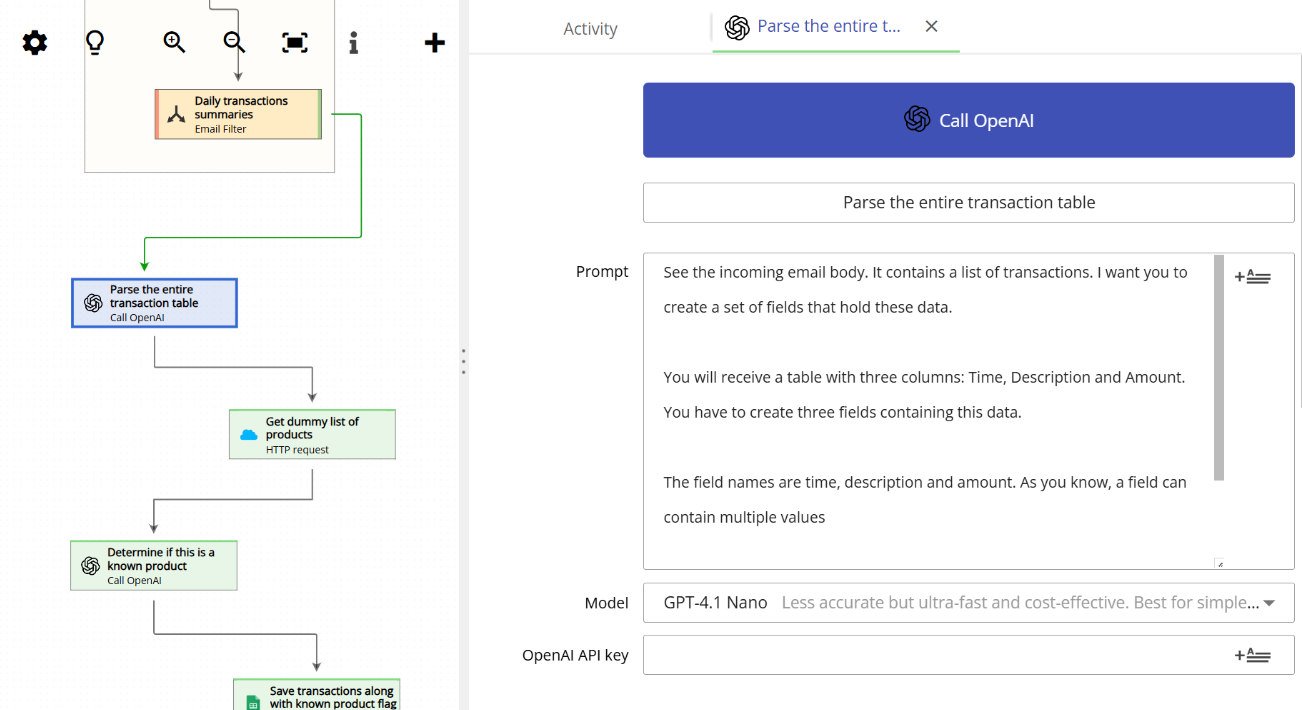
The Call OpenAI action lets you call any of the available OpenAI models directly from your workflow. When execution reaches this action, the agent receives the full email content along with the output of every previous step in the workflow, including results from database queries, HTTP API requests, scripts, and more. The results the agent produces are stored as new fields, which become available to every subsequent step in the workflow.
For more precise control over what context is given to the agent, see Running AI agent inside an action versus running in a field.
Example: Processing a Daily Transaction Email

To put all of this into practice, let’s walk through a complete example. In this scenario, we receive a daily email that contains a table of financial transactions. Our goal is to load those transactions into a Google Sheet. On top of that, we want to determine whether the description of each transaction matches any of the products in our product catalog – a list that we retrieve in real time from an external API endpoint.
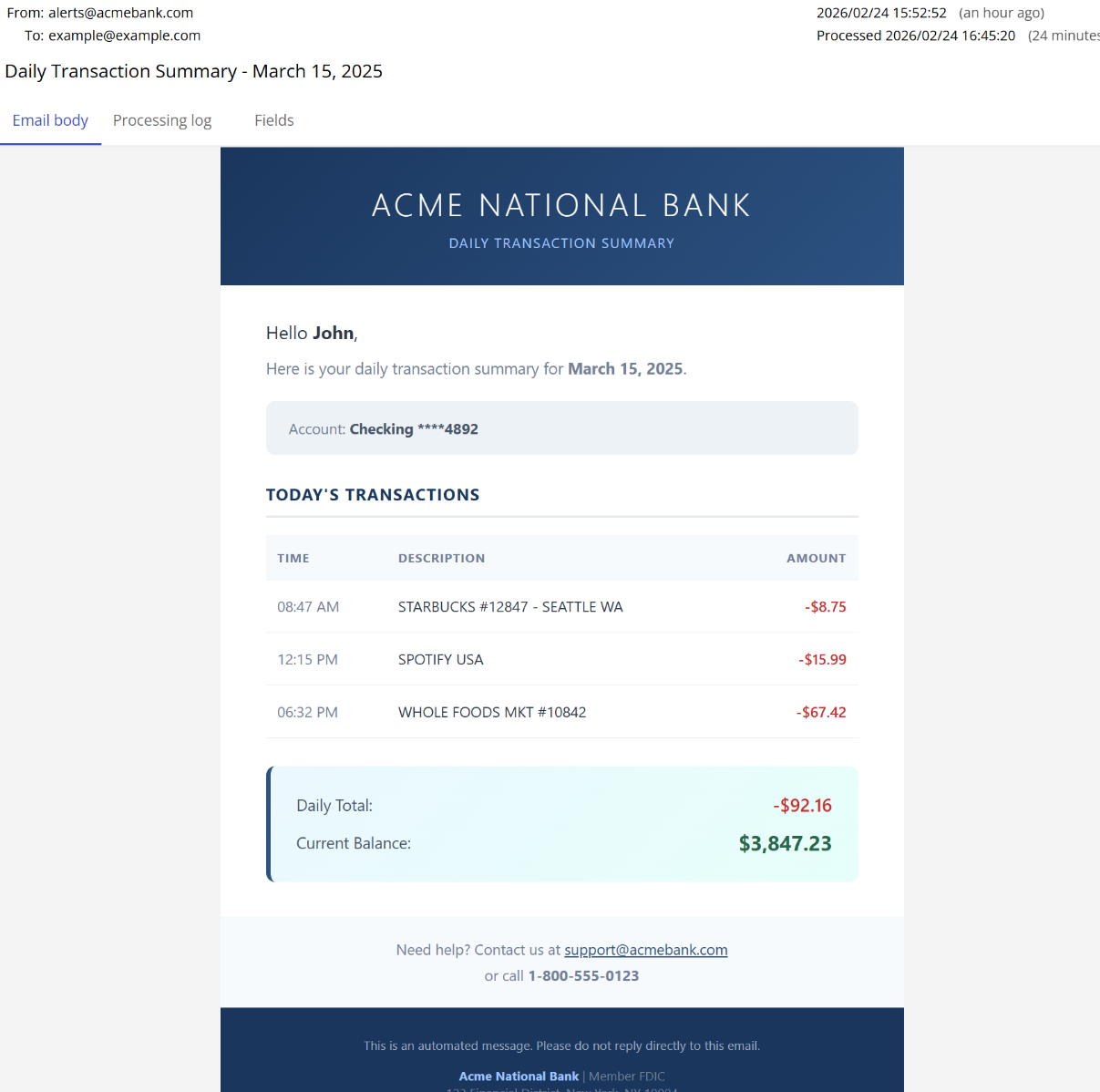
Here is what the incoming email looks like. It arrives once a day and contains a table of transactions with the time, a short description, and the amount for each one:
To handle this automatically, we build the following four-step workflow in Email Parser:
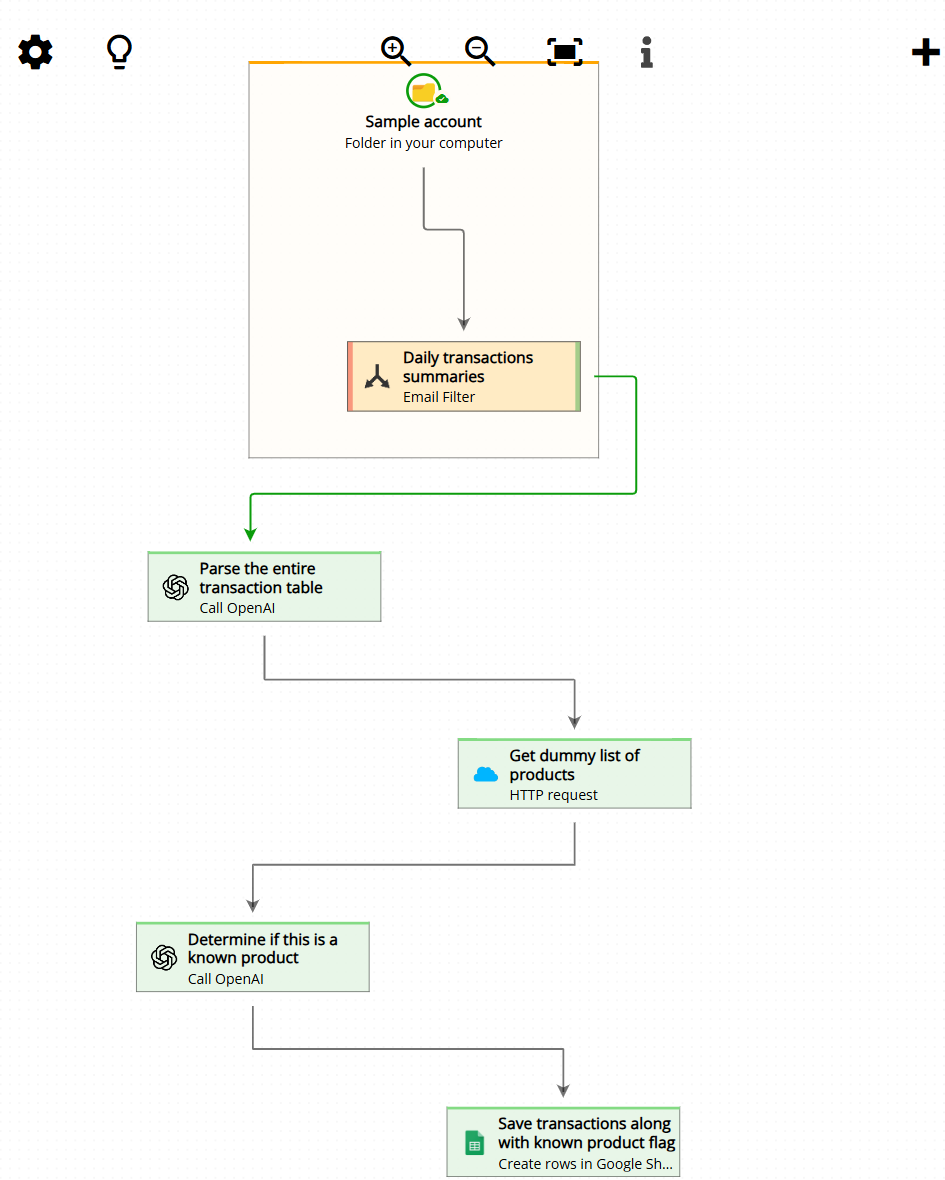
Step 1: Extract the transaction table using an AI agent
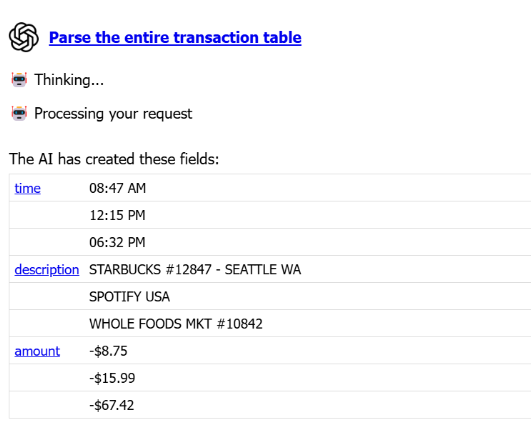
The first step is a Call OpenAI action. We write a prompt that instructs the agent to read the email body and extract every row from the transaction table. We ask it to create three output fields: Time, Description, and Amount. Since the email contains multiple transactions, each of these fields will hold multiple values – one per row in the table. We also include an example in the prompt to clarify the expected format of each column.
The screenshot below shows the result of running this step on a sample email. The agent has successfully created the three fields with all transaction rows correctly populated:
Here is the prompt used in this step:
See the incoming email body. It contains a list of transactions. I want you to create a set of fields that hold these data.

You will receive a table with three columns: Time, Description and Amount. You have to create three fields containing this data.

The field names are time, description and amount. As you know, a field can contain multiple values

For example, if you receive 4 rows you should generate 4 values for time, 4 values for description and 4 values for amount. In the same order as they appear on the table from the top to the bottom
Step 2: Retrieve the product catalog from an API
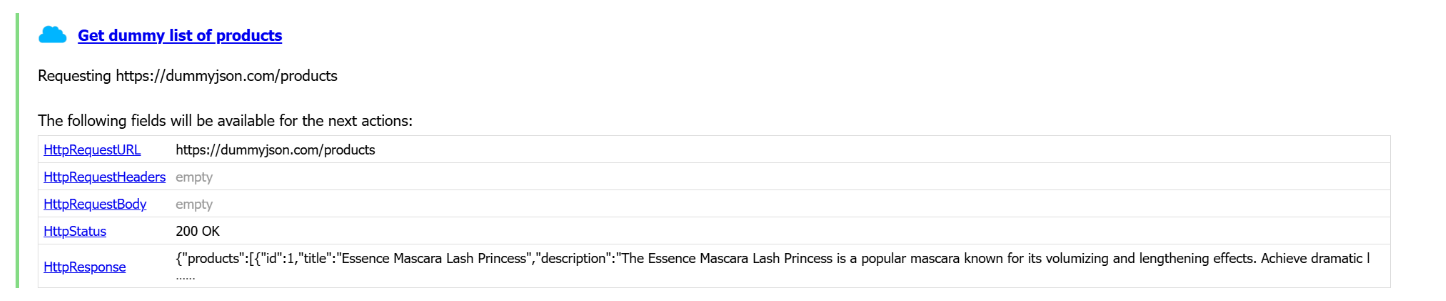
In the second step, we use an HTTP request action to call an external API endpoint that returns our current product catalog. The response is a JSON string that is stored as-is in a new field called HttpResponse. At this point, the workflow holds both the transaction data extracted from the email (step 1) and the raw product list from the API (step 2), and the next step can reference both of them.
Step 3: Use a second AI agent to match transactions to products
This time, we write a prompt that instructs the agent to compare the values of the Description field (one entry per transaction, produced in step 1) against the list of products retrieved in step 2. For each transaction description, the agent should output either “Yes” or “No” to indicate whether it matches a known product. We tell the agent to store these results in a new field called is_a_known_product.
Because this agent has access to both the transaction data and the product catalog at the same time, it can reason across all of that combined information in a single pass – something that would simply not be possible with a field-level AI call. The screenshot below shows how this step and the previous HTTP request are configured together in the workflow:

Here is the prompt used in this step:
See the product list at the field HttpResponse. I want you to find if any of these products matches any of the values of the descriptions you can find at the field description.

You have to create a new field called "is_a_known_product". This field must have as many values as the description field. These values for the field "is_a_known_product" can be simply "true" or "false". The value is "true" if we could find a match in the product list for the description with the same index.

For example: if the description field has thses three values
- spotify
- Google one subscription
- USB cable

We have to generate a new field called "is_a_known_product" with this three values:
- false
- false
- true

Because the only product we could find in the product list was the third value of description (the "USB cable" was in the list of products at HttpResponse)
Step 4: Export all four columns to a Google Sheet
In the final step, we use the Google Sheets action to write all four fields to a spreadsheet. We map Time, Description, Amount, and is_a_known_product to columns in the sheet. Each row in the spreadsheet corresponds to one transaction from the email, and Email Parser writes all rows in a single operation – no matter how many transactions the email contains.

