The settings window
The settings window is the central place to manage your Email Parser account, back up and restore your workflow settings, install the Email Parser Windows Service (only in the Windows app), and access the full log of email processing. The web app also includes a dedicated area where you can download files generated by your workflow.
How to open the settings window
You can open the settings window by clicking the gear icon at the top of the Windows app, or the account icon (shown as a person silhouette) at the top of the web app. The screenshots below show where to find it in both.
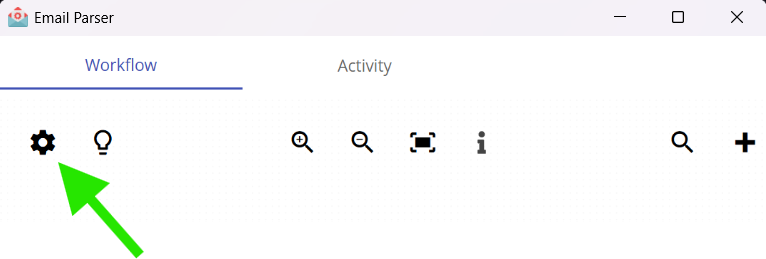
Opening the settings window in the Windows app
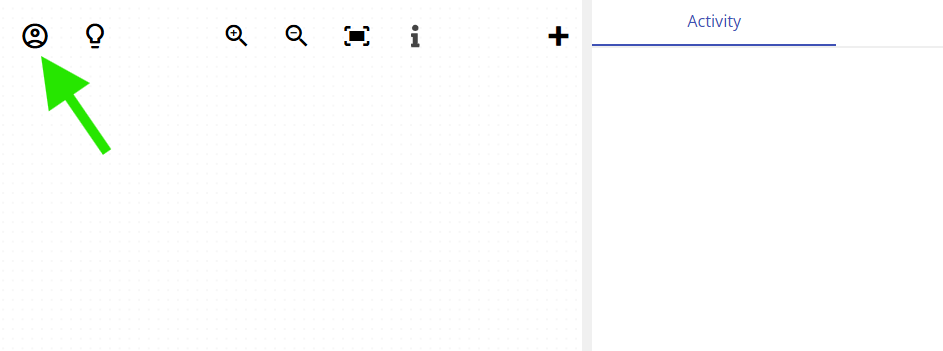
Opening the settings window in the web app
Once opened, the settings window is organized into several tabs. The sections below walk through each tab and explain what you can do there.
Account tab
The Account tab is where you manage everything related to your Email Parser account. From here you can change your password, check your current subscription status, manage your payment method, and delete your account if needed. This tab gives you a full view of the state of your subscription so you always know what plan you are on and when it renews.
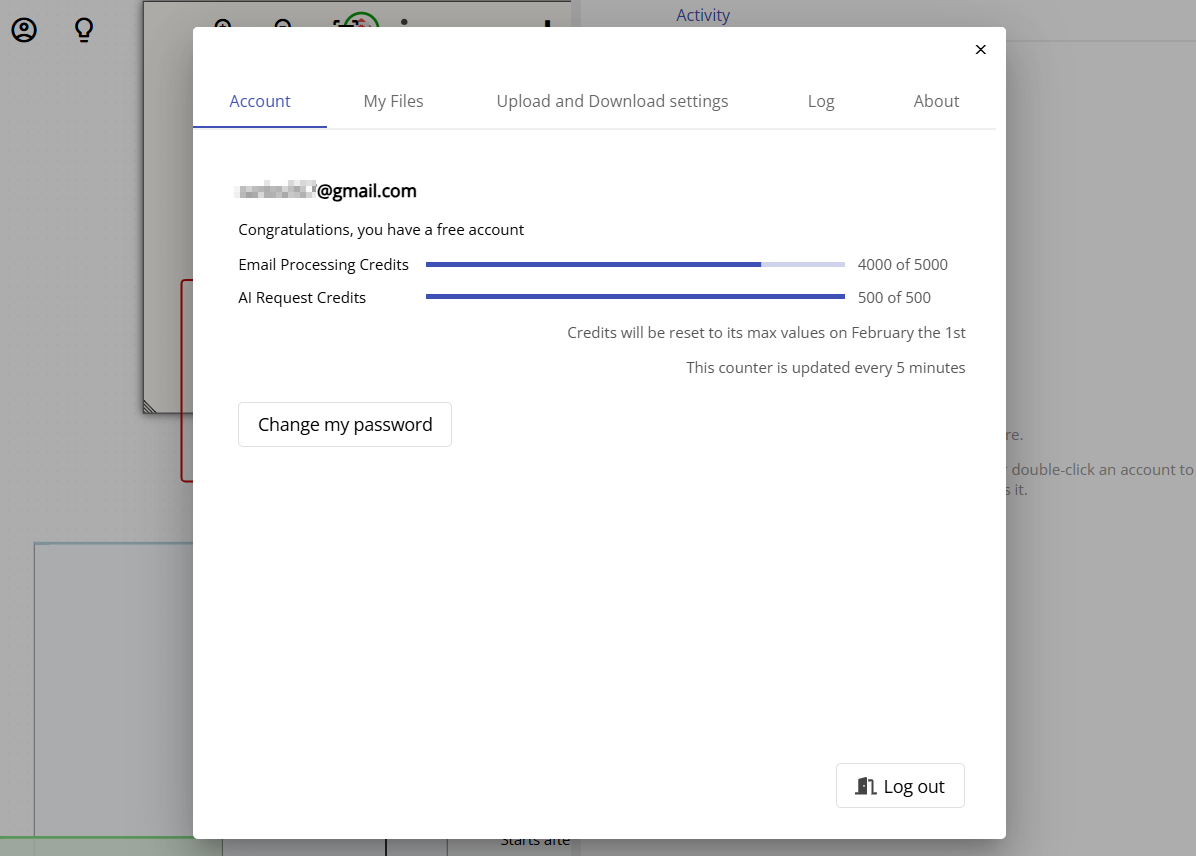
The Account tab in the web app
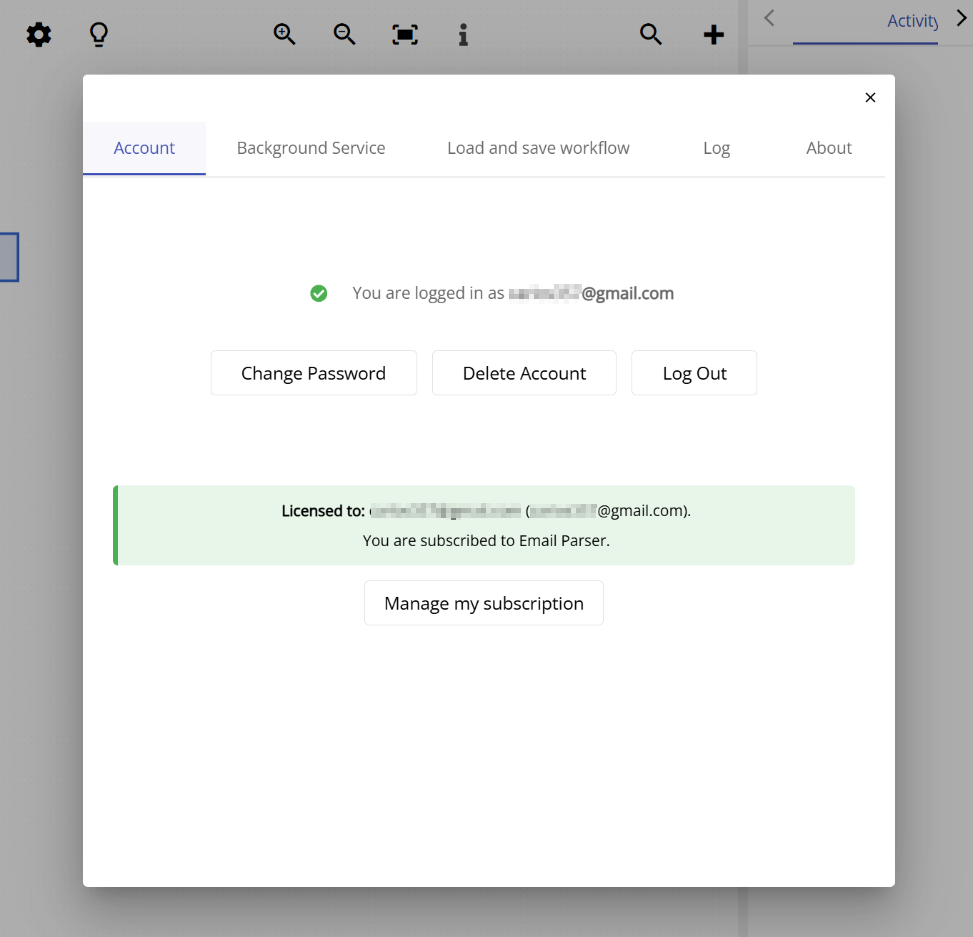
The Account tab in the Windows app, showing subscription status and logged-in account
Load and save workflow tab
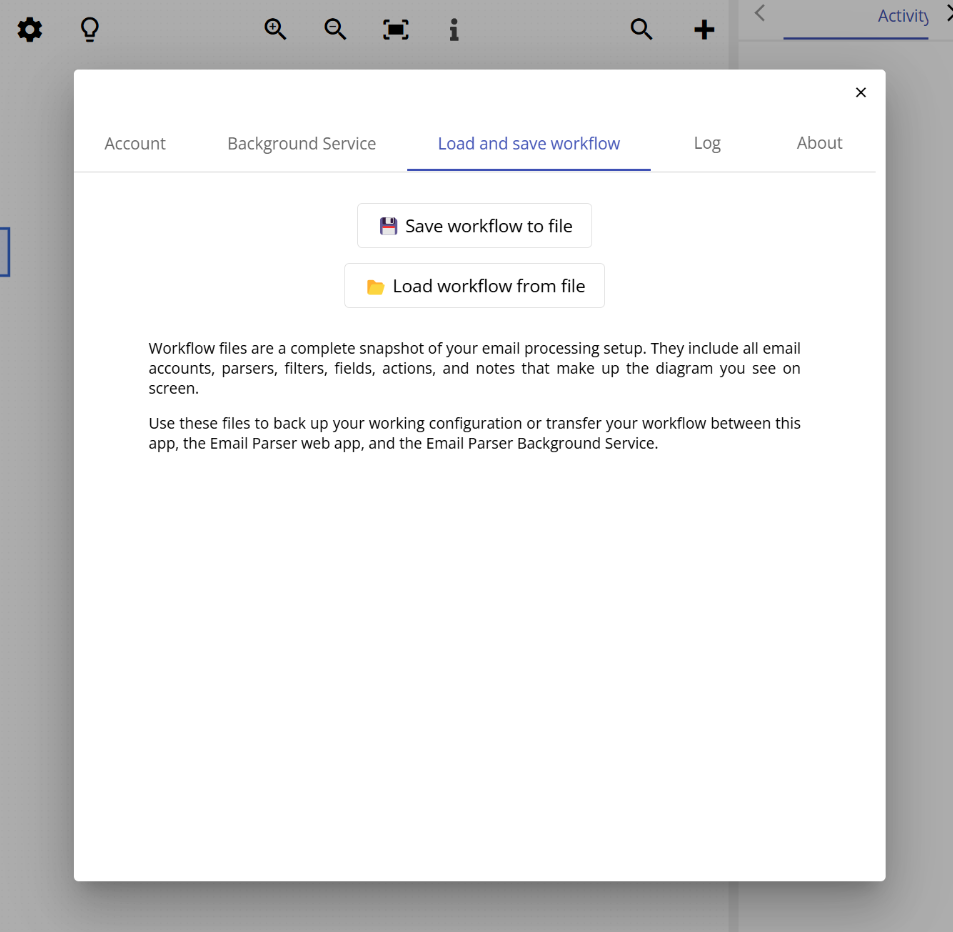
The Load and save workflow tab (called Upload and download settings in the web app) is where you can back up your entire workflow to a file or restore it from a previously saved file. This is useful when you want to move your workflow from one machine to another, keep a backup before making major changes, or transfer settings between the Windows Service and the main application.
Saving your workflow exports all your email accounts, parsers, fields, filters, and actions into a single file that you can store safely and reload at any time.
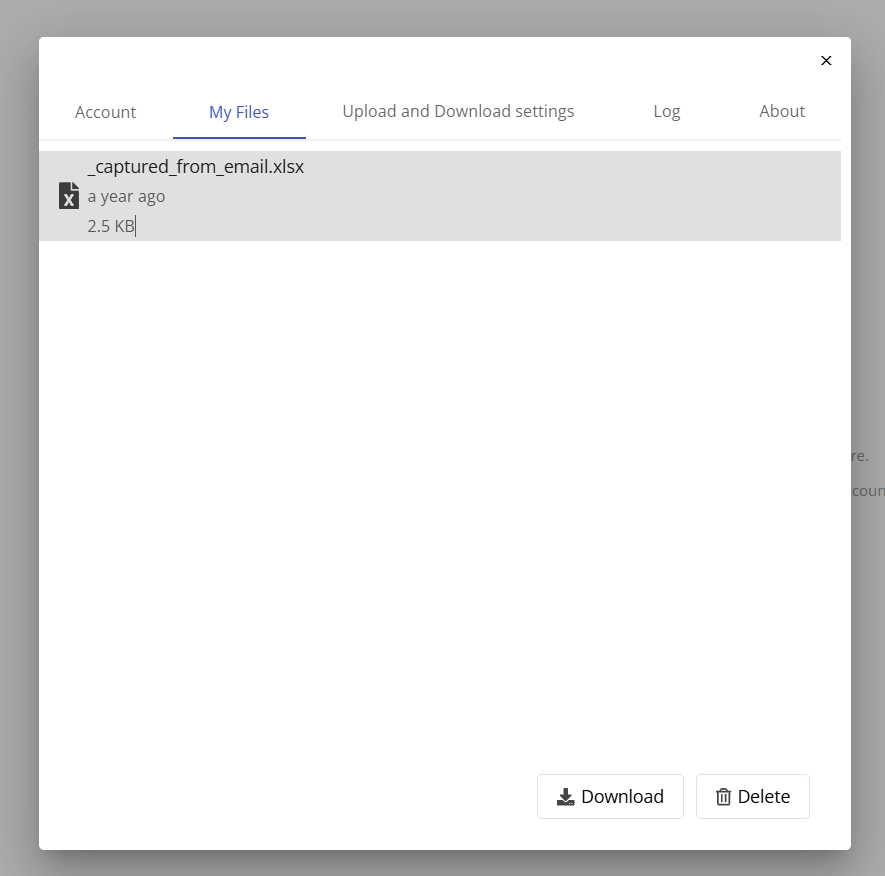
My Files tab (web app only)
The My Files tab is only available in the web app. When your workflow processes emails and generates output files (such as Excel spreadsheets, CSV files, or email attachments saved using a save-attachments action), those files are stored on the server and made available here for download.
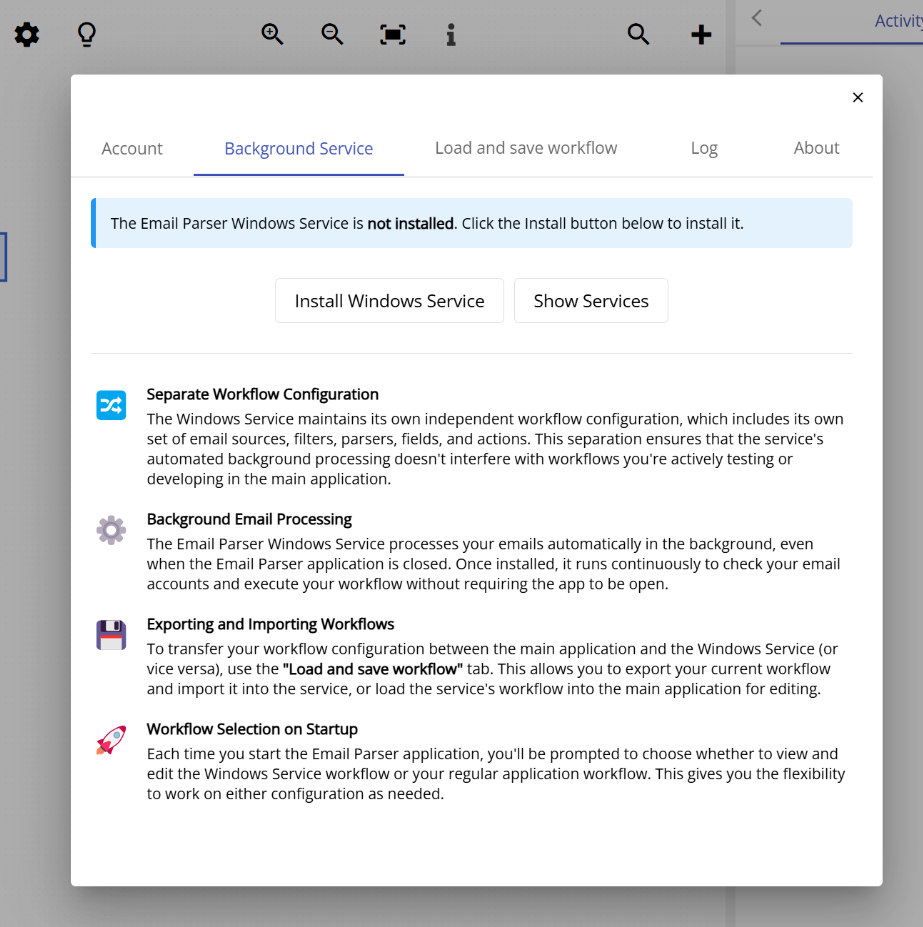
Windows Service tab (Windows app only)
The Windows Service tab is only available in the Windows app. It allows you to install and manage the Email Parser Windows Service, a feature that lets Email Parser run automatically in the background even when the application window is closed.
When the Windows Service is installed, it starts automatically with Windows and continuously monitors your email accounts and executes your workflow, without requiring you to keep the Email Parser application open. This is ideal for unattended, always-on processing on a dedicated Windows machine.
An important detail is that the Windows Service maintains its own independent workflow configuration. This means you can have a separate set of email accounts, parsers, and actions for the service, completely independent from the workflow you work with in the main application window. You can use the Load and save workflow tab to transfer settings between the two.
For a detailed explanation of how the Windows Service works and how to set it up, see the Email Parser Windows Service documentation page.
Log tab
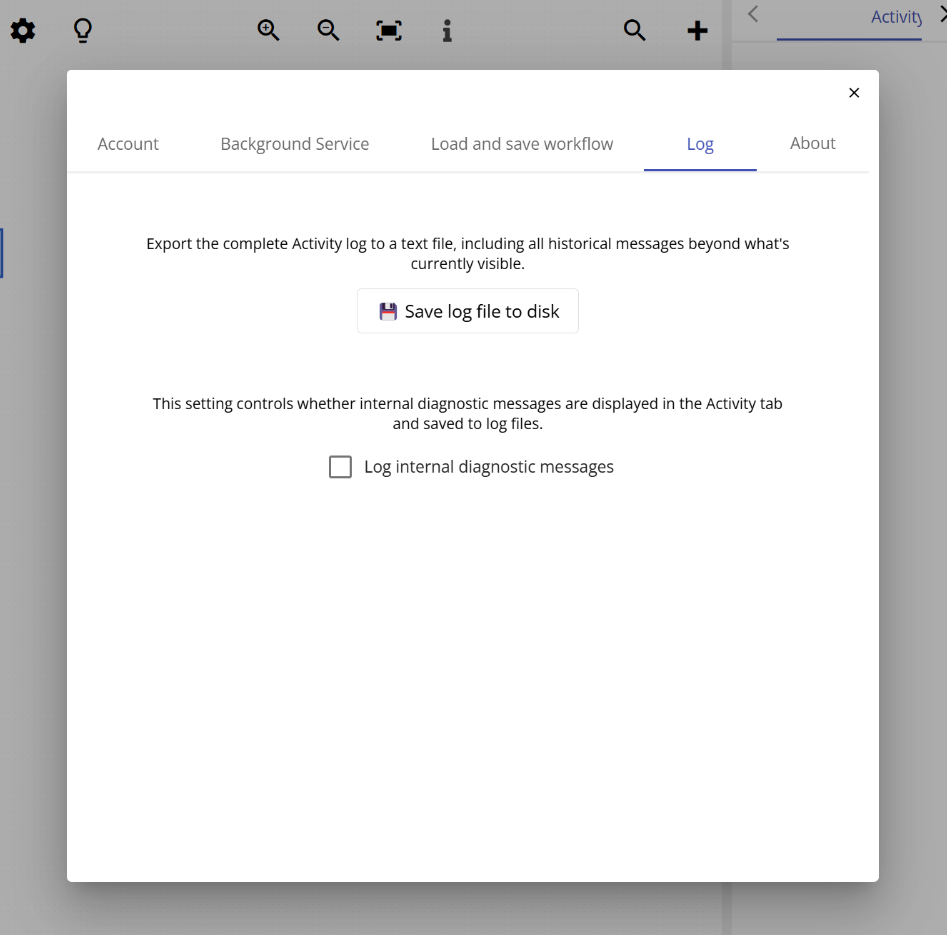
The Log tab gives you access to the full processing log of Email Parser. You can download this log as a plain text (TXT) file, which contains a chronological record of every email that has been processed, including what happened at each step of the workflow.
This log is different from the per-email output you may have seen in your email account list. The log available here covers all emails and all email accounts together, making it very useful when you want to review the overall processing history or investigate a problem that occurred in the past.
About tab
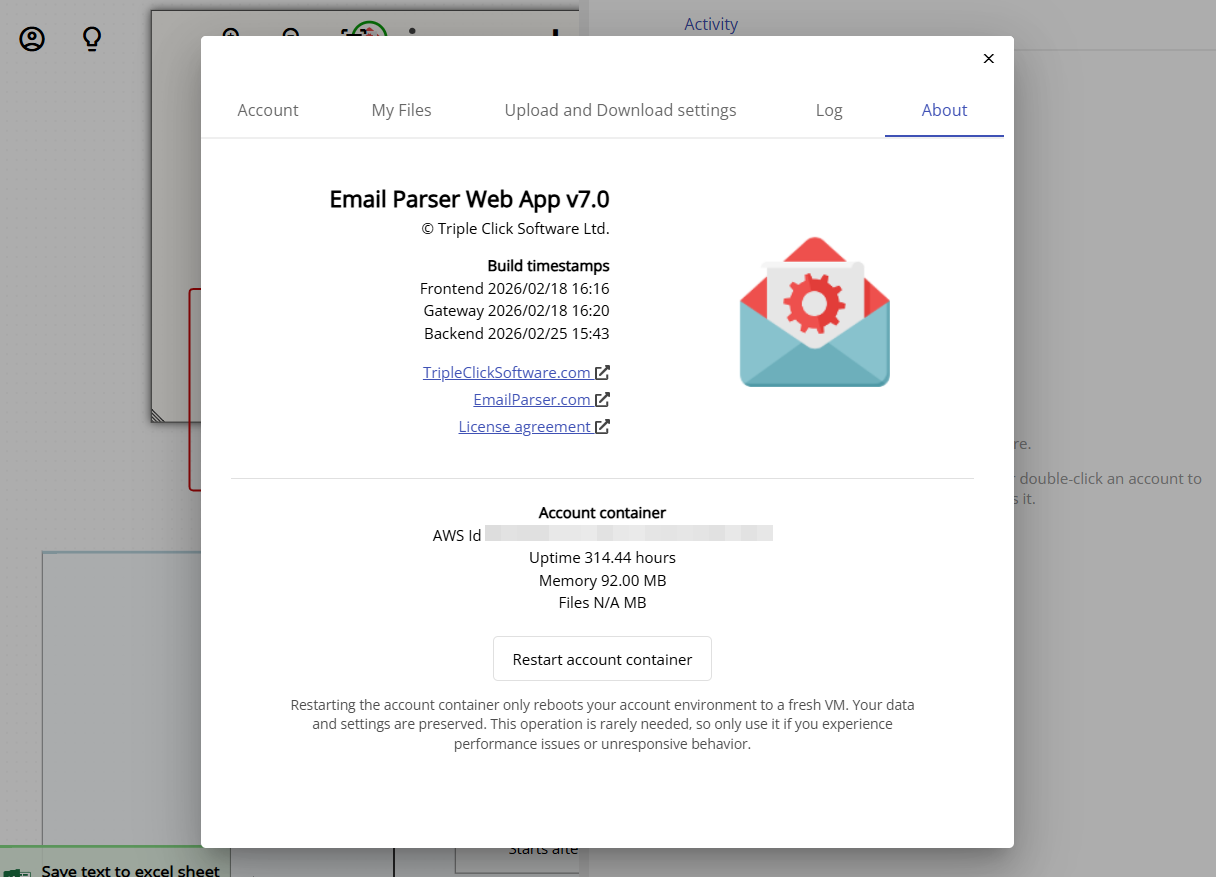
The About tab displays the current version of Email Parser and some internal technical information about the application. This can be helpful when contacting support, as you may be asked to provide your version number.
In the web app, the About tab also includes an option to restart the account container. The account container is a small virtual machine where your workflow runs on the Email Parser servers. Restarting it does not remove any of your settings or delete any data. It is only needed in the rare situation where Email Parser is not responding properly or appears to be stuck indefinitely processing an email.