How to forward an email
Email Parser provides an action called Forward current email that allows you to automatically forward the email that is currently being processed. To create this action, click on the option to add a new action and select Forward current email from the list of available action types:
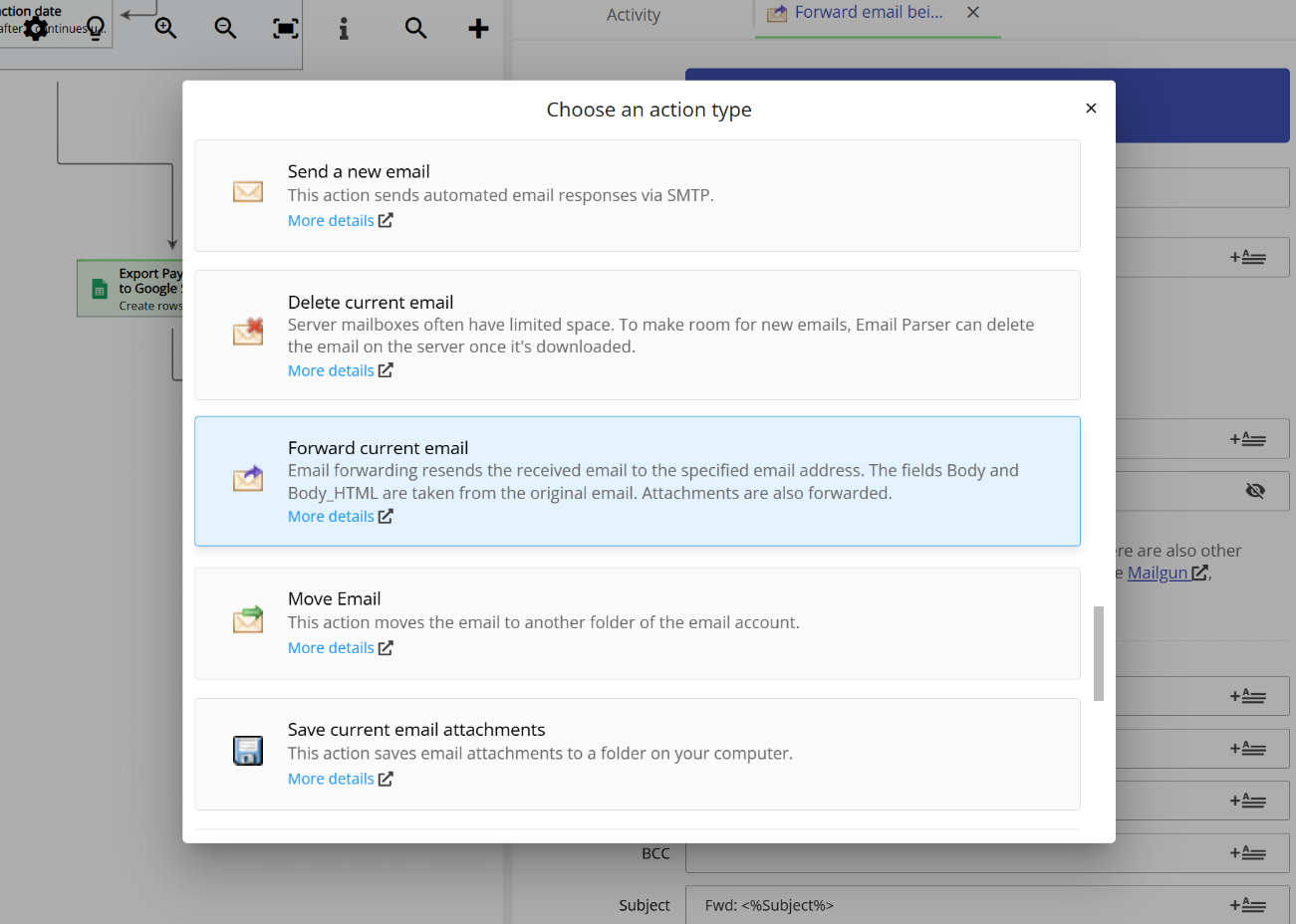
Configuring the Forward current email action
Setting up this action is straightforward. The configuration screen requires you to enter the following:
- SMTP server settings: the outgoing mail server that will be used to send the forwarded email. You will need to provide the server address, port, and authentication credentials.
- From: the email address that will appear as the sender of the forwarded email.
- To: the recipient email address (or addresses) where the email will be forwarded to.
- CC and BCC: optionally, you can add additional recipients in the CC (carbon copy) and BCC (blind carbon copy) fields.
- Subject: the subject line of the forwarded email. By default, it is set to
Fwd: [original subject], as you would expect when forwarding an email. However, you can edit it if you need a different subject line.
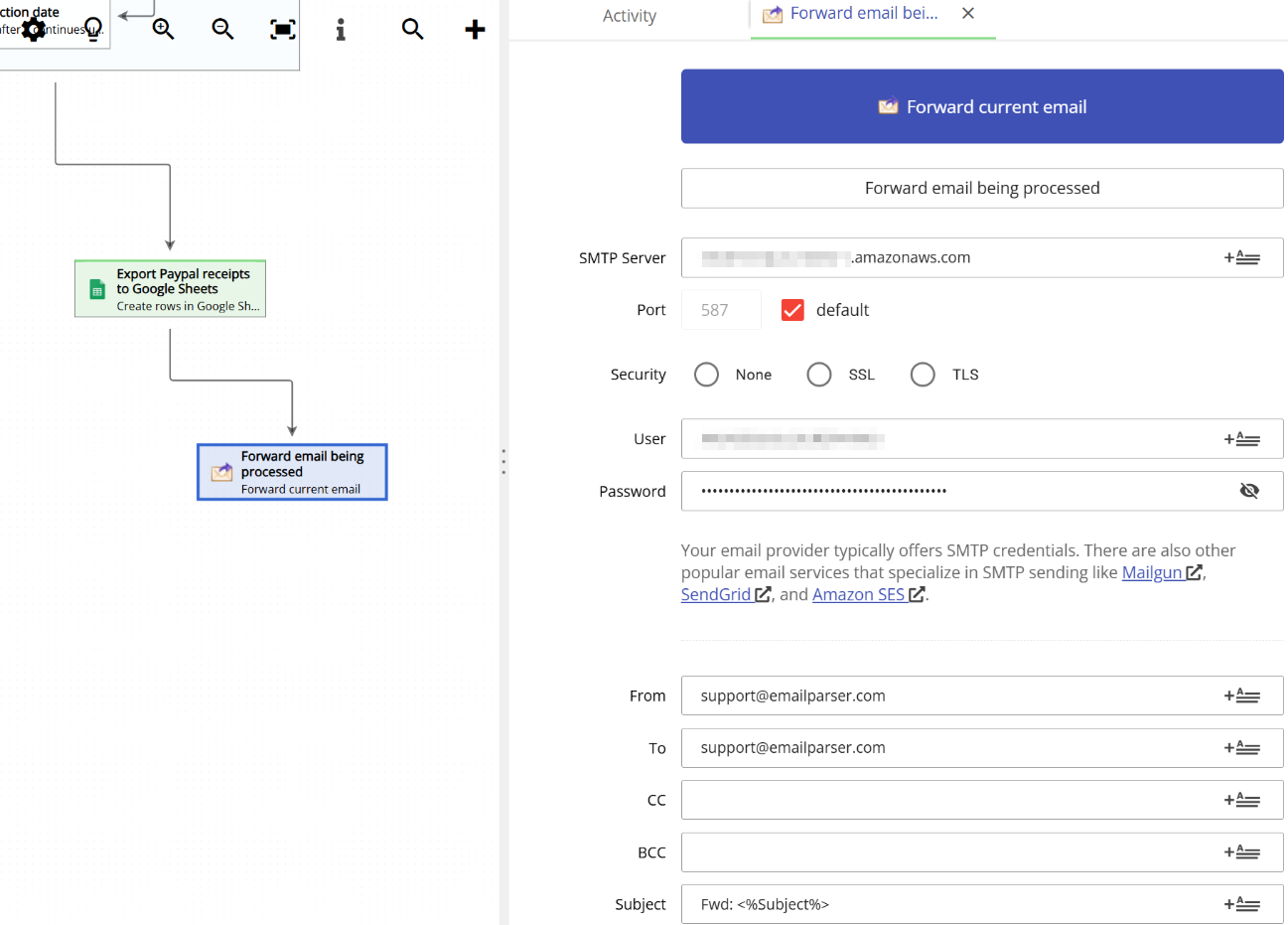
The body and attachments of the original email are forwarded automatically. You do not need to configure them separately.
Placing the action in the workflow
The Forward current email action can be placed anywhere in your workflow diagram. In the example below, it is set as the last step, but you can also place it earlier in the workflow if needed. For instance, you might want to forward the email first and then perform additional actions like saving attachments or writing data to a spreadsheet.
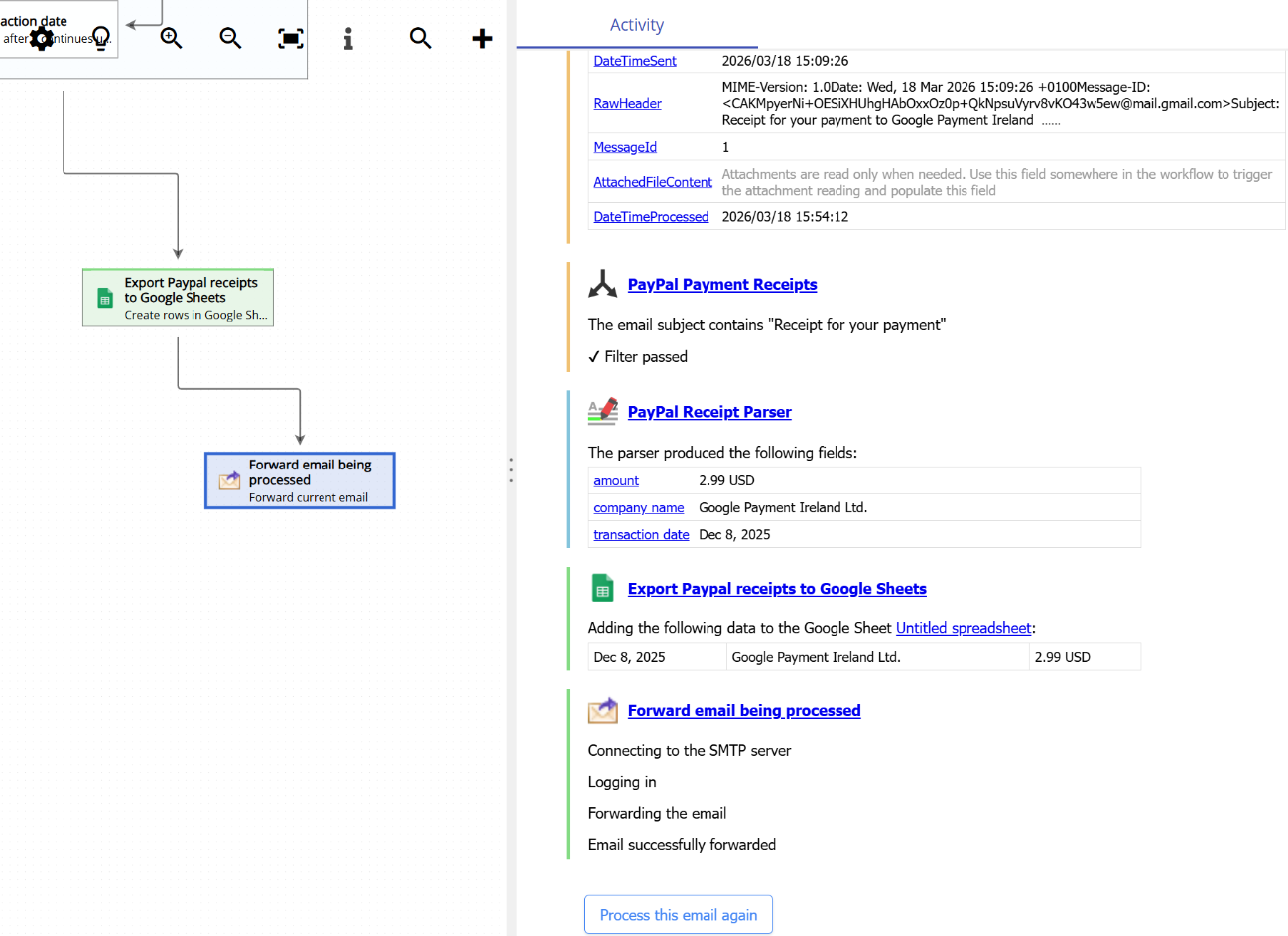
Not all emails need to be forwarded. By controlling which items in the workflow diagram are connected to this action, you can selectively forward only the emails that match certain criteria. For example, you could connect this action only to a specific parser or filter, so that only emails matching that parser or filter get forwarded.
