📝 Documentation Update in Progress
We released a significant update to Email Parser in January 2026. We are currently working on updating our documentation to match the latest version. Some pages may reference older features or interface elements.

What is the meaning of the arrows?

See also:
How Email Parser works

Email Parser uses arrows to connect the different email processing steps together. These arrows define the path that your emails will follow as they move through your workflow.

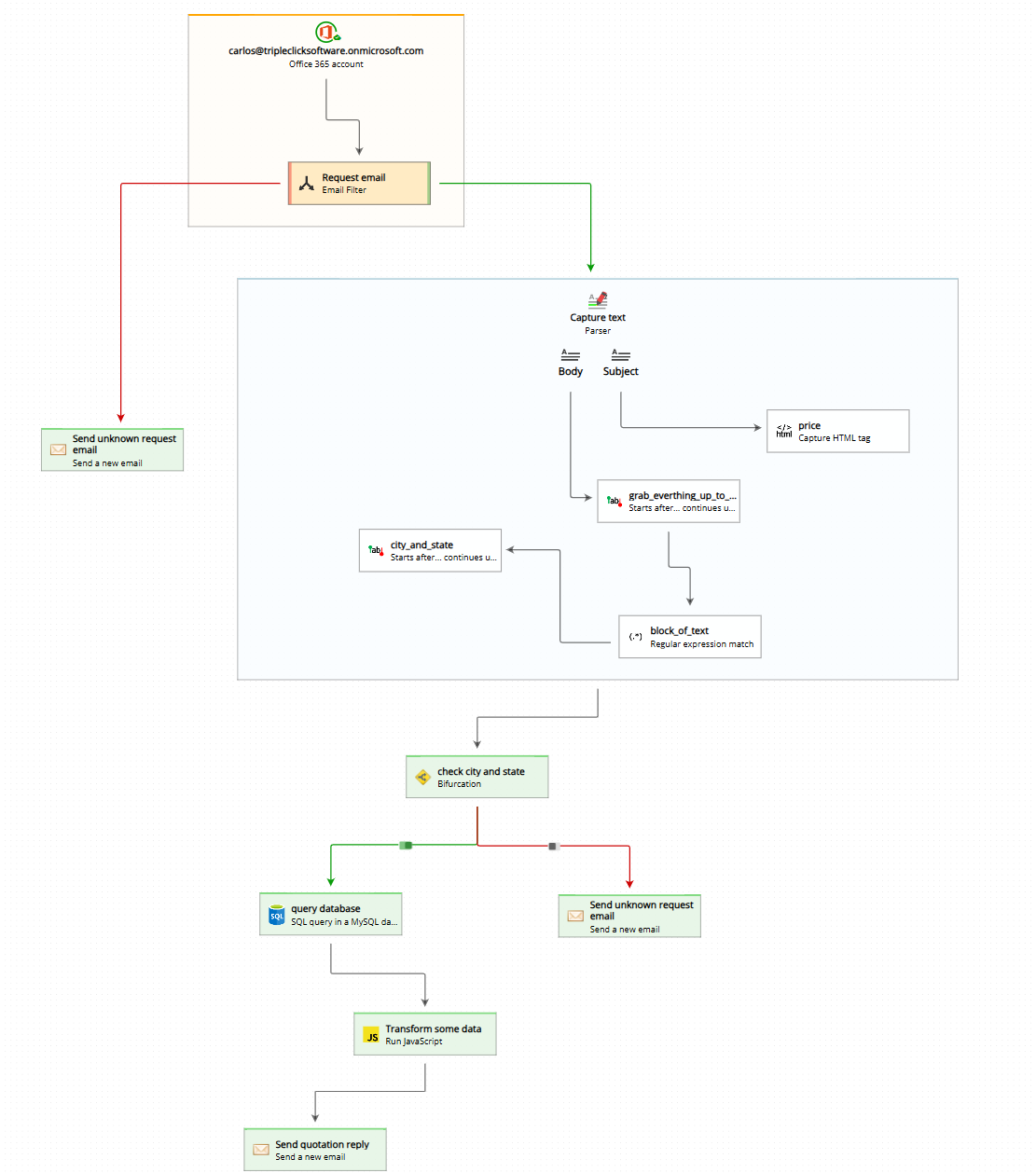
When an email arrives, it follows the arrows starting from the email account at the top of the workflow diagram (displayed on the left side of the application) all the way down to the bottom, where the final action is typically located. Along this path, the email will pass through any filter, parser, or action that is connected by arrows.

For more complex workflows, you can use bifurcations and loops. Bifurcations allow you to conditionally run certain items based on specific conditions, while loops let you run an action multiple times when needed.

Arrows also connect fields to each other, establishing a data flow relationship. When you draw an arrow from one field to another, the text captured by the first field becomes the input for the second field. This is particularly useful for multi-step text extraction where you want to narrow down your search progressively.

For example, imagine you want to extract a postal code from an email. Instead of searching through the entire email content, you could first use one field to capture the complete address (which is easier to do because addresses are usually contained within a single, well-identifiable text block), and then connect it with an arrow to a second field that specifically extracts just the postal code. This second field will only look at the address text (the output from the first field) rather than scanning through the whole email, making your parsing more precise and efficient.

parse email flow of data to export to excel

You’ll also encounter red and green arrows that originate from within an email account box. These colored arrows determine which branch of the workflow diagram should be followed based on the content of incoming emails. This is accomplished through filters that you place inside the email account box.

For instance, imagine you’re building a workflow to process emails generated when users fill out a form on your website. You wouldn’t want unrelated emails (like notifications from your bank) to continue through this workflow. A filter examines each incoming email and evaluates whether it matches your specified conditions (in this case, whether it’s actually a form submission email or not). Based on the result, the email will follow either the green arrow (condition met) or the red arrow (condition not met), directing it to the appropriate next step or stopping its processing altogether.

How can I change the arrows?

Arrows between items are created, modified, and deleted using your mouse directly on the workflow diagram. The process is designed to be intuitive and visual, allowing you to build and adjust your workflow quickly.

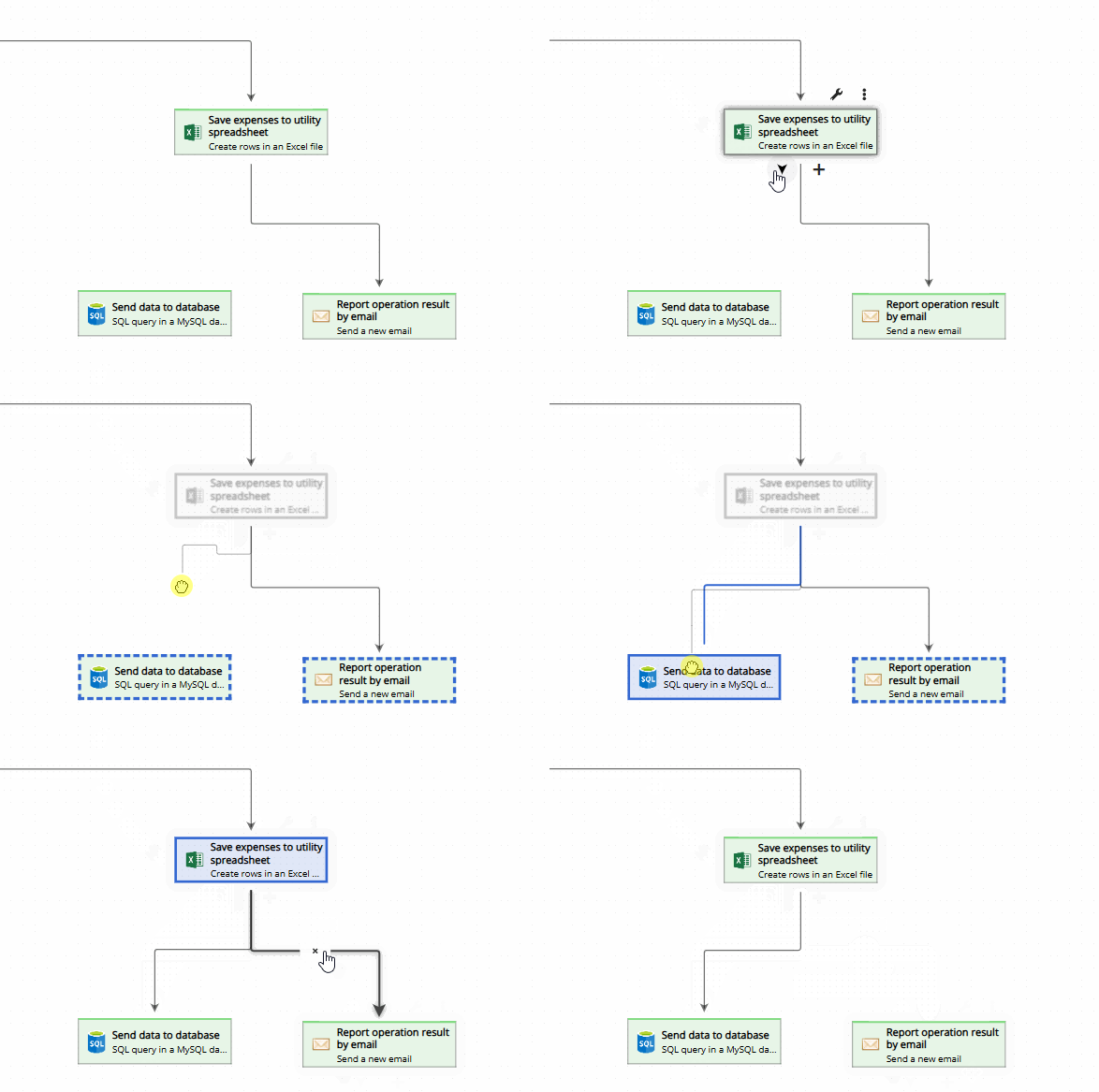
To create a new arrow, hover your mouse over the item where you want the arrow to start from. When you do this, a small arrow pointer icon will appear on the item. Click on this arrow pointer icon and drag from there to the destination item where you want the arrow to end. Once you release the mouse button, Email Parser will create a new arrow connecting the first item to the second item.

To modify an existing arrow, you can click and drag its endpoints to connect it to different items. Alternatively, you can change arrow connections by going to the item properties panel on the right side of the application.

To delete an arrow, simply click on the arrow to select it. When an arrow is selected, a small “X” button will appear. Click this “X” button to remove the arrow from your workflow diagram.

how to change arrows
What happens if an item is not connected to another item?


If an item has no arrows connecting it to other items in your workflow, it will be completely ignored during email processing. Email Parser will not consider it as part of the active workflow, and it will never be executed. Essentially, unconnected items exist in your workflow diagram but remain dormant until you connect them with arrows.

However, many users find this behavior particularly useful for workflow management. You can keep unconnected items (or even complete groups of items) in your workflow diagram as a kind of “staging area” or “toolkit” that you can activate when needed. For example, you might have a set of actions that you only want to use occasionally, or alternative processing branches that you want to test without deleting your current setup.

connecting and disconnecting branches in workflow diagram

The beauty of this approach is that it’s very easy to connect and disconnect complete branches from your workflow at any time. Simply add or remove arrows as needed, and you can quickly switch between different workflow configurations without having to rebuild items from scratch. This makes Email Parser flexible and allows you to experiment with different approaches while keeping your options readily available.


© 2008-2026 Triple Click Software Ltd.
News & Updates·Service status

Windows App privacy police and terms of use
Web App privacy police and terms of use

This site privacy police and terms of use
PAD file·Old news