Deleting processed emails from the mailbox
See also:
Moving an email to another folder
Email Parser includes an action that deletes the email currently being processed. This is useful in many scenarios, such as removing emails after they have been fully processed or cleaning up unwanted messages like spam. When this action runs, the email is permanently removed from your email account (or moved to the Trash folder, depending on your email server).
Adding the Delete current email action
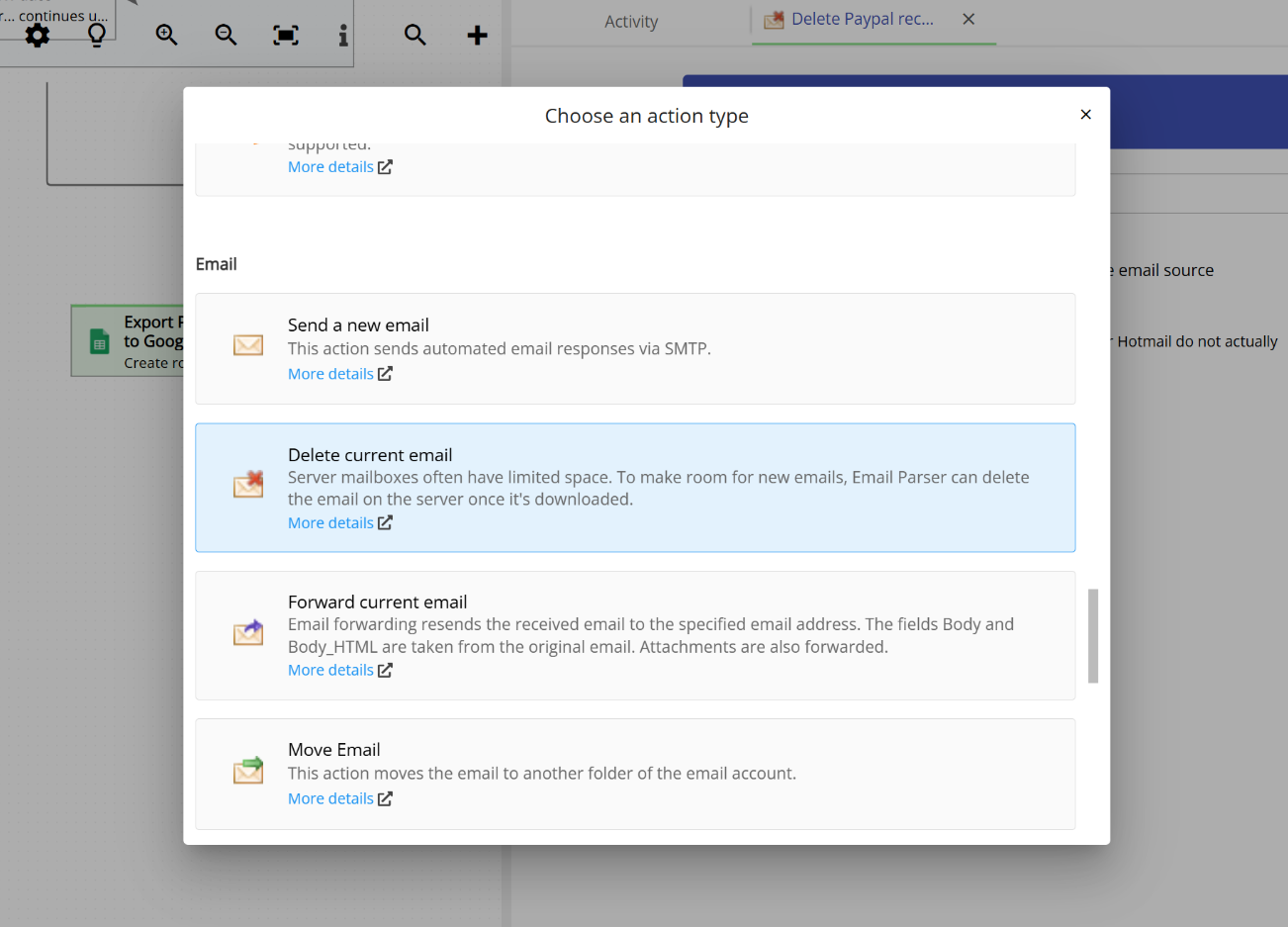
To add this action to your workflow, select Delete current email from the list of available actions. You can find it in the action selection menu as shown below:
Configuration
The Delete current email action does not require any configuration. Simply place this action in the appropriate position within your workflow. When the email processing reaches this point, the email that Email Parser is currently processing will be deleted from your email account.
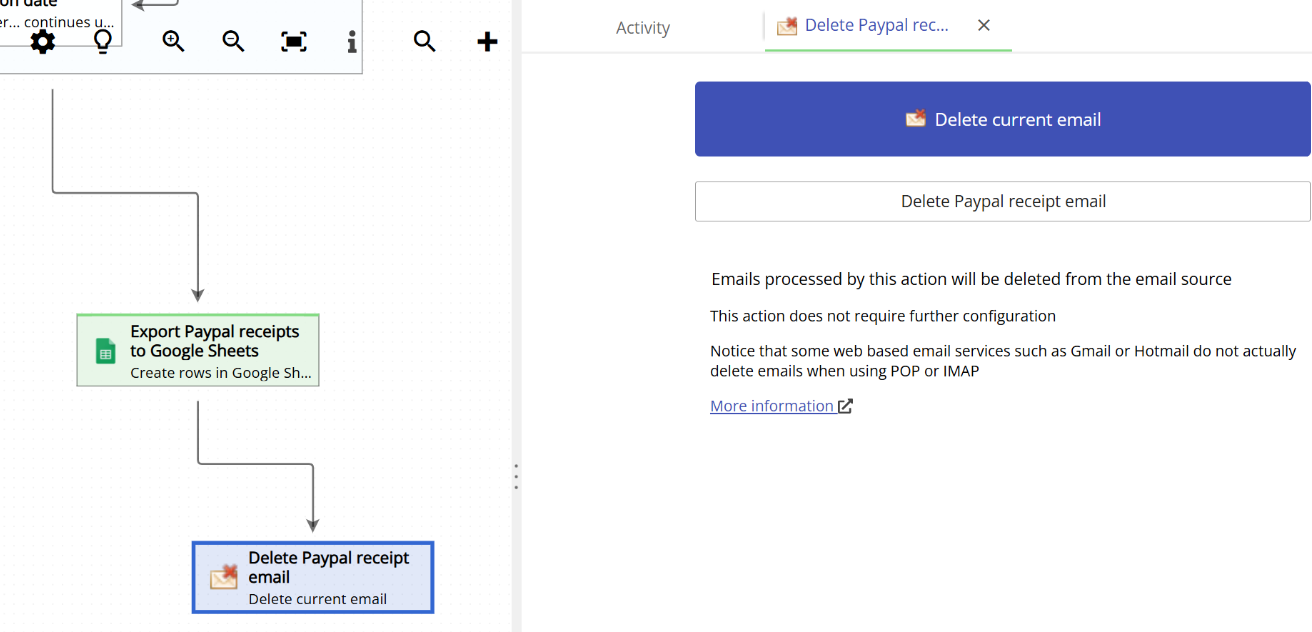
It is important to note that the behavior of the delete operation depends on your email server. Some email servers delete the email completely, while others move it to the Trash folder. Email Parser has no control over this behavior, as it is determined by the email server itself.
If you would like to move the email to a specific folder instead of deleting it, you can use the Move current email action instead. This action allows you to specify a destination folder and is a good alternative when you want to archive or organize emails rather than remove them.
Seeing the delete action in the Activity tab
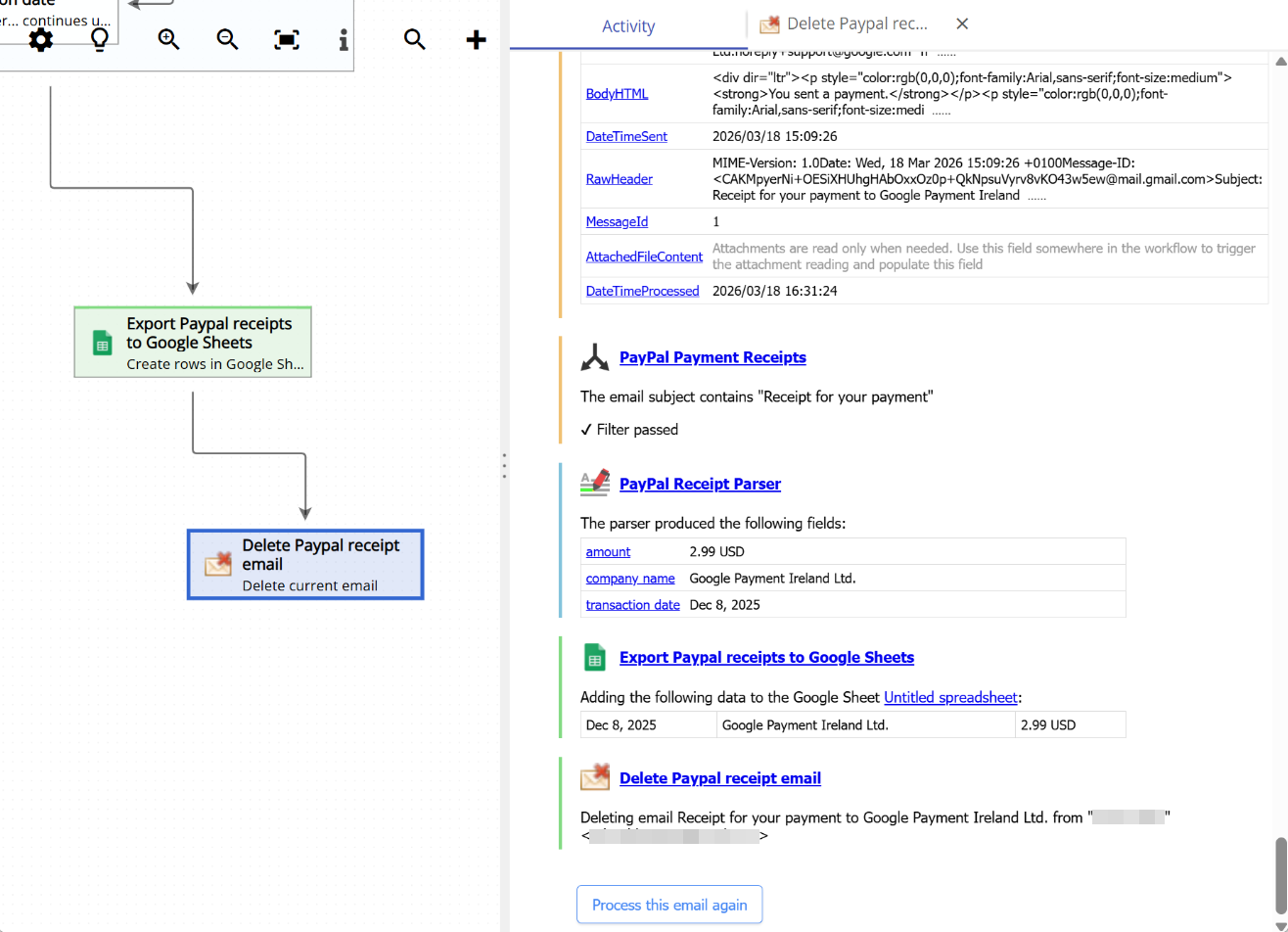
When the Delete current email action runs as part of your workflow, you can see the result in the Activity tab. The screenshot below shows an example where an email is processed through a workflow and then deleted as the last step:
Example: Using an AI agent to detect and delete spam emails
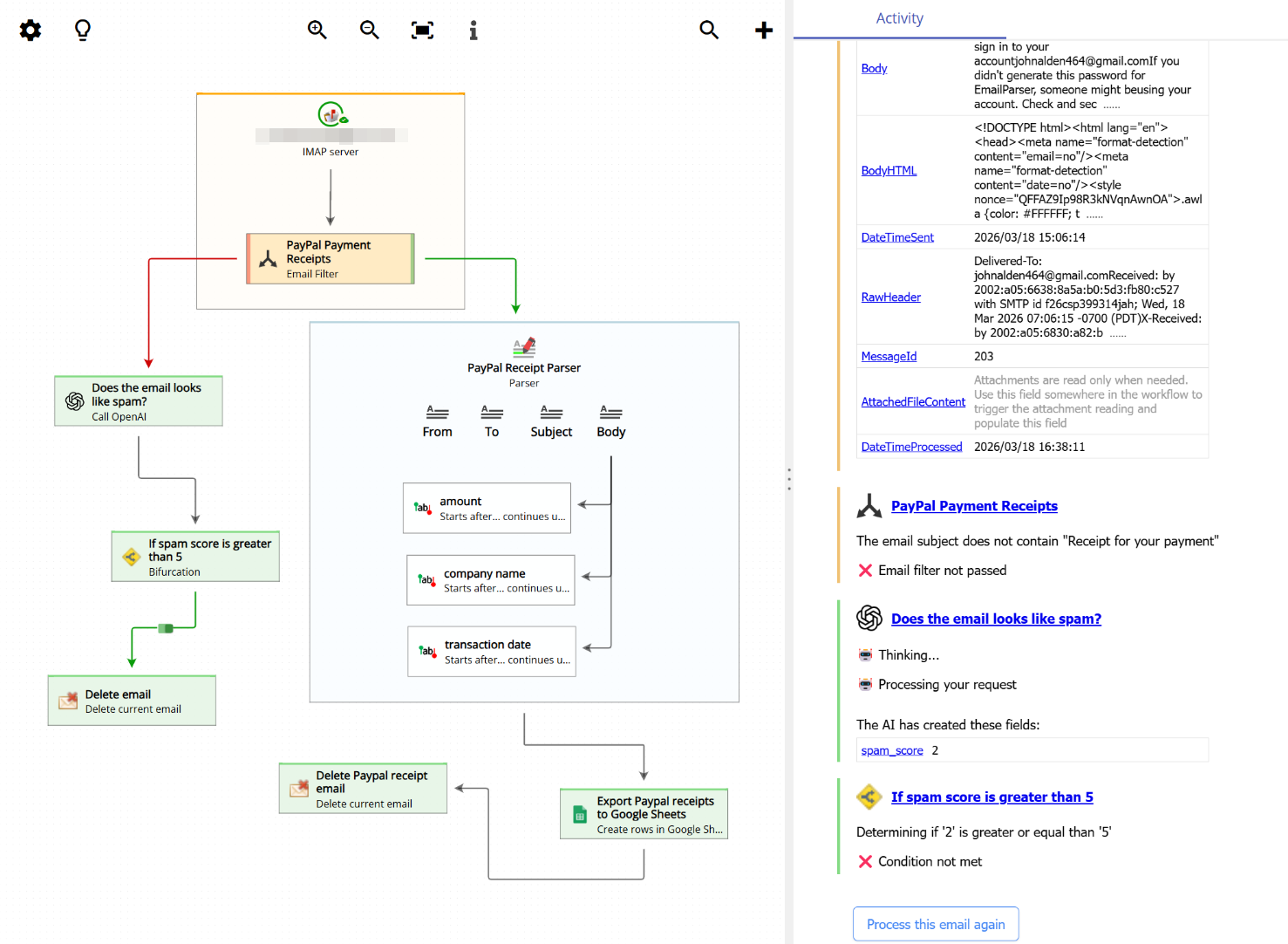
A practical use case for the Delete current email action is to combine it with an AI agent to automatically detect and remove spam emails. In this example, we build a workflow that uses the Ask AI action to analyze each email and determine whether it looks like spam.
The workflow works as follows: first, the email is checked to see if it is a PayPal receipt. If it is not, the Ask AI action runs with the prompt “Does the email look like spam?” and returns a spam score. Then, a Bifurcation action checks whether the spam score given by the AI agent is greater than 5. If the score exceeds this threshold, the Delete current email action is triggered and the email is removed.
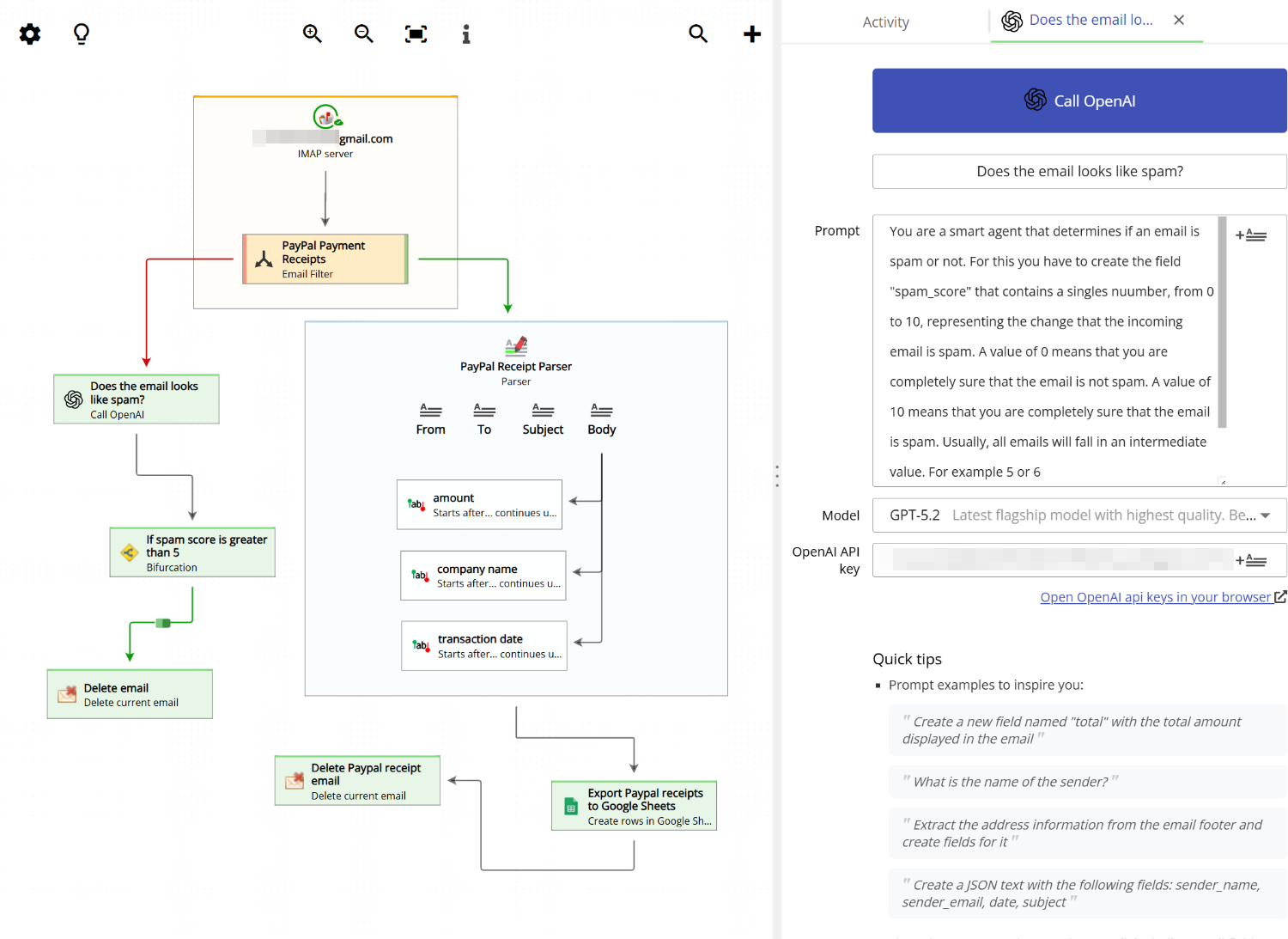
In the screenshot below, you can see this workflow in action. In this particular case, the AI agent evaluated the email and assigned a spam score of 2, which is below the threshold. As a result, the Bifurcation action determined that the condition was not met and the Delete current email action was not triggered. The email was kept in the mailbox.