How Email Parser works
See also:
What is a field?
What is an email parser?
What is an action?
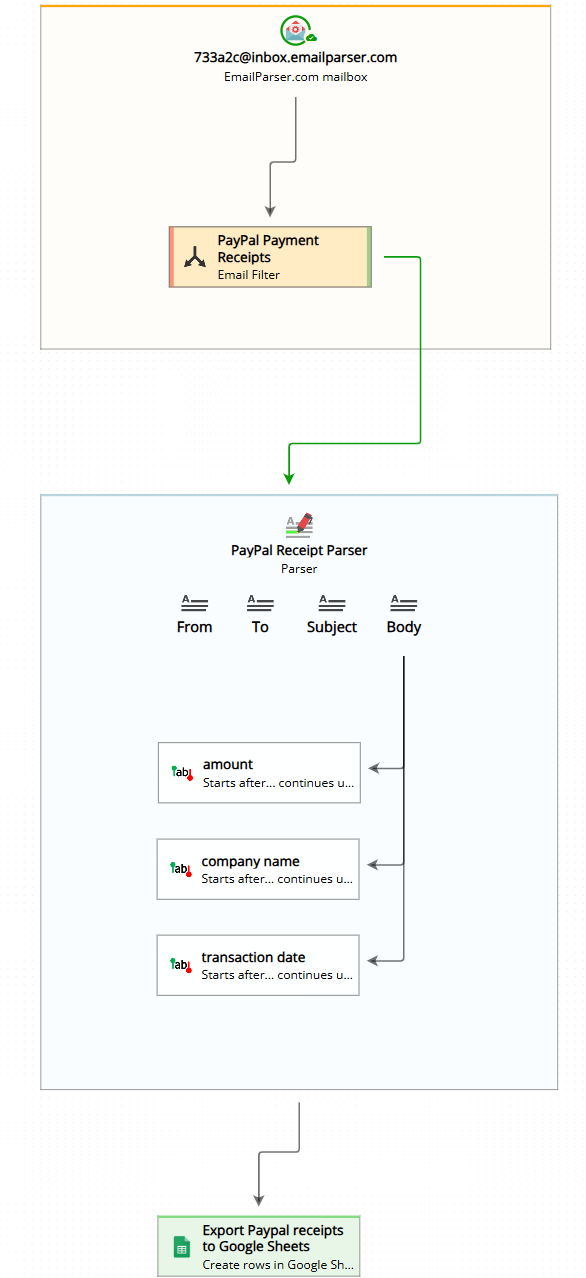
Email Parser is a tool designed to capture text from incoming emails. It bridges the gap between the emails you receive and various destinations such as a database, a spreadsheet, or any other program that needs to work with email contents. The email processing workflow is organized visually in the workflow diagram (displayed on the left side of the application), which shows how different components connect together.
The three main steps of email processing
As you can see in the workflow diagram, Email Parser organizes the email processing workflow into three distinct steps that work together:
- Email accounts: Emails are downloaded from your email server. These are the email accounts you configure to receive messages from.
- Email parsing: Each received email is analyzed to extract specific pieces of text. This step is known as email parsing, where you define what information to capture from your emails.
- Actions: Finally, actions are performed using the text extracted in the previous step. These actions can send data to spreadsheets, databases, web services, or other destinations.
How the workflow runs

Email Parser will automatically run the parsers and actions when a new email arrives in your configured email account. You can also manually process emails by selecting them from the list. This gives you flexibility to test your workflow or reprocess specific emails as needed.
In the example below, we are exporting email data to a Google Sheets spreadsheet. The workflow processes incoming emails and automatically adds the extracted information as new rows in the spreadsheet:
The results

After processing the emails through the workflow, the extracted data appears in your destination. In this example, each email’s information has been captured and inserted as a row in the Google Sheets spreadsheet, making it easy to organize and analyze your email data: